
Leica LUX App + LUX Grip Overview & Settings
In this blog I will give you a brief overview of the Leica LUX app and grip. I will also share how I set it up and use it for my photography. This is a more technical write up, however I already published a photography focused one you can read here.
For full transparency I want to state that this blog is sponsored by Leica. They paid me to use and showcase the Leica LUX app and grip. With that said, I only say yes to sponsorships that align with me, and as someone who is already a Leica owner, this partnership felt right.
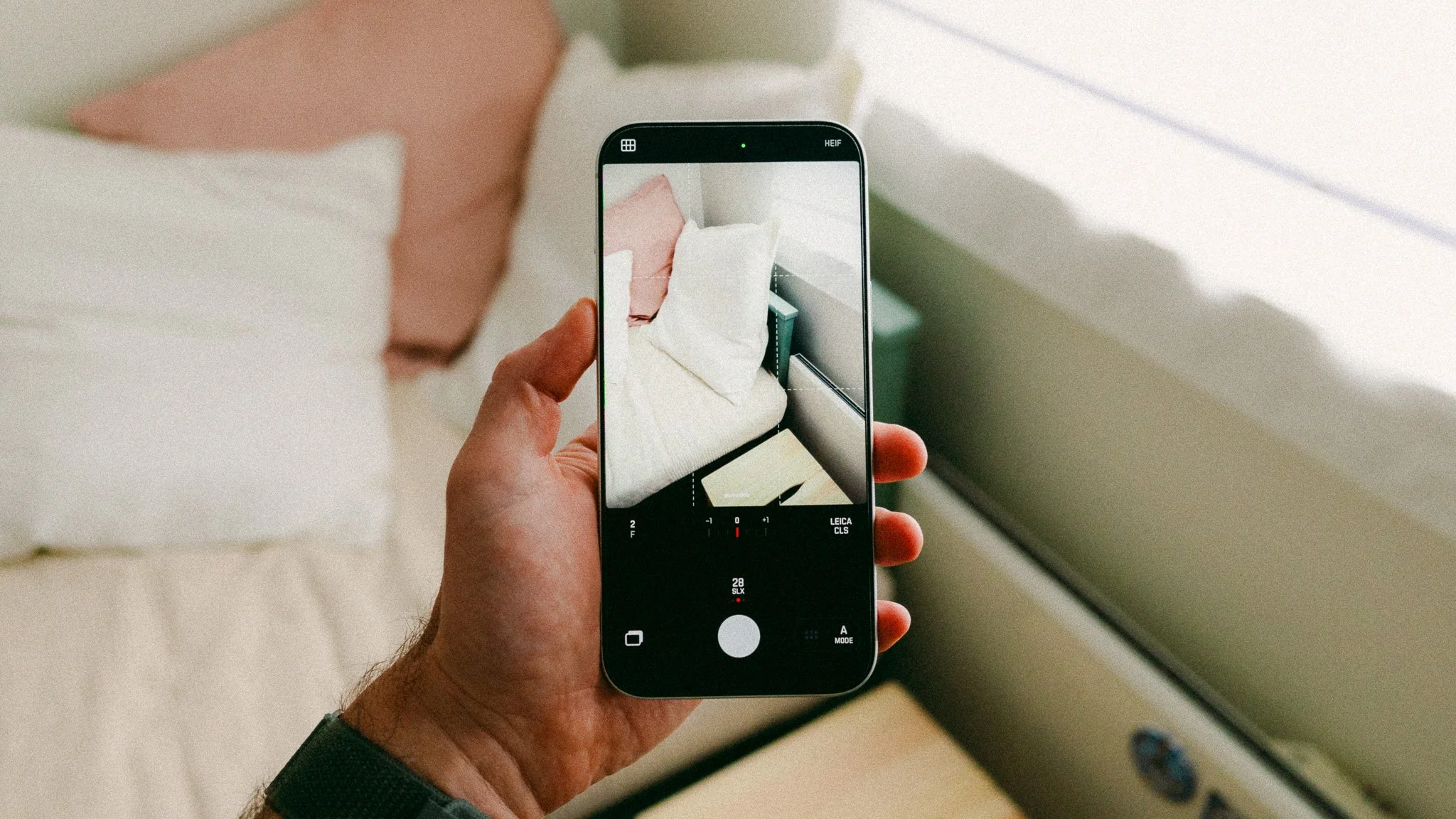
Leica LUX / Grip Overview
Leica LUX is a dedicated photography app designed to give you more creative options as well as remove distractions. The app has two modes that offer two different experiences. The Photo mode gives you full manual control, RAW photography, and a minimal interface. The Aperture mode introduces unique lens characteristics modelled around Leica’s physical lenses.
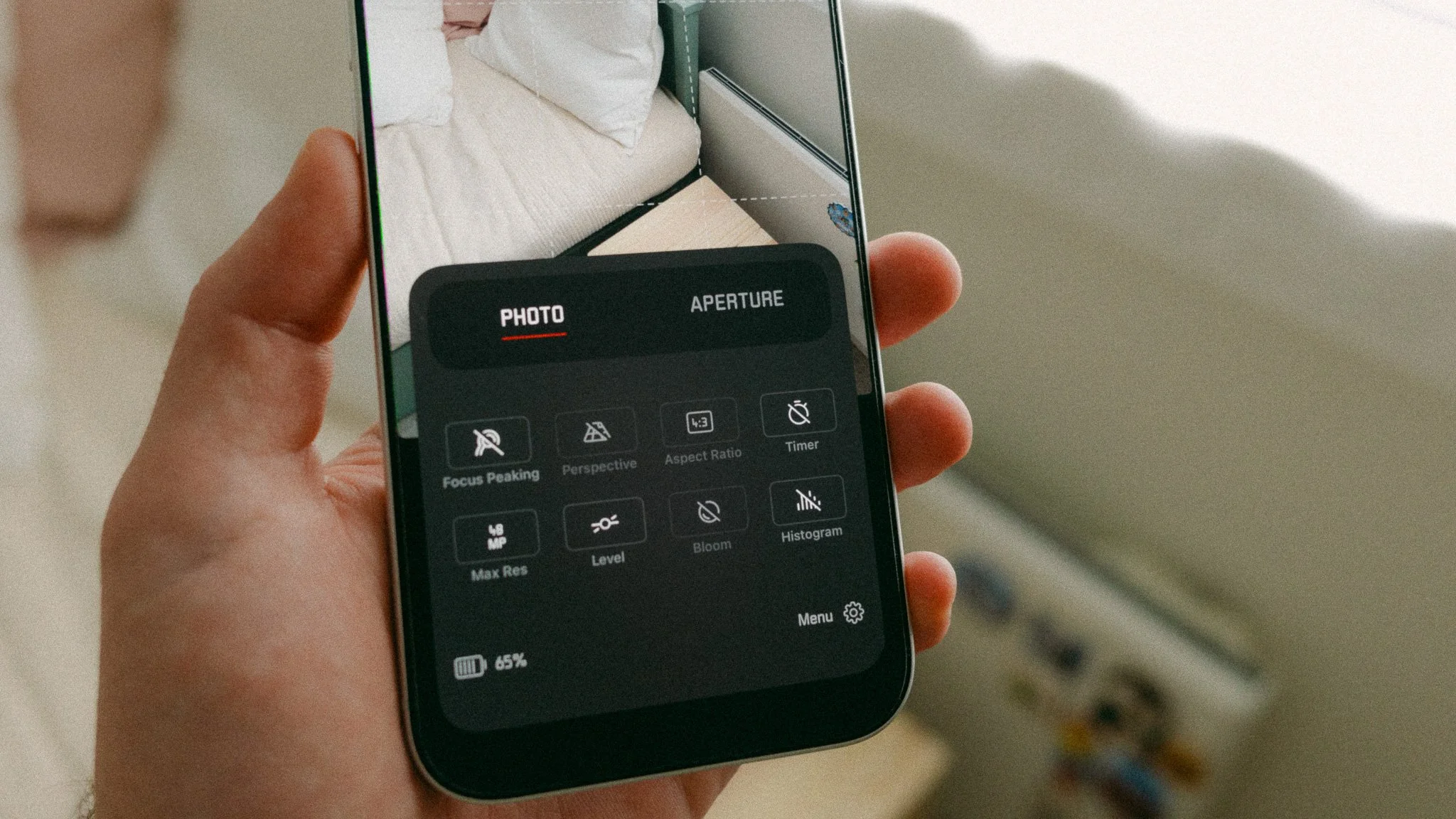
On top of that, you get Leica Looks which give your photos that distinct Leica colour science and feel. The Photo mode is what you use for work, manual shooting, and RAW photography. The Aperture mode is for fun and stylised photos you can share right away.
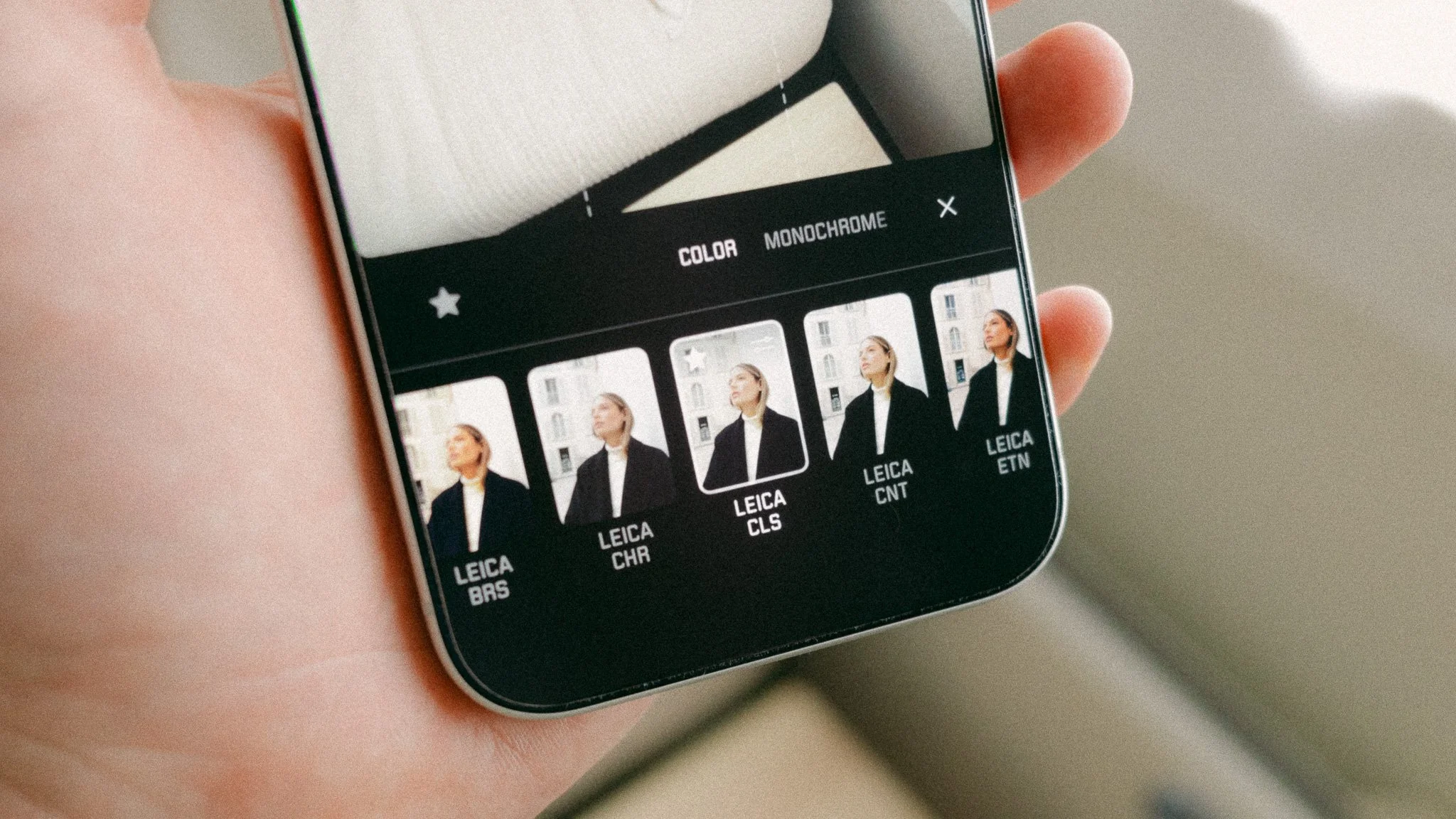
Why use this app over the default camera app? The default Apple Camera app is great, however it’s more of a content creation app that offers everything under one roof. The Leica LUX app is a photography only experience that removes all other distractions. The Leica LUX app is also the choice for those wanting more control over the final image straight out of camera.

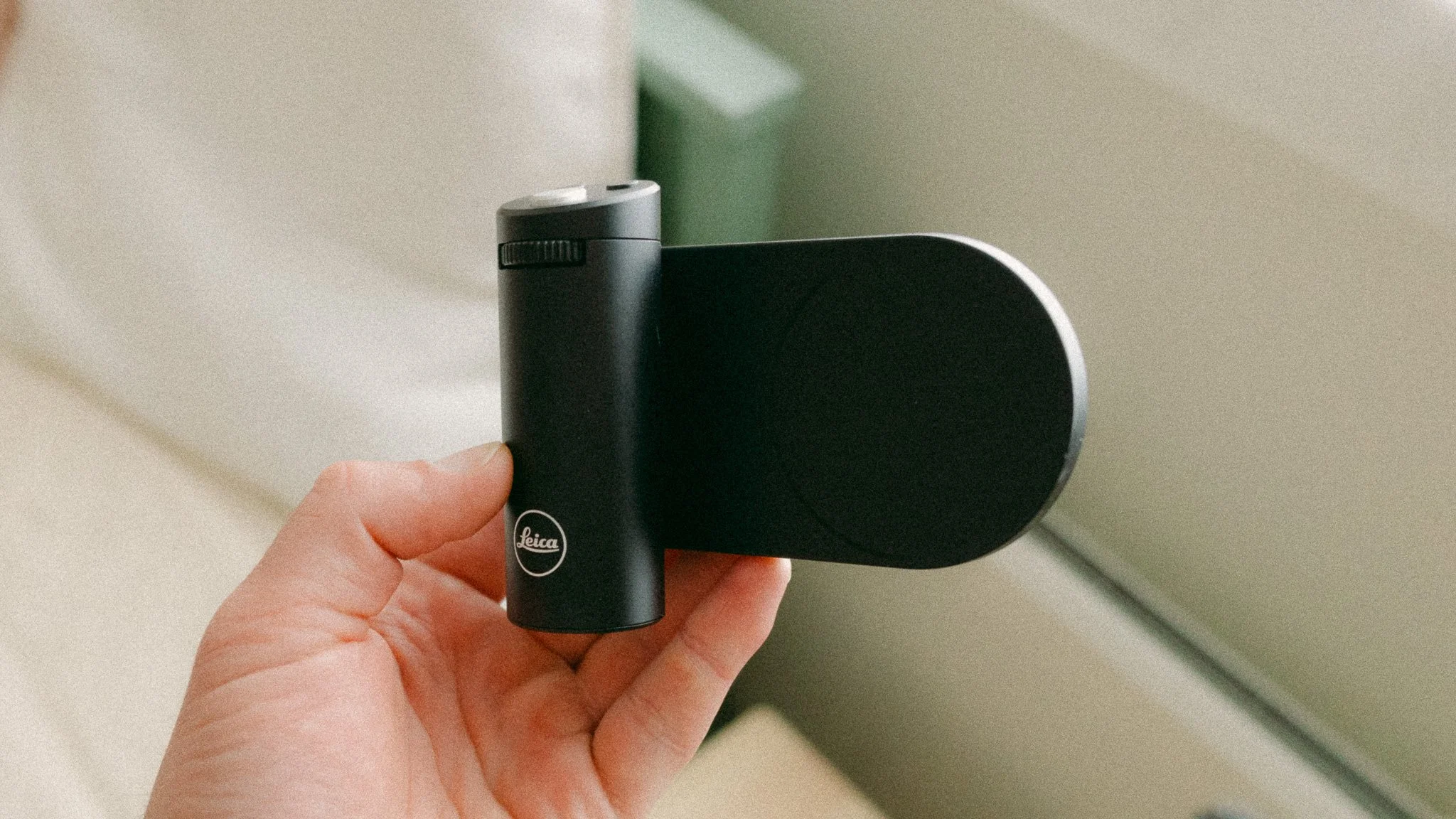
The Leica LUX Grip is designed to build on the app experience by giving you physical controls and a proper grip. You get a two stage shutter button, a dial, and two custom function buttons. The shutter allows for focus and exposure lock, as well as shooting. The dial lets you adjust settings such as exposure, and the function buttons can be customised to a number of tasks.
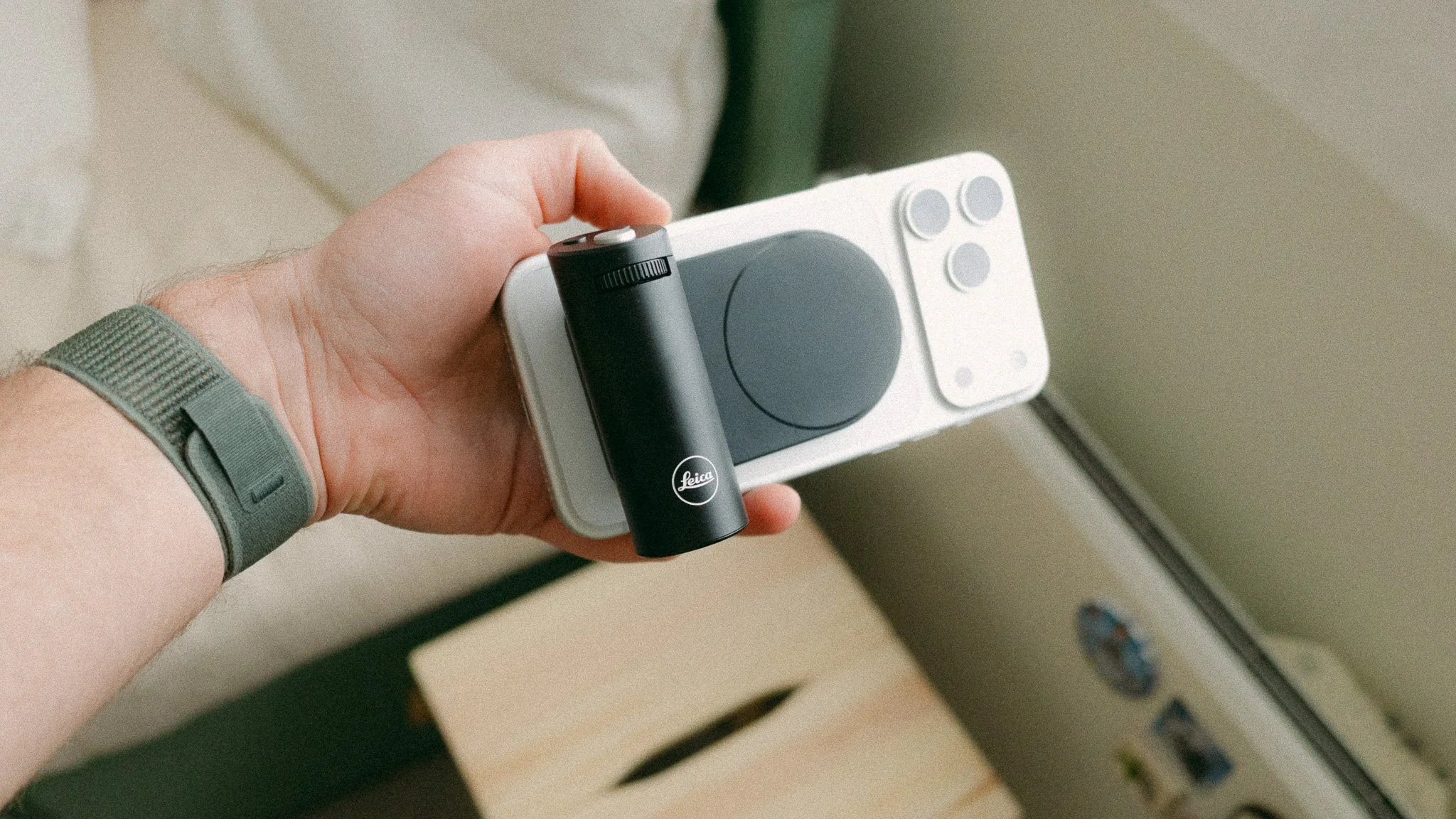
The grip connects via Bluetooth and attaches using MagSafe. It can be mounted vertically or horizontally, or even used as a remote trigger. The grip has a full metal build and just like the cameras, feels very premium and durable.
App Settings
I will now cover the settings that make the biggest difference to me. There is no such thing as the correct or best settings, as it’s very personal.
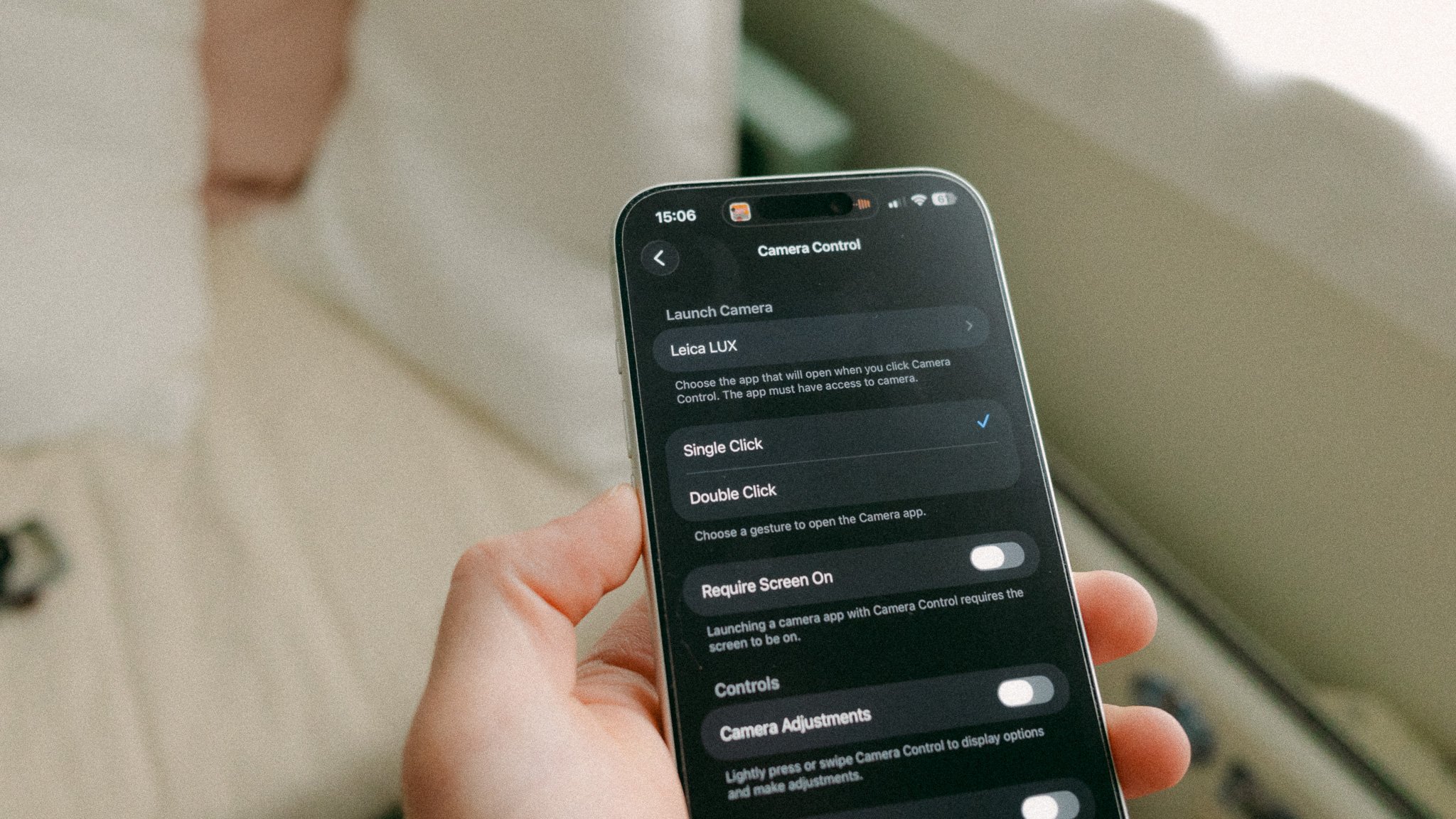
Camera Control - If you have an iPhone 16 or 17 with a camera control button, you can customise it to trigger the Leica LUX app instead of the default one. Furthermore, you can set it to trigger the app without needing to unlock the phone first. This saves so much time and allows you to get the shot much quicker, as you can trigger the app even when the phone is still in your pocket. You can access this by going into Settings > Camera > Camera Control > Launch Camera. Make sure Single Click is switched on and Require Screen On is switched off.
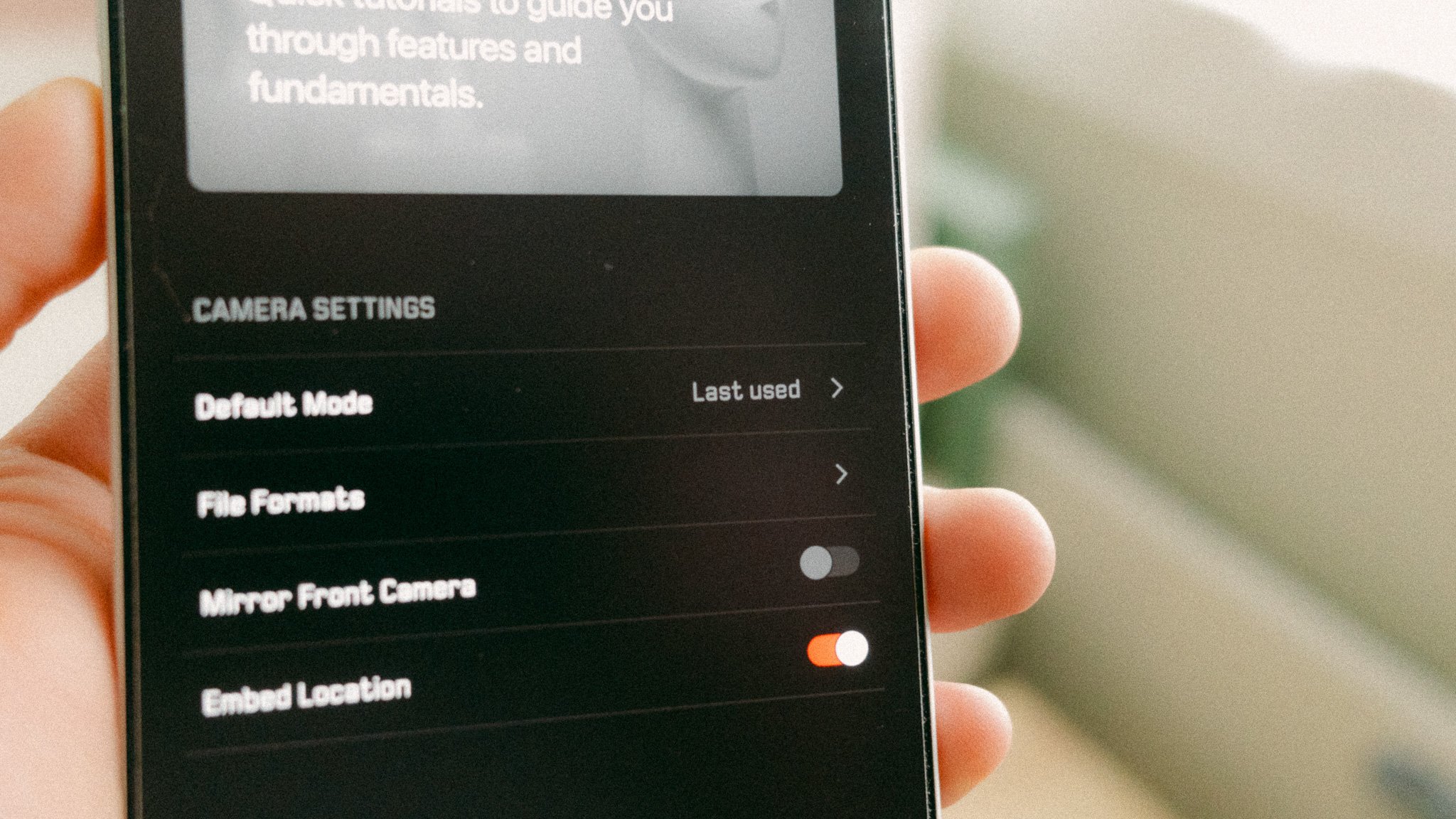
Default Mode - Now it’s time to open the LUX app and head into the main settings. The first thing is to set the default mode. This is where you tell the app what mode to open in when you boot it up. I set it to last used.
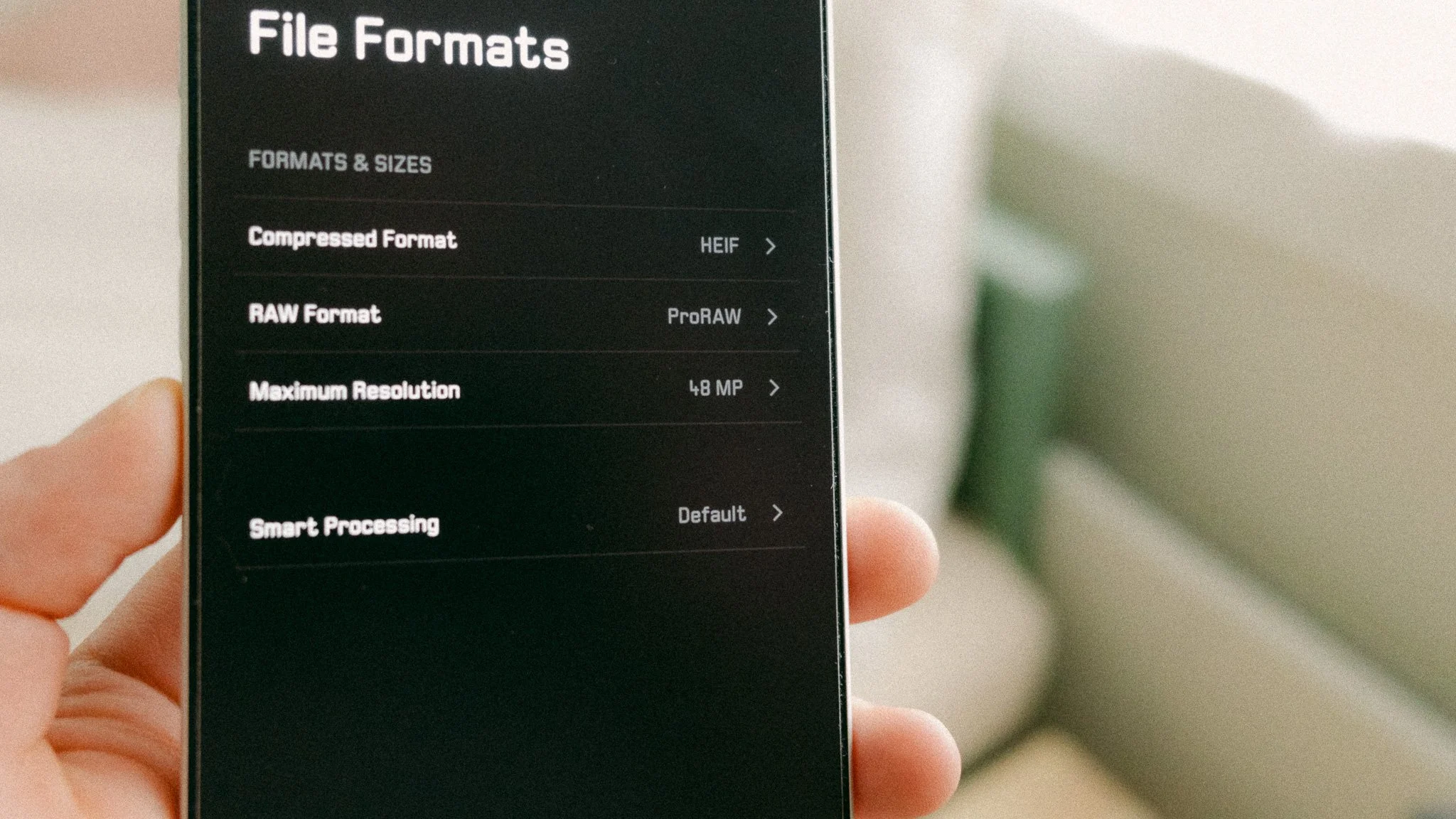
File Formats - For compressed format I set it to HEIF. You can use JPEG if you plan on sharing photos online, but I prefer HEIF due to the smaller file size and the fact that everywhere I share my work now accepts this format. RAW format is set to ProRAW as I personally like this format and get great results. Max resolution is set to 48 and smart processing is set to default.
Haptic Feedback - I leave this on as it helps confirm a photo was taken when using the grip.
Shooting Screen
When you launch the app, you would notice 4 shortcuts, one on each corner of the display. 3 of them can be customised by long pressing and choosing from a list of options. I have mine set as follows:
Top Right - File Format (to quickly switch between RAW / JPEG)
Top Left - Grid On / Off
Bottom Right - Leica Looks (this is always there and can’t be changed)
Bottom Left - Flash On / Off
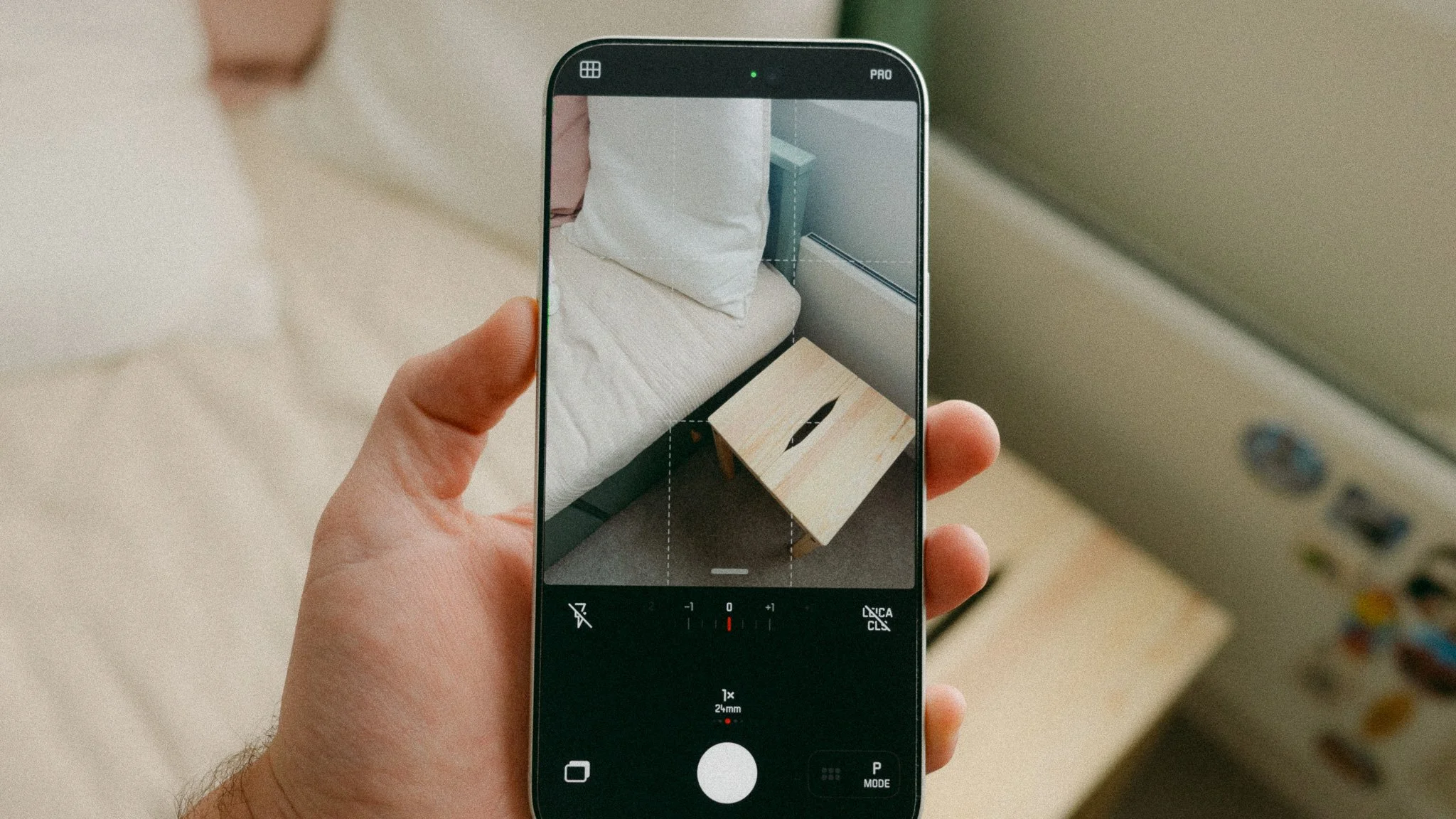
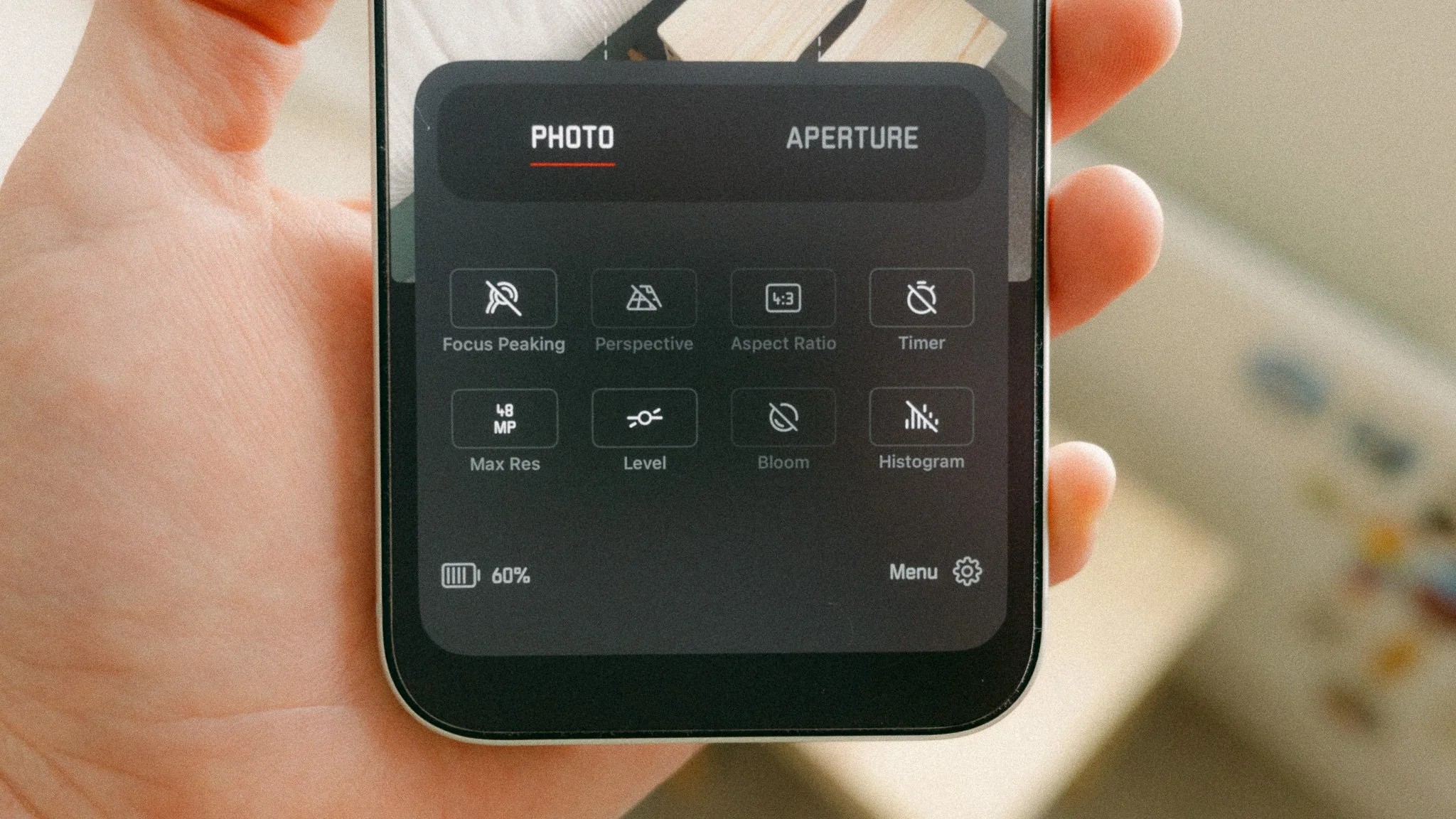
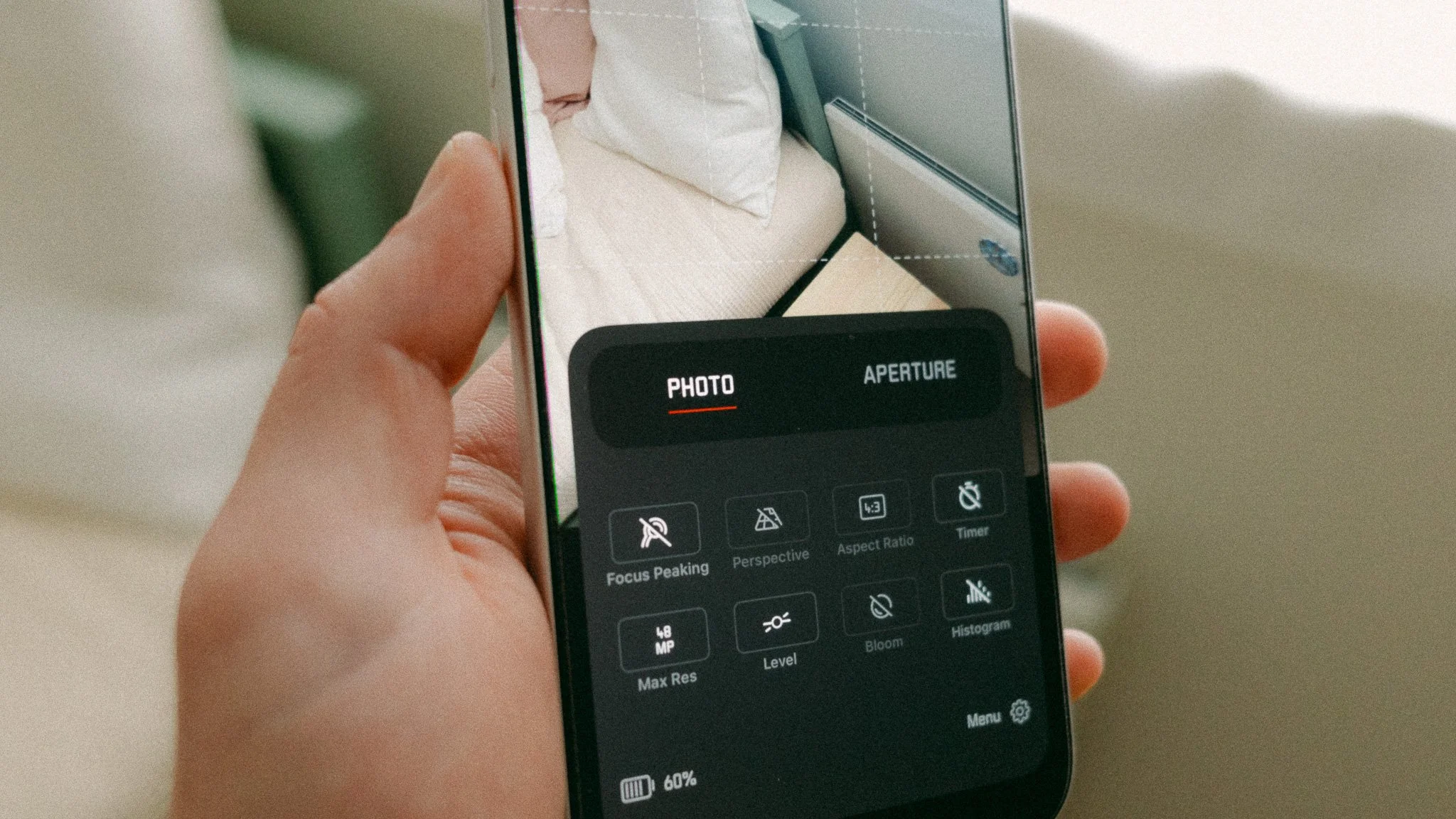
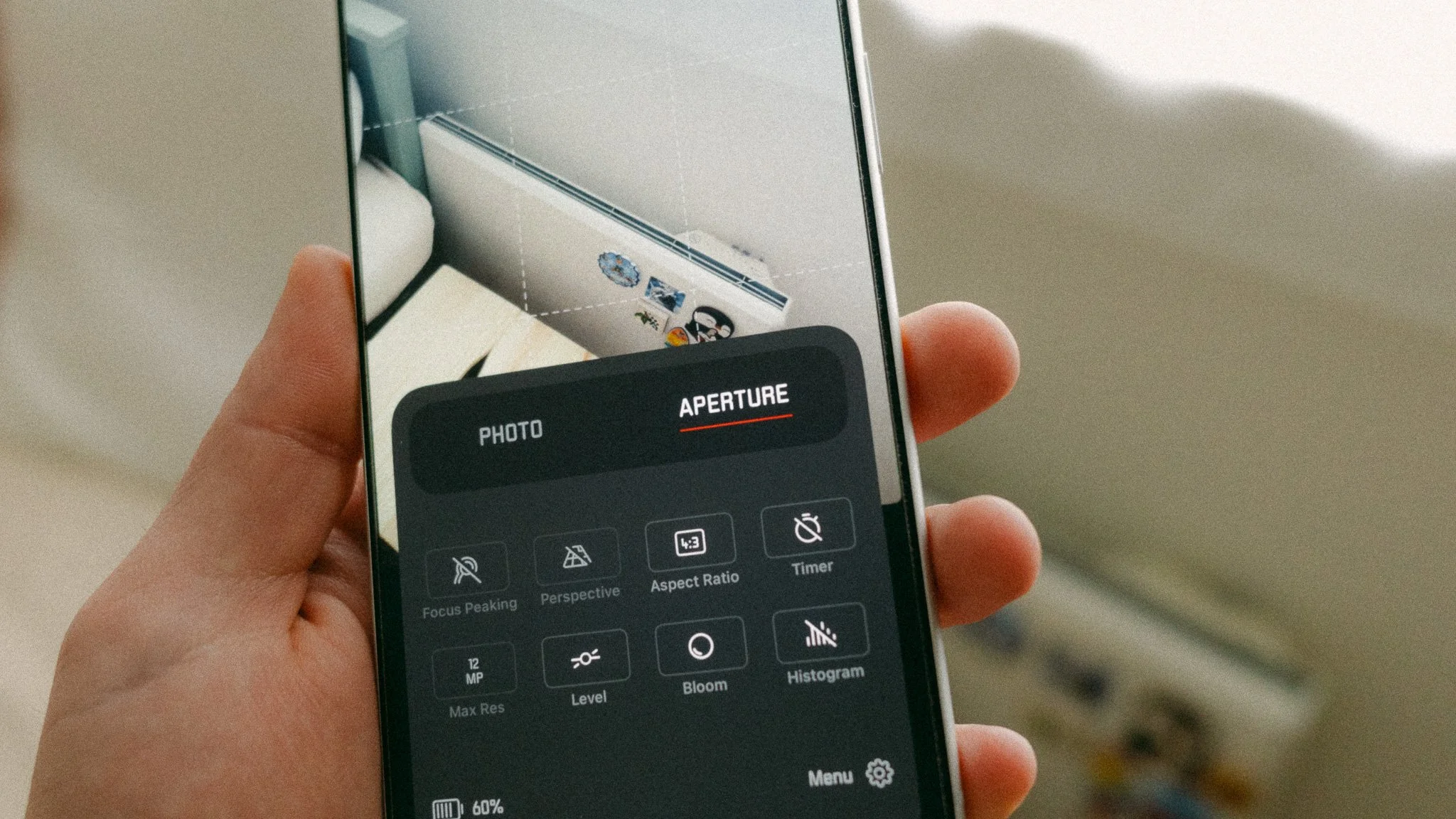
Splash Screen / Quick Menu - When you are on the main shooting page, you will see a button with six squares right next to the P mode / A mode button on the bottom right. Clicking this will open a quick menu or splash screen that houses a few more options. If you press and hold any of the menu items, you can change them to something else. This is how I have them set.
File Formats - When you tap the file format icon, you will cycle between three options: Pro, HEIF, and Pro HEIF. The first one is for full RAW photography and you will get a neutral RAW file. The Leica Looks will not be available for this format. The HEIF (or JPEG) mode will open up the Leica Looks as well as other features such as Perspective, Blooming, etc. The last one combines RAW and HEIF, however I don’t like using it, as I prefer to keep them separate because my approach to photography changes based on the mode I’m using. I will cover this more in the upcoming sections.
Manual Controls - Just above the exposure compensation dial you will see a small toggle. If you swipe it down, you will get more options that enable manual shooting. Please note that this only works in Photo mode. You can click on each item to lock a specific setting such as shutter speed, or to set it manually to a different value. The same applies to focusing and white balance. Keep in mind that enabling some of the manual controls will reduce the resolution from 48 to 12MP. This is due to iPhone limitations.
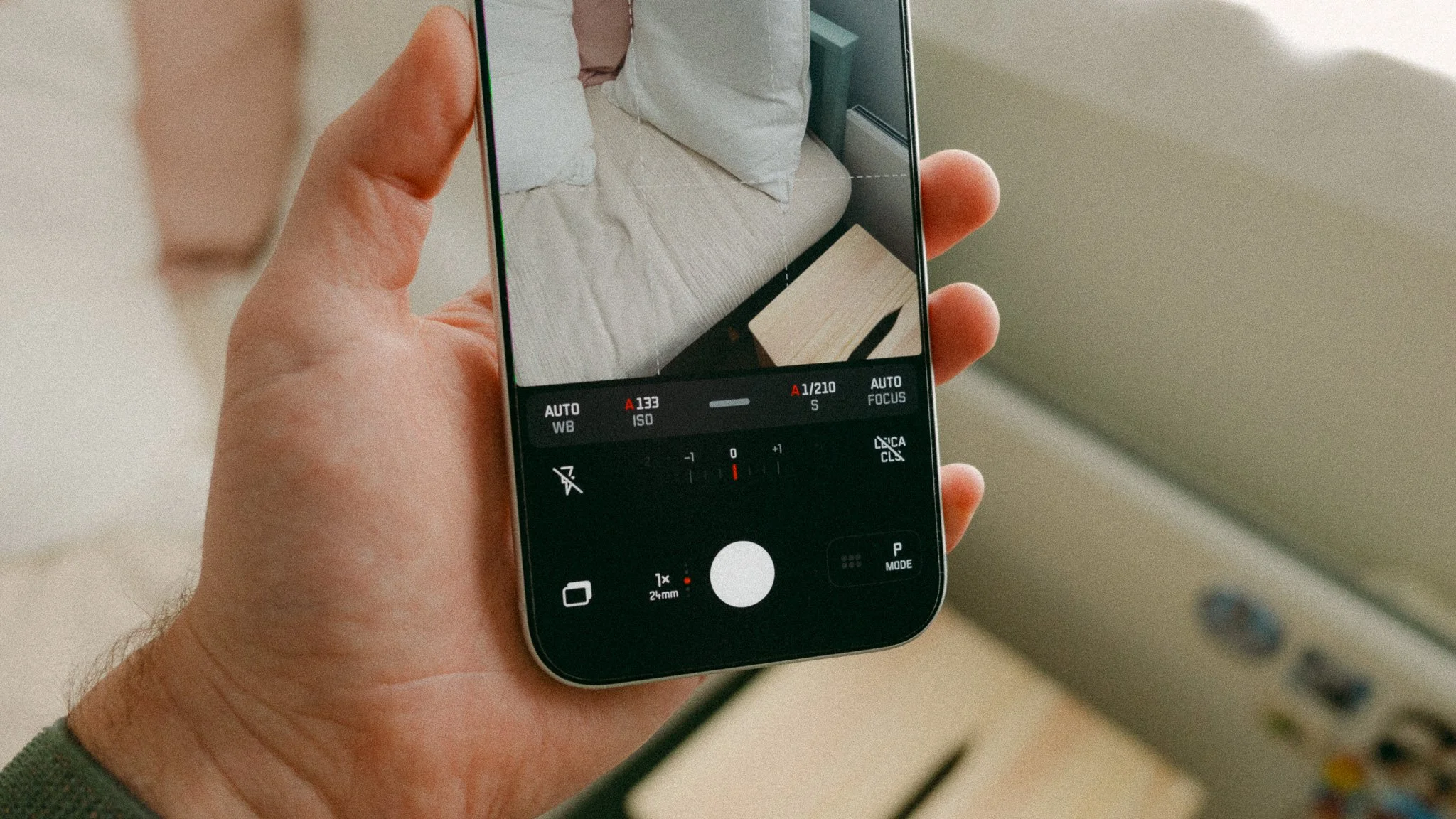
Photo Mode
The Photo mode is where you go for a minimal photography experience and the best image quality. If you want a RAW 48MP file, then this is where you need to be. This is the mode I use for serious photography that I plan on editing later in Lightroom. I shoot exclusively in RAW and treat it like a real camera. When you shoot RAW, you will lose all creative features such as Blooming, Leica Looks, Perspective, etc. You will also get access to the default lenses just like any other app. I spend most of my time in this mode.
Aperture Mode
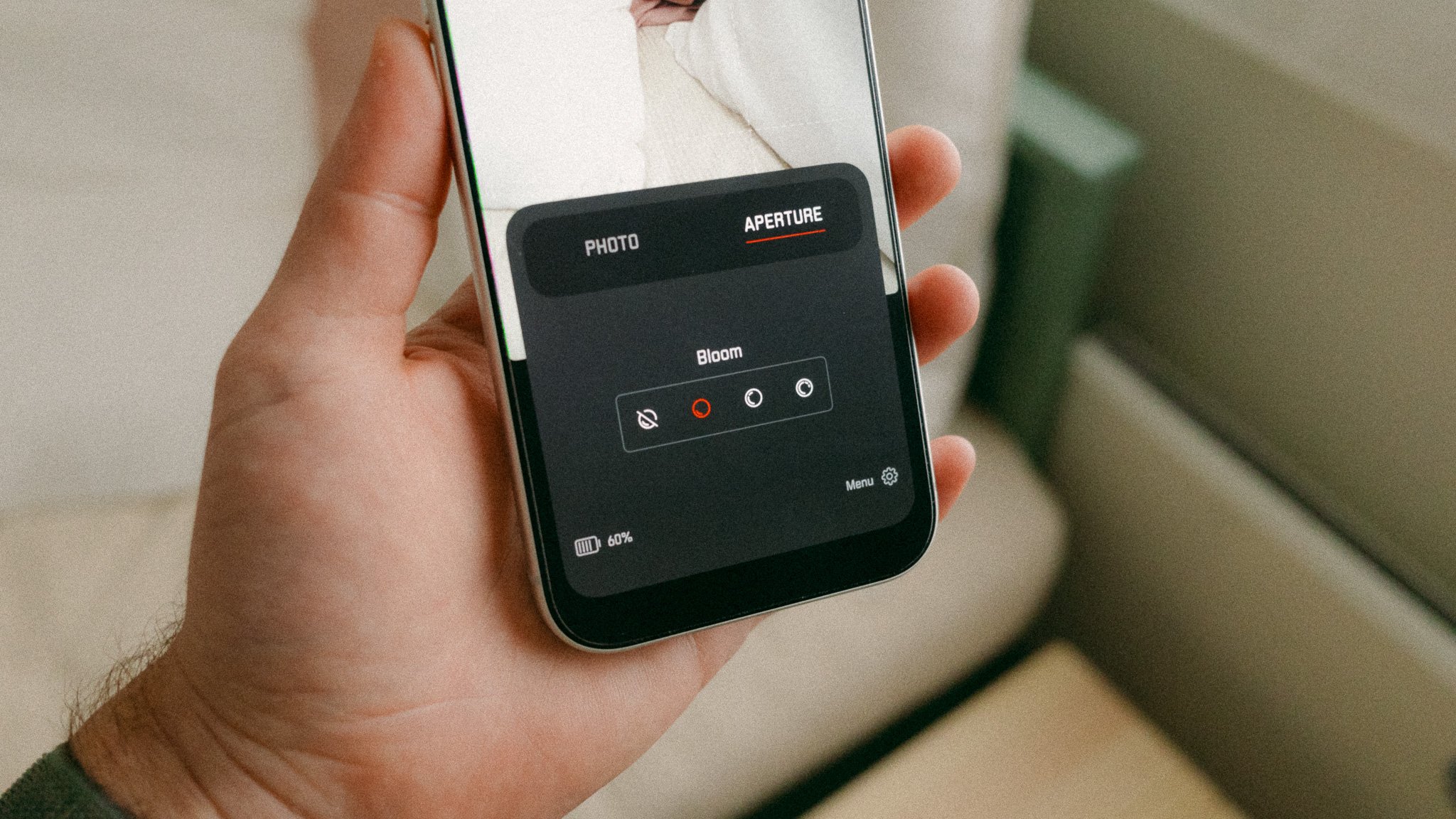
This is the fun mode for me. It’s where I can experiment with different Leica Looks and even simulate some of their classic lenses. I use this for random snapshots and not for my serious photography. I can see most people shooting in this mode because of all the creative choices and the fun aspect of it. Of course everything is 100% software based, which means you can change the look even after you’ve taken the shot. Think of this like the recipes and simulations on Fuji cameras, but for your iPhone and in Leica style.
My Go To Looks
After some time playing with all the options, I’ve summarised my favourite looks and settings.
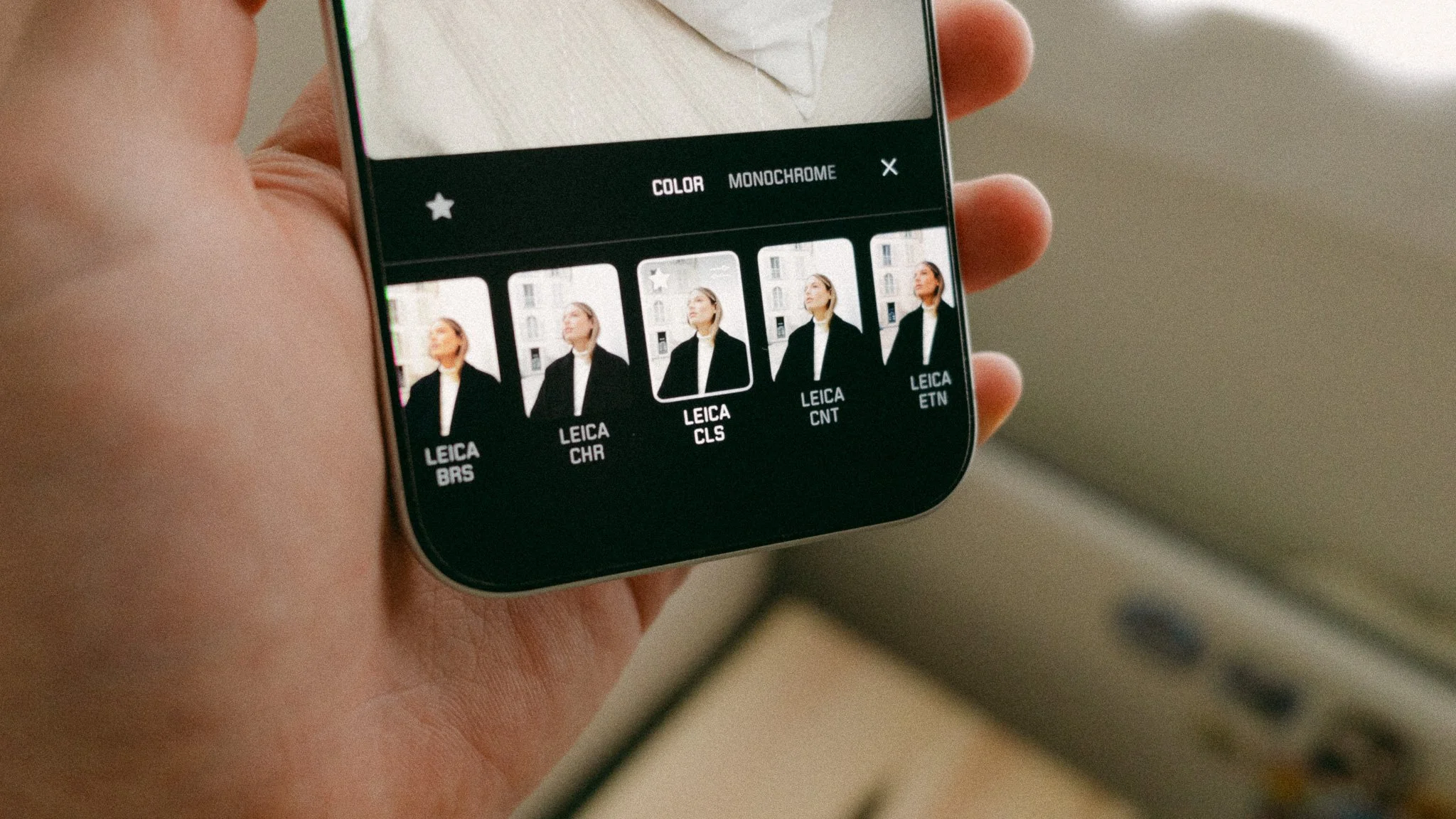
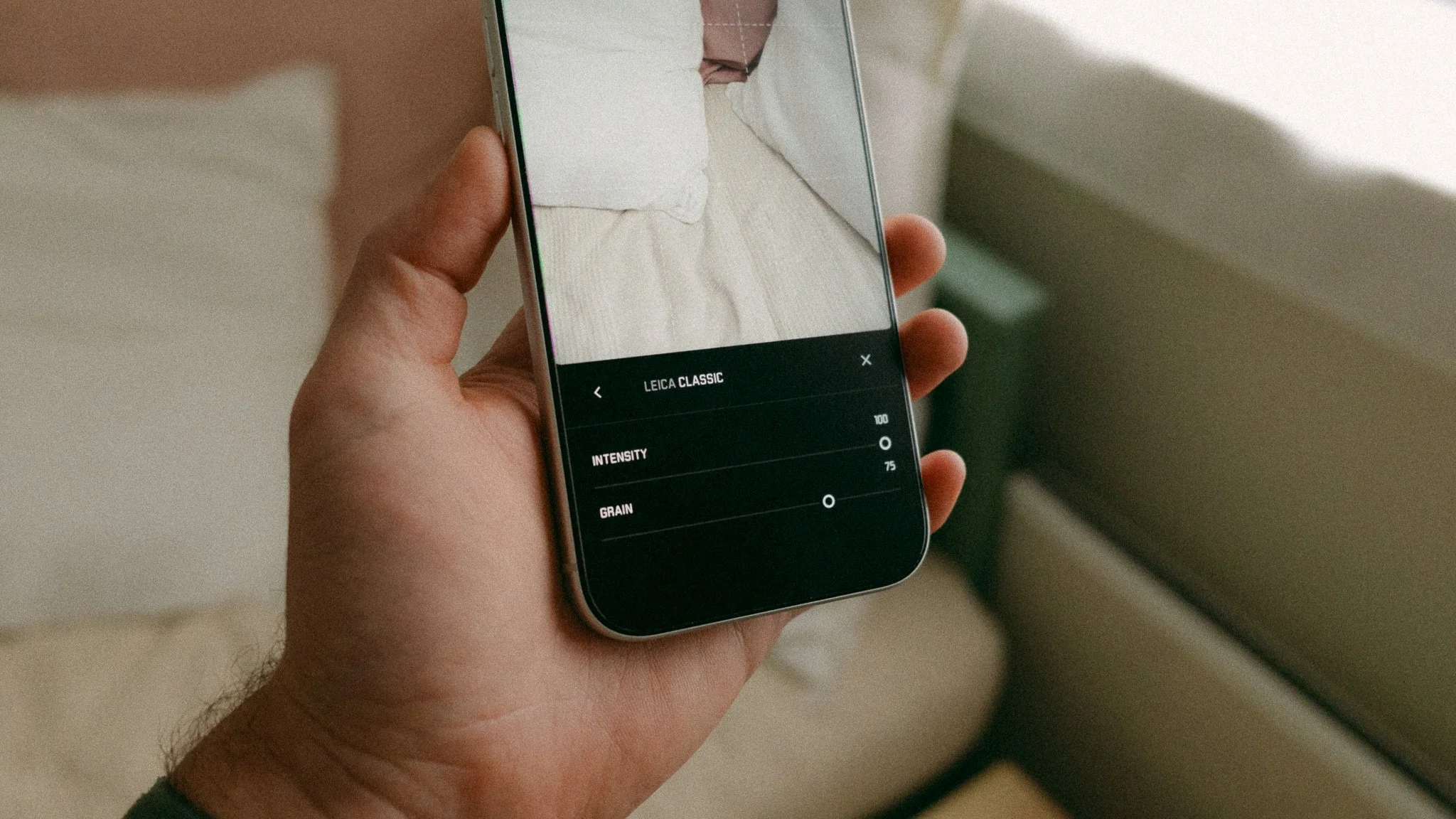
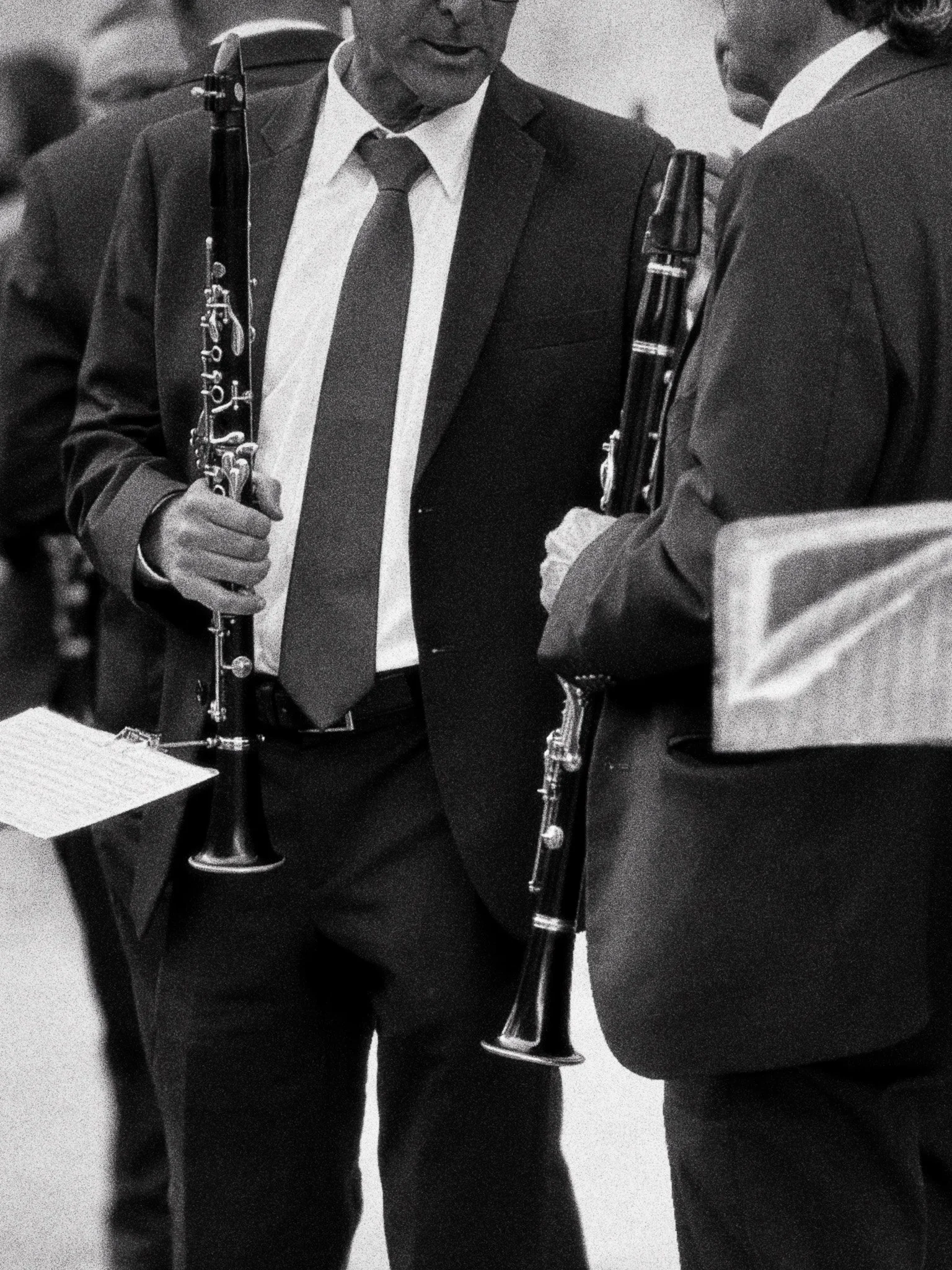
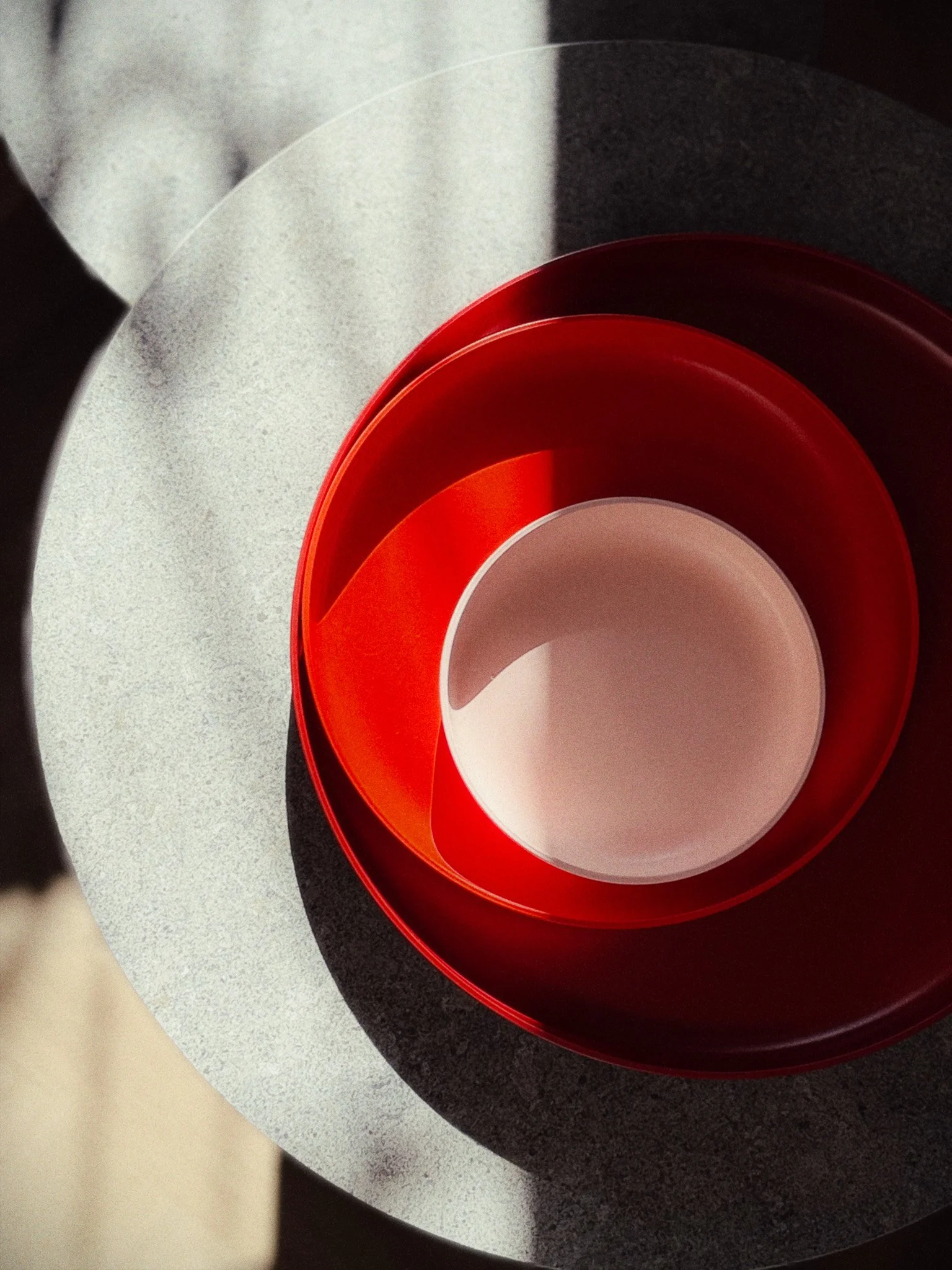
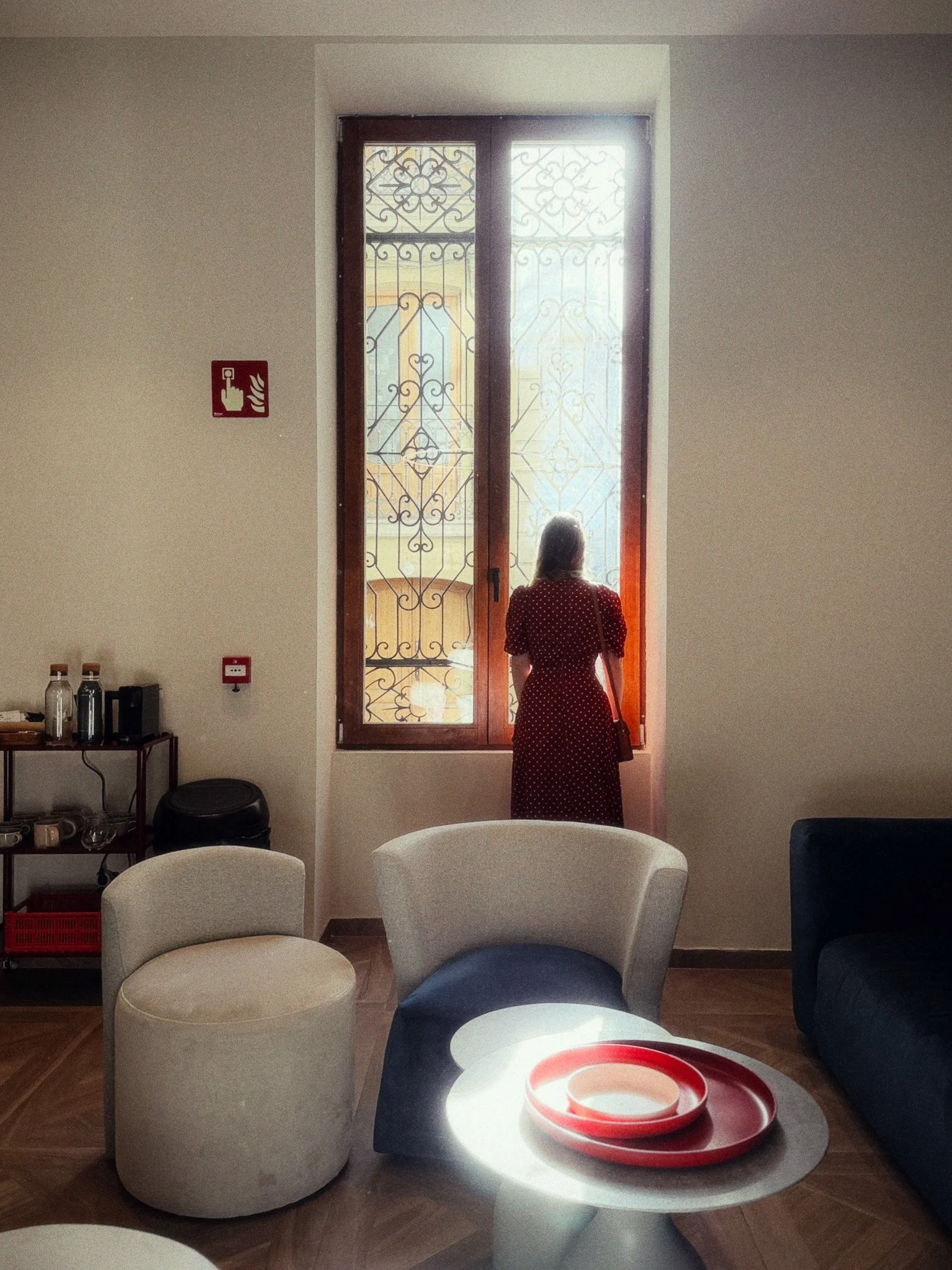
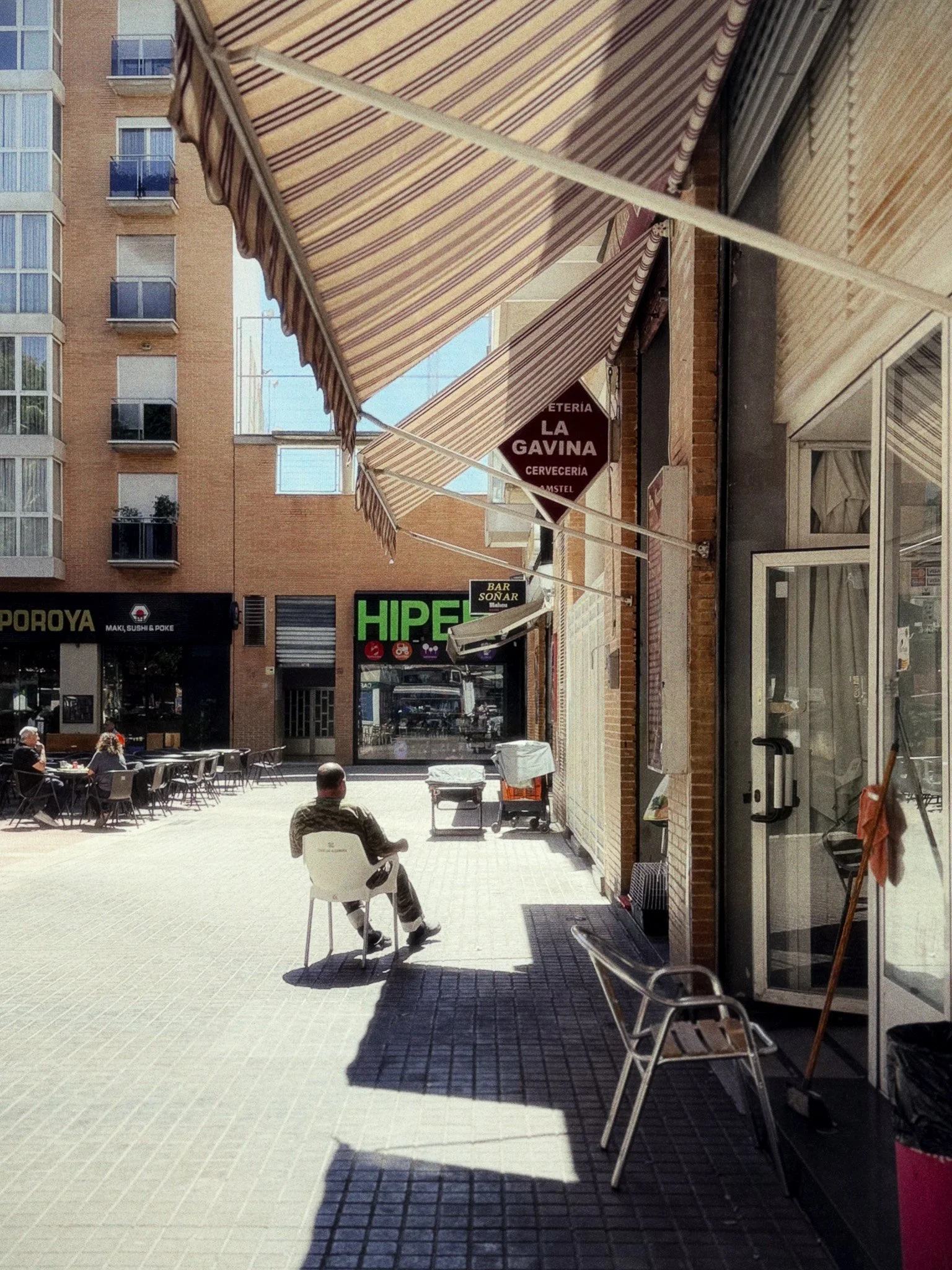
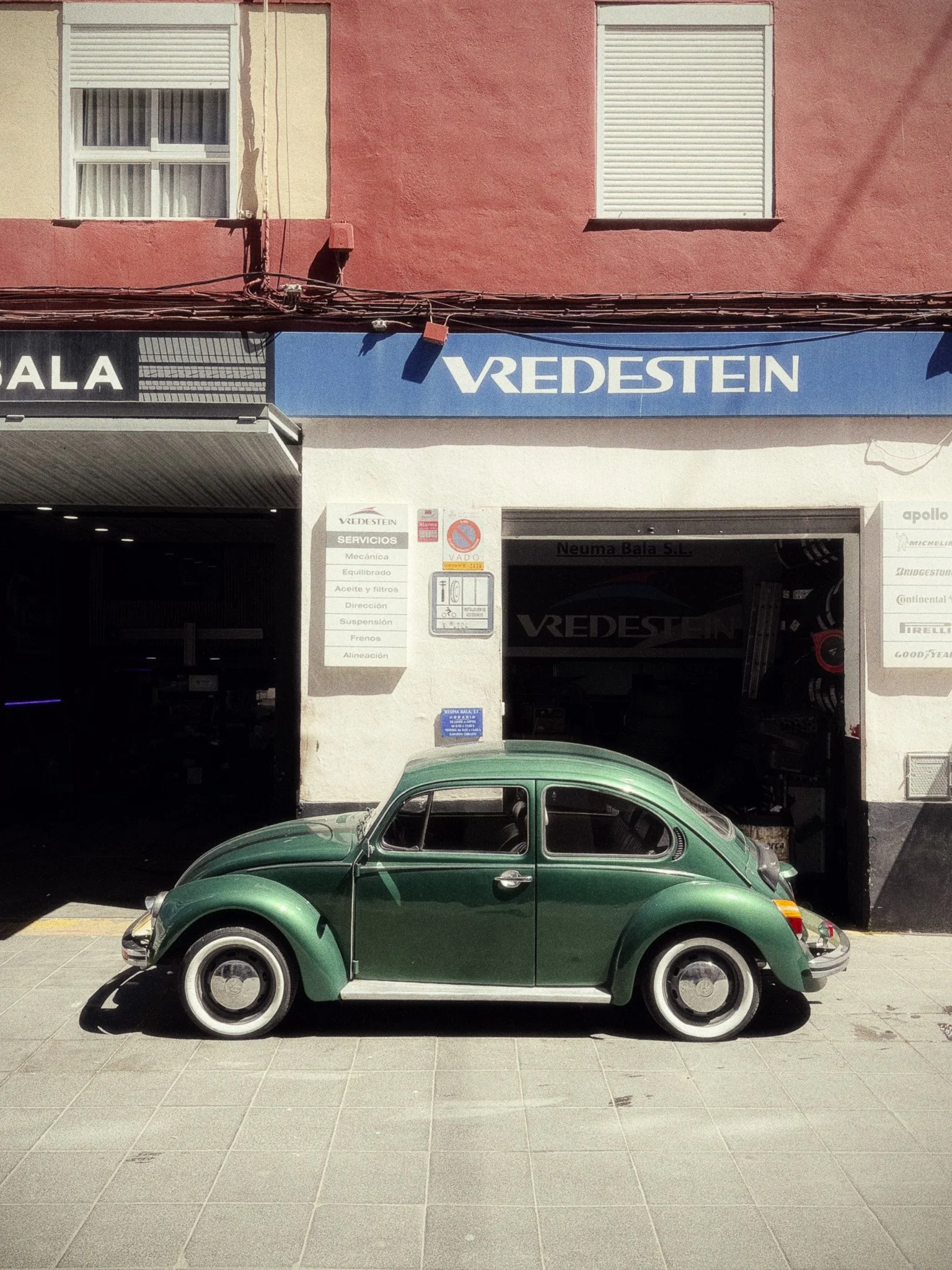
Look 1 - Classic | Intensity 100 | Grain 75 | 40mm SOL / 35mm SLX | Low Bloom | f2
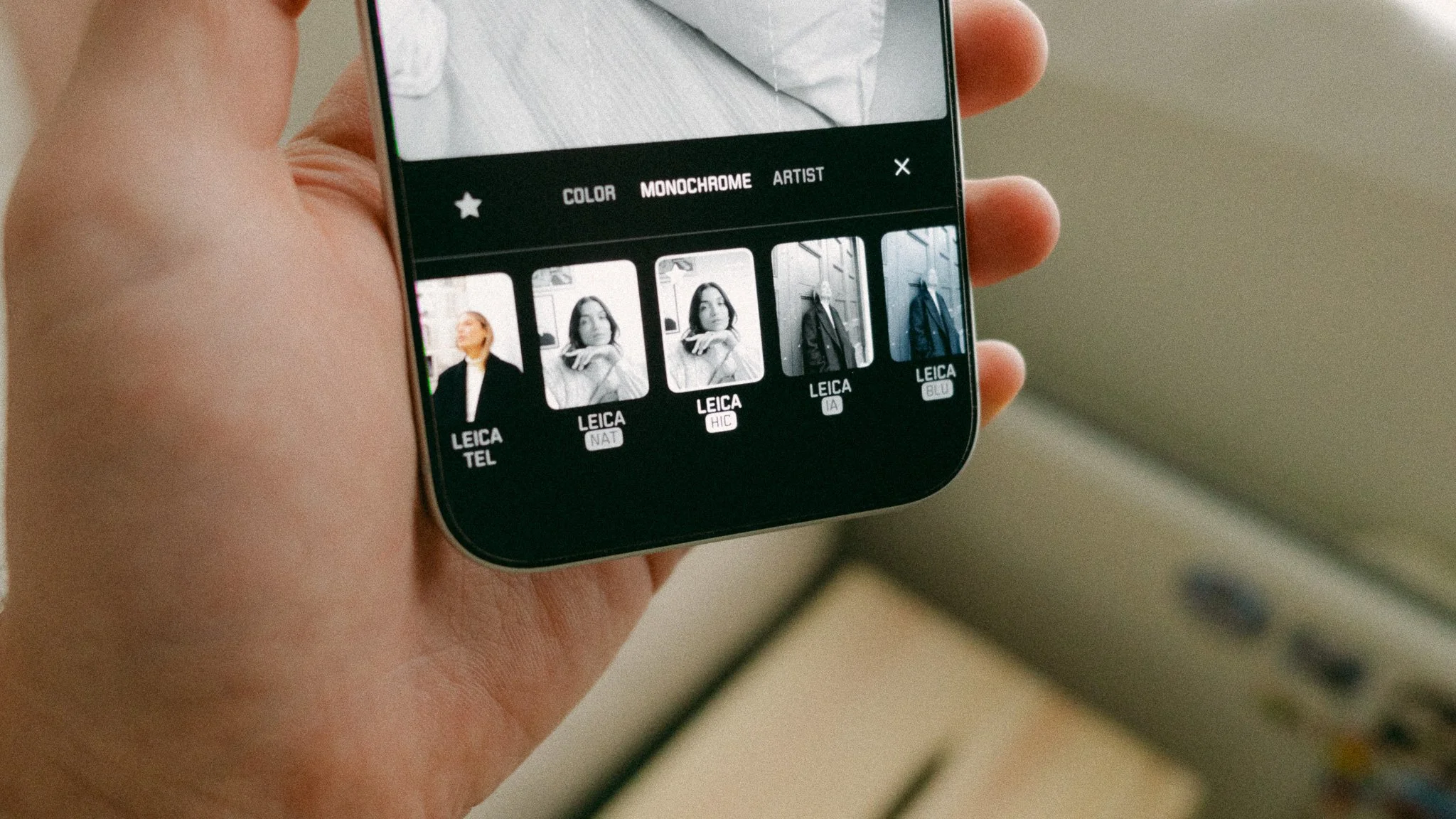
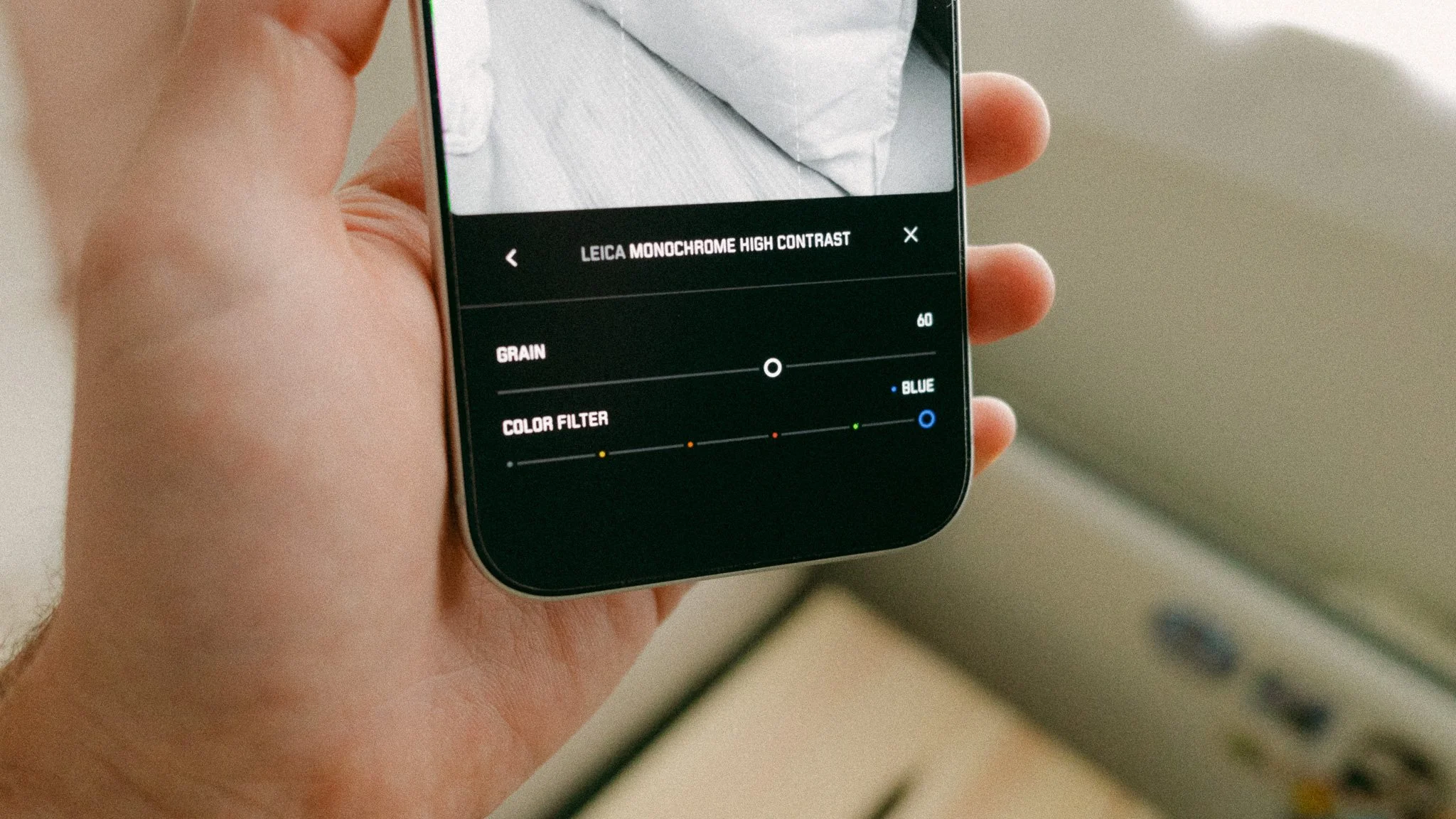
Look 2 - Monochrome High Con | Grain 60 | Blue Filter | 50mm NTX | Low Bloom | f2

Grip Settings
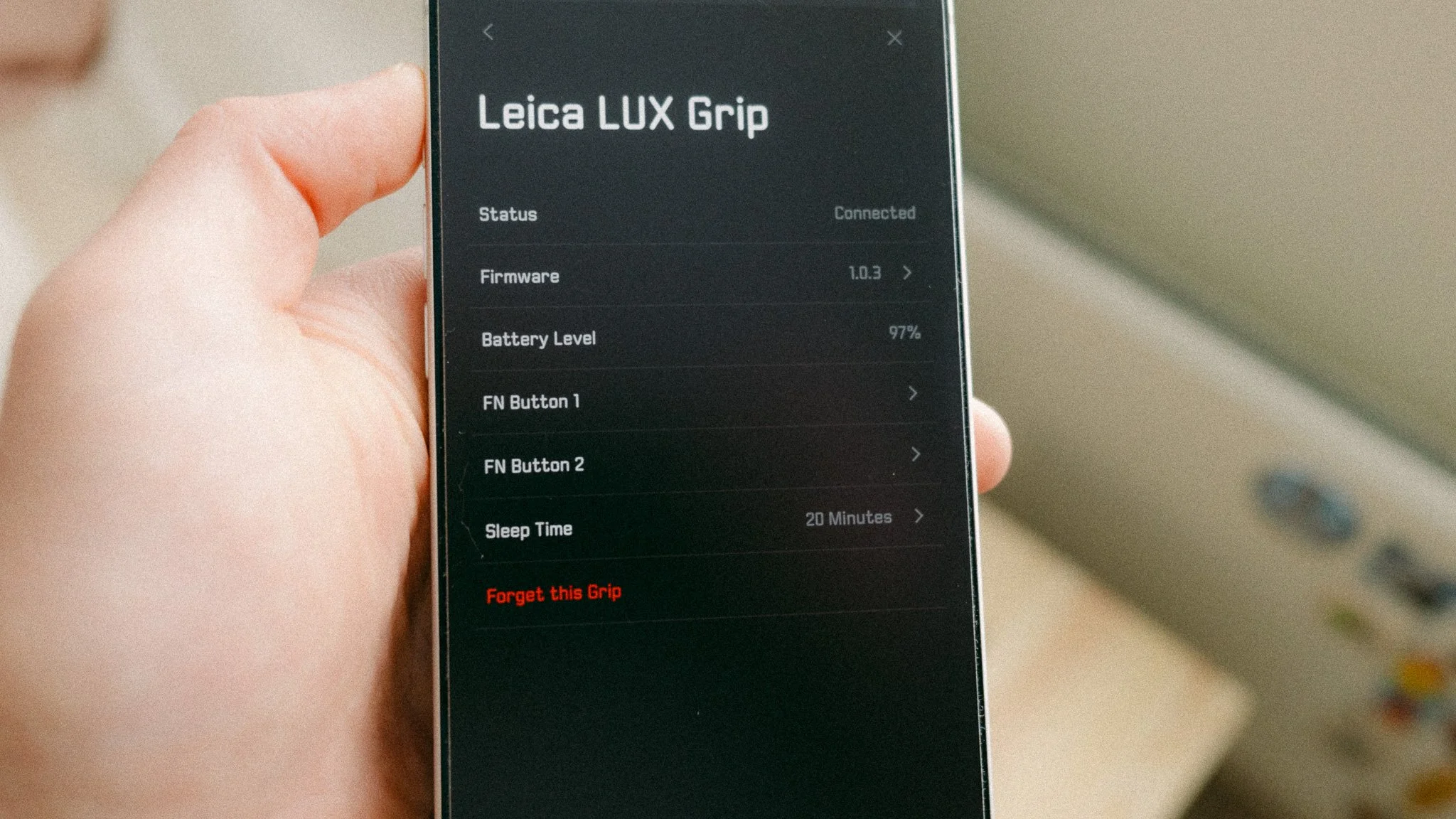
Now let’s look at grip settings. To adjust them, you first need to pair and connect the grip, and then head into Leica LUX Grip menu. I use the FN Buttons to cycle through the lenses as it makes the most sense given I often need to change them in a hurry. The sleep time is set to 20 minutes.
FN Button 1 - Cycle Through Lenses (Forward)
FN Button 2 - Cycle Through Lenses (Backwards)
Sleep Time - 20 Minutes
Grip vs No Grip
I’ve used this app equally on its own, as well as with the grip, and honestly I can’t say one is better than the other. I think the grip makes a huge difference to dedicated photography outings. It makes the process more enjoyable, ergonomic, and effective. Basic tasks such as locking the focus and exposure are more efficient with the grip. Being able to cycle through the lenses using the Fn buttons and adjust the exposure using the dial are also nice. However, the grip adds bulk and you no longer have a device that slides into your pocket. While I don’t think the grip is essential, it does unlock the full potential of the app.
If you wish to give the app a go, please use the following link. It won’t cost you any extra, but it would tell Leica that people have come from me. Thank you! https://download.leicalux.app/rf0420


Instead of telling you how these will change your life, I would rather be practical and answer the most common questions that people tend to have when buying presets.
What are presets?
They are editing settings that are saved in a file and can be applied to any image.
Why do people buy presets?
Sometimes because they like the work of the photographer and want that style for their own photos. Mostly because they would like to see how other people edit and learn by reverse engineering the presets. Other times it’s just to support their favourite photographers, thank you!
What’s the overall style of these presets?
- Filmic
- Warm
- Soft
- Bright
What are these presets suitable for?
Street & Travel Photography
Some Nature (with further editing)
Some Portraits (with extensive editing)
Do I actually use these?
Yes. This is the same pack I use right now for all my editing. This isn’t a pack made just to sell.
Do these presets get updated?
Yes, as my style changes, these presets will also be updated. Any time a new update is available, you will get a free update via email. Of course you also keep all the old presets in case you prefer the older looks. Only presets purchased from 2025 onwards will receive the updates.
What file types are these presets for?
- All RAW files
- JPEGs & TIFFs (not recommended)
What camera brands are these presets for?
These were designed around Fujifilm, Sony, and Leica sensors. With that said, they will work with all camera brands. While there might be differences due to individual camera colour science, the overall feel of the preset will carry over.
Will these work with JPEG files?
Yes, but you will need to reduce the intensity and make further edits. I strongly recommend editing RAW files.
Are these one click edits?
95% No. You would need to do some basic adjustments as each image is different. These adjustments can include exposure, colour balance etc. In 5% of cases you can just apply and leave it alone.
Do I need to know how to edit?
You need to have a basic understanding of adjusting exposure, highlights, shadows, etc. A more comprehensive editing skillset will let you get the most out of them.
How many presets are included?
10 in the main pack and 24 in the extras pack
Why two packs?
The main pack is what I use for 99% of my edits and is kept small to reduce wasted time scrolling through presets. The extras pack is everything I don’t use often.
What software do I need?
These presets will work with any of the following:
- Photoshop (adobe camera raw)
- Lightroom Classic
- Lightroom Desktop
- Lightroom Mobile
Will these presets work with free versions of the above software?
You need to research and double check before buying. These presets were designed for the full paid versions.
Will these presets work with very old versions of the above software?
You need to research and double check before buying. These presets were designed on and for the latest software.
What file type do I get?
XMP
What else do I get?
- Comprehensive PDF guide
Can I modify these and turn them into my own?
Yes! In fact I encourage you to modify them and play around. Use these to help you get your own style.
I have more questions…. What do I do?
Make a cup of tea and drop me an email on hello@snapsbyfox.com
Please note that due to the nature of digital products, refunds are generally not accepted. However, if you experience any issues, feel free to contact me and I’ll review your situation individually. You are welcome to use this product for personal or commercial projects, but you may not copy, distribute, or resell the files in their original or modified form.
Finally I want to say a massive thank you for supporting me. Buying these presets is the most direct way you can support my work.
Thank you!