
Leica Q3 43 - Shutter Priority Explained
In this blog, I’ll share how to shoot with Aperture Priority on your Leica Q3 and Q3 43. This blog will hopefully answer some questions and give you more confidence with your Q3. If you find this blog helpful, want to support my work, and are eager to learn more about your Leica Q3, check out my full camera guide for the Q3 and Q3 43 below. Finally, these are the settings that work for me. They’re not necessarily the best or the “correct” ones, because there’s no such thing. Read through the blog, try out different settings, keep what works for you, and disregard the rest.
**Updated for firmware version 4.1
This Leica Q3 43 set-up guide is designed to save you time and get your camera set up and working just like I do. While the guide is for the Q3 43, pretty much all of it will carry over to the Q3 28mm camera too.
You will learn what the major features do and why I chose to set them in a certain way. I will show you how to assign the buttons and custom menus in order to have the most important features at your fingertips. Finally, I will walk you through how I expose and focus.
This guide is not a replacement for your user manual and does not cover 100% of the features. It covers the features that, in my experience, 90% of the people use 90% of the time. This is based on years of photography and video experience.
This guide is best suited for those who want to be up and running quickly with a tried-and-tested set-up.
This is a digital download and not a physical product.
Please note that due to the nature of digital products, refunds are generally not accepted. However, if you experience any issues, feel free to contact me and I’ll review your situation individually. You are welcome to use this product for personal or commercial projects, but you may not copy, distribute, or resell the files in their original or modified form.
Finally, I want to say a massive thank you for supporting me. Buying this guide is the most direct way you can support my work, thus allowing me to make more videos, photos, and tutorials for you.
Thank you for your support!
Enabling Shutter Priority
To enable shutter speed priority, place the aperture dial in “A”, the ISO in Auto ISO, and set the shutter speed dial to any value. Start with 1/250.

Shutter Value
I use shutter priority in only two scenarios. The first is when I need precise control over shutter speed for capturing motion blur. The second is for low-light photography. For motion blur, I typically shoot at around 1/30 sec, as I find it the perfect sweet spot, allowing for intentional blur while still maintaining context. When shooting at night, I’m already at f/2, so there’s no need to adjust the aperture. Instead, I prefer having precise control over the shutter speed, allowing me to slow it down or speed it up as needed. Below is a rough guide to the shutter speeds I use:
Daytime - 1/250 - 1/500
Low Light - 1/60 - 1/125
Shutter drag - 1/15 - 1/30
Creative - 1/8

Auto ISO
If you plan to shoot solely in manual mode, feel free to skip this bit. If you’ve ever taken a photo that came out blurry or with excessive motion blur, chances are the Auto ISO feature was partly to blame. Auto ISO allows you to set the exposure parameters for the camera, specifically the maximum ISO value. Many people might naturally want a lower max ISO to keep the image noise-free, but in turn, they force the camera into a low shutter speed, inducing motion blur. My max ISO is set to 12,500. While the camera rarely goes that high, it’s nice knowing that ceiling is there. Of course, you will have some noise, but with AI de-noise in most editing programs, this is no longer an issue. I’d much rather have some noise to clean up than a ruined shot due to motion blur.

Exposure Compensation
This allows you to set a global exposure depending on the scene you’re shooting. In some cases under exposing is required, whilst other scenarios call for an over exposed photo. This isn’t a rule but I found the following to work for me:
Sunny - (0)
Cloudy - (+0.6)
Low Light - (-1)

Exposure Metering
If you’re shooting in any mode other than full manual, you’ll have access to Exposure Metering, which determines how the camera exposes the scene. While there are several useful modes, I personally favour Multi Metering. This gives you a good overall exposure based on the whole scene. Another good option is Highlight Metering. This mode ensures that highlights are properly exposed at all times, reducing the risk of blown-out details. Additionally, it makes it much easier to achieve that dramatic highlight-and-shadow look directly in-camera.

AEL (Auto Exposure Lock)
This feature allows you to lock the exposure and then recompose the shot without it changing again. I use this very frequently, especially when I am waiting for a subject or for something to happen. I have mine set to also lock the focus (AEL+AFL). This ensures the camera is locked while I wait for something to happen. This means that when the moment comes to take a photo, the camera has fewer tasks to do, and the look is already locked.

Help support this ad-free blog by checking out my products below
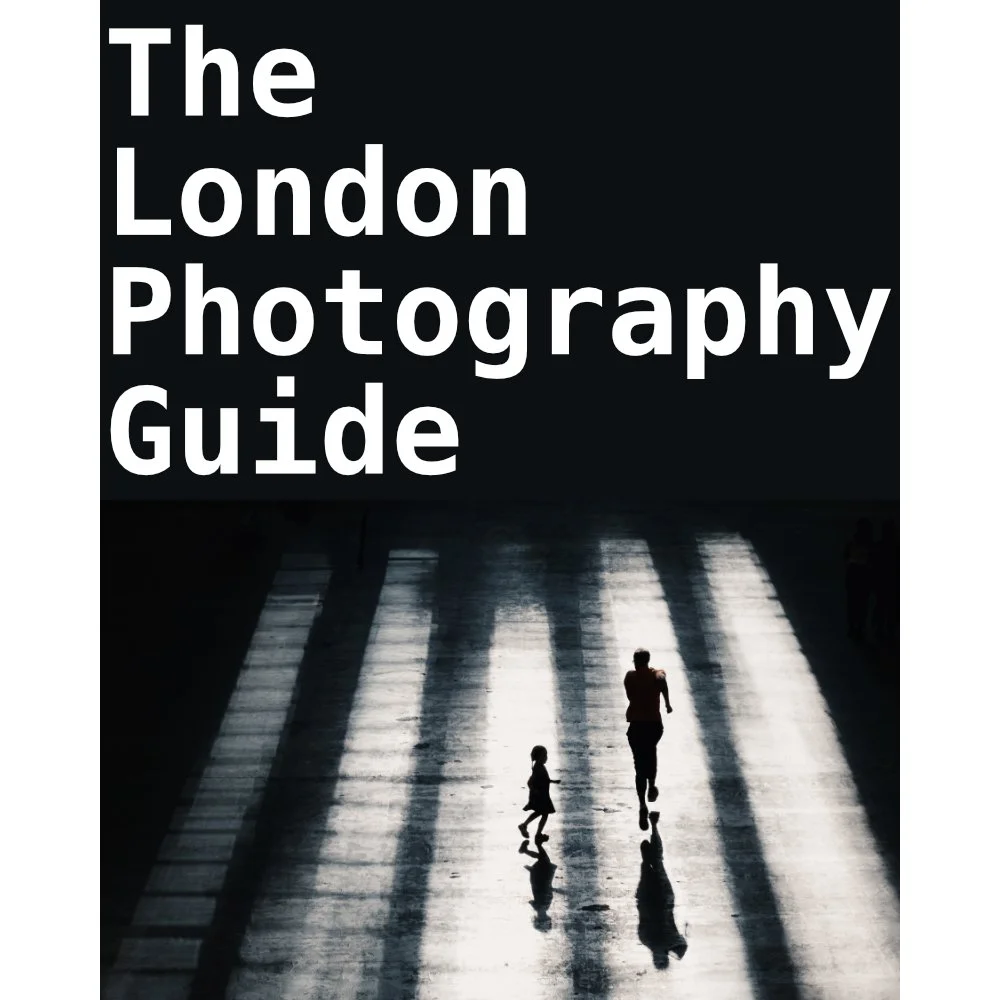
If you're planning to visit London or you’re a local and want to know some of the best locations for photography, this guide is for you.
What you need to know:
- 170 Page PDF document (94mb)
- 50+ Locations
- 100+ Photo spots
- Only covers locations that consistently deliver good photo opportunities
- Clickable maps
- GPS Coordinates
- What 3 Words Coordinates
- Addresses
How will this guide help you:
- Save you time and give you a clear checklist of where to go
- Show you real world photos I took from the suggested locations
- Show you coordinates for those photos if you want to take the same
- Give you feedback on any pitfalls with specific places and attitudes to photographers
- Food / Drink / Restroom suggestions
- Lens choice suggestions
- General visiting advice
- Inspire you to head out and shoot by removing the “where shall I go” barrier
This guide is a result of years spent living and photographing London in all conditions and seasons. I have only recommended locations that have consistently delivered good photos that I have been happy with. This guide does not cover every spot, that would be impossible and a lifetimes work. This guide is there to put luck in your favour when visiting the capital.
Please note that due to the nature of digital products, refunds are generally not accepted. However, if you experience any issues, feel free to contact me and I’ll review your situation individually. You are welcome to use this product for personal or commercial projects, but you may not copy, distribute, or resell the files in their original or modified form.
Finally I want to say a massive thank you for supporting me. Buying this guide is the most direct way you can support my work thus allowing me to make more videos / photos / tutorials for you.
Thank you for your support!
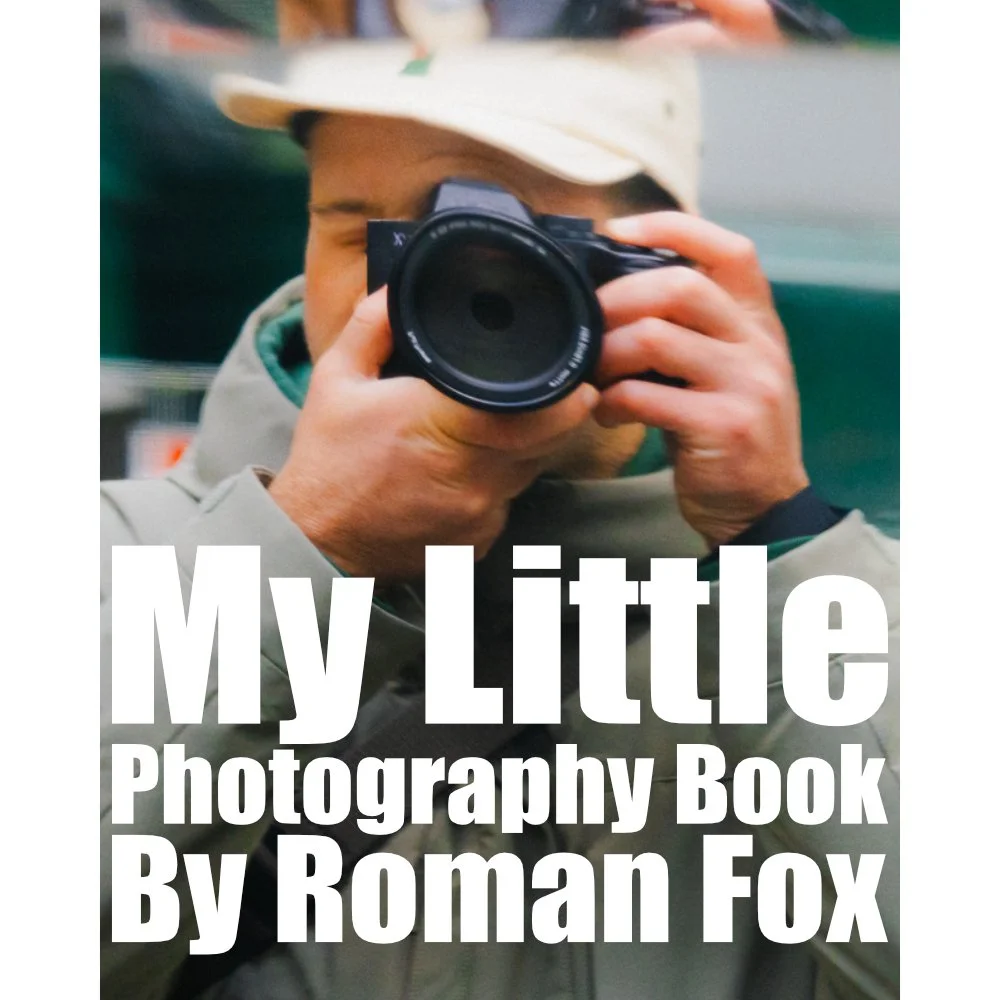
My Little Photography Book is everything I know about photography in one concise place. This book is designed to save you time and share years’ worth of knowledge in an easy-to-follow format. Think of this as a workshop and a course in one affordable 300-page package.
This book covers psychology, gear, lighting, composition, storytelling, style, and a lot more. In other words, I’ve emptied my photography brain into this PDF. As always, keep in mind that this is simply my approach to photography, and everything I share is from my own experience.
The book is a digital PDF download and comes in two flavours. Two page spread and single page. The spread might be better for landscape viewing and printing, while the single page is more suited for vertical scrolling on a phone or tablet. The total download will be just over 100mb with each PDF being around 50mb.
This book has been in the making since mid-2017 and is by far my most involved project to date. This is also entirely done by myself from scratch. All the writing, editing, formatting, everything… it’s all me with no external input. I really do hope you like it, and as always, I welcome any feedback.
Please note that due to the nature of digital products, refunds are generally not accepted. However, if you experience any issues, feel free to contact me and I’ll review your situation individually. You are welcome to use this product for personal or commercial projects, but you may not copy, distribute, or resell the files in their original or modified form.
Finally, being a digital product means free updates when new chapters become available. The last update was in February 2025 to V2.
Thank you so much for your support
Much Love
Rome

What on earth is this and why is this so expensive?!?!
A zine is a self-published body of work and serves the following purposes:
It showcases all photos from a given trip or period of time. Think of this as a digital contact sheet. I only share about 50% of the final photos online. This has them all.
It can act as a source of inspiration.
It can act as a visual planning tool for your travels. It will show you the types of photos one can get at said location.
Allows you to support my work, especially if the other products in my store are not suitable for your needs.
So what is a lifetime zine?
One payment gives you access to all current and future zines. You can download to store them offline, and even print them if you fancy.
As it stands, there are 39 zines published, and my first milestone is 100.
The price you pay today gives you full access for life, even if the price increases in the future.
One payment. No subscriptions. Lifetime of zines.
Digital… really?!
I can’t even imagine the logistical nightmare to print these and ship them to every corner of the globe.
Saves wasting resources.
Works out MUCH cheaper for you. Imagine buying 100 zines…
Formatted for tablets, phones, and laptops.
Makes this accessible to more people.
What’s inside each zine?
Between 100 and 350 photos.
Only the images, no writing.
Each zine focuses on a specific trip, location, or period of time.
When purchased, you will get a PDF document. In the document is a link where you can access all the zines. Each zine can be up to 200mb although I try to keep them closer to 100mb. This allows you to zoom in and see the images up close. However, due to this higher resolution, some older devices might take longer to load the images. For the best viewing experience, I suggest viewing on a device with a big screen, and if you have a choice between scrolling or swiping to change pages, I suggest scrolling for the best experience.
Please note that due to the nature of digital products, refunds are generally not accepted. However, if you experience any issues, feel free to contact me and I’ll review your situation individually. You are welcome to use this product for personal or commercial projects, but you may not copy, distribute, or resell the files in their original or modified form.
Finally, I want to say another massive thank you for supporting me. This is the most direct way you can support my work.
Thank you for your support!
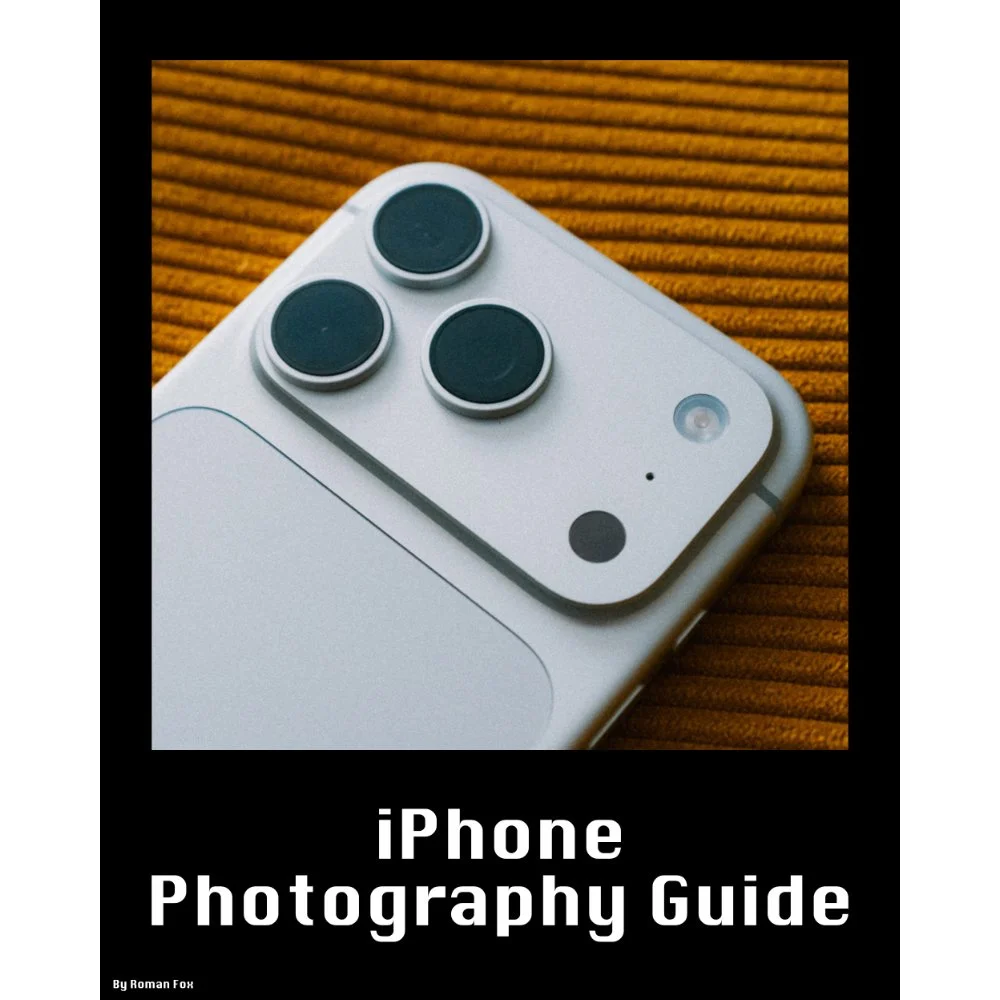
This iPhone Photography Guide is designed to save you time and help you get your camera set up and working just like mine.
What’s Included:
Detailed setup guide for the Camera app and settings
Photography guide covering lighting, composition, settings, and more
10 Lightroom presets designed for ProRAW photos
Free lifetime updates as new iPhones and iOS updates are released
What’s Supported:
This guide is based on the iPhone 18 Pro running iOS 27
Most settings and features carry over to other recent iPhones
What’s Not Included:
Dedicated settings for older iPhones and individual iPhone models
Third party camera apps or accessories
The Apple Photos app or other aspects of the iPhone outside of the camera
A dedicated guide to filmmaking. I cover video settings in detail, but this isn’t a “how to make videos” guide
You will learn what the major camera features do and why I have chosen to set them up in a certain way. I also cover photography essentials, so even if you’re a total beginner, this guide will help you better understand light, composition, and storytelling.
Finally, you will get 10 Lightroom presets specifically designed for ProRAW photos. These are the presets I use myself to edit my iPhone photos. They also come with a guide explaining how to get the most out of them.
This is a digital download and not a physical product. The download is approximately 36 MB.
Please note that due to the nature of digital products, refunds are generally not accepted. However, if you experience any issues, feel free to contact me and I’ll review your situation individually. You are welcome to use this product for personal or commercial projects, but you may not copy, distribute, or resell the files in their original or modified form.
Finally, I want to say a massive thank you for supporting me. Buying this guide is the most direct way you can support my work, allowing me to make more videos, photos, and tutorials for you.
Thank you for your support!
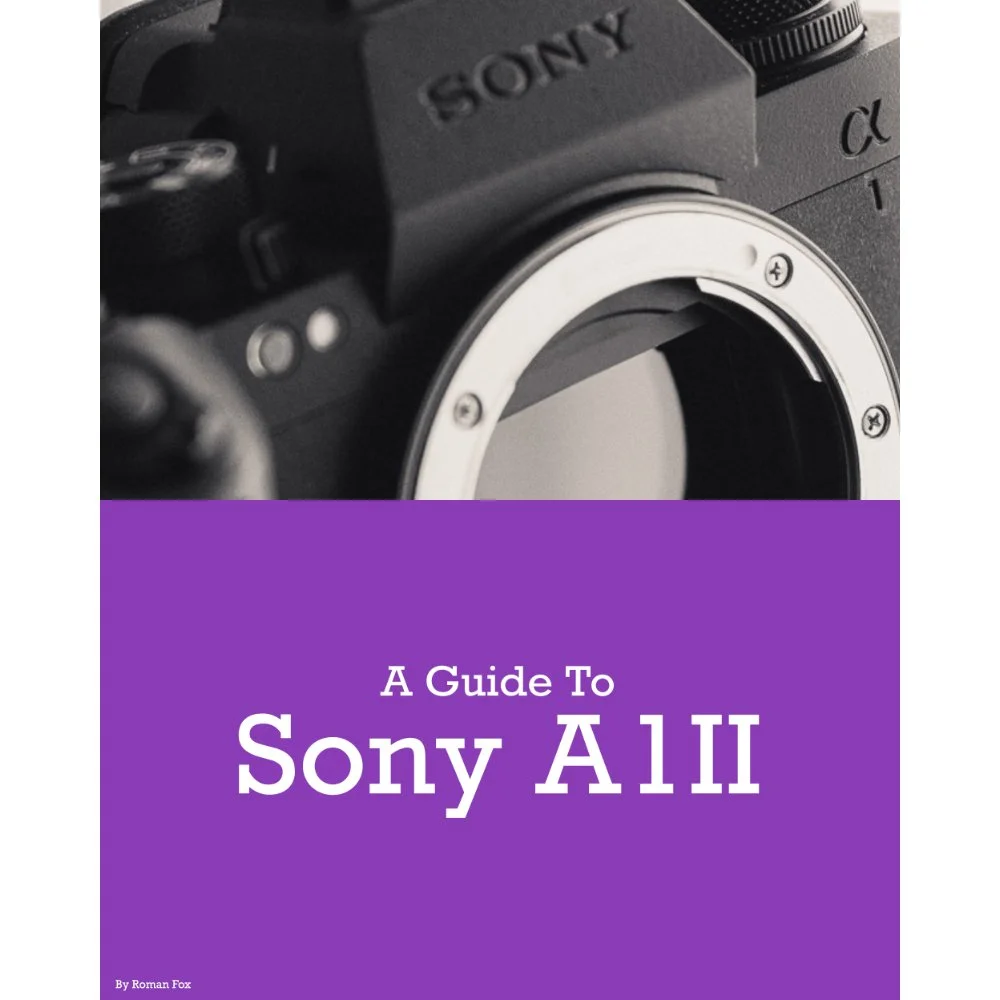
This Sony A1II setup guide is designed to save you time and get your camera set up and working just like I do.
You will learn what the major features do and why I chose to set them in a certain way. I will show you how to assign the buttons and custom menus in order to have the most important features at your fingertips. Finally, I will walk you through how I expose and focus.
This guide is not a replacement for your user manual and does not cover 100% of the features. It covers the features that, in my experience, 90% of the people use 90% of the time. This is based on years of photography and video experience.
This guide is best suited for those who want to be up and running quickly with a tried-and-tested set-up.
This is a digital download and not a physical product. The download is around 15mb.
Please note that due to the nature of digital products, refunds are generally not accepted. However, if you experience any issues, feel free to contact me and I’ll review your situation individually. You are welcome to use this product for personal or commercial projects, but you may not copy, distribute, or resell the files in their original or modified form.
Finally, I want to say a massive thank you for supporting me. Buying this guide is the most direct way you can support my work, thus allowing me to make more videos, photos, and tutorials for you.
Thank you for your support!
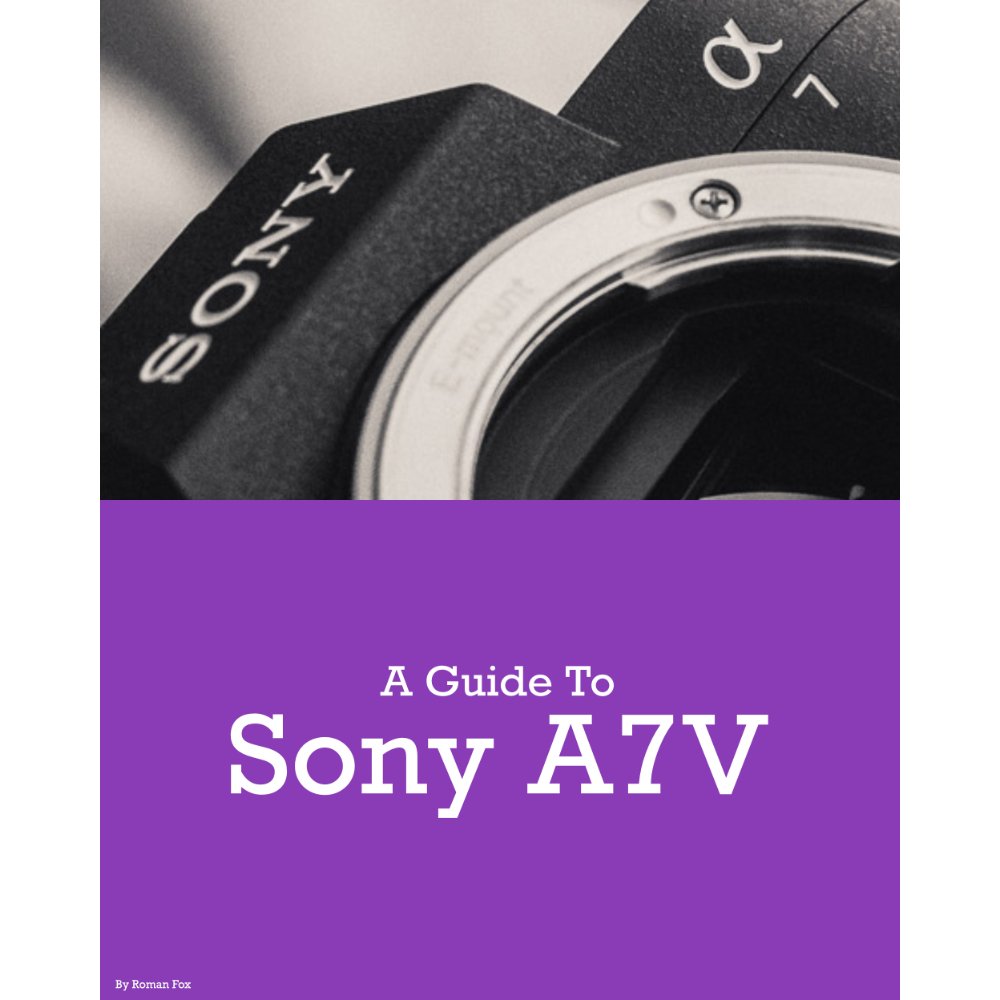
This Sony A7V setup guide is designed to save you time and get your camera set up and working just like I do.
You will learn what the major features do and why I chose to set them in a certain way. I will show you how to assign the buttons and custom menus in order to have the most important features at your fingertips. Finally, I will walk you through how I expose and focus.
This guide is not a replacement for your user manual and does not cover 100% of the features. It covers the features that, in my experience, 90% of the people use 90% of the time. This is based on years of photography and video experience.
This guide is best suited for those who want to be up and running quickly with a tried-and-tested set-up.
This is a digital download and not a physical product. The download is around 15mb.
Please note that due to the nature of digital products, refunds are generally not accepted. However, if you experience any issues, feel free to contact me and I’ll review your situation individually. You are welcome to use this product for personal or commercial projects, but you may not copy, distribute, or resell the files in their original or modified form.
Finally, I want to say a massive thank you for supporting me. Buying this guide is the most direct way you can support my work, thus allowing me to make more videos, photos, and tutorials for you.
Thank you for your support!
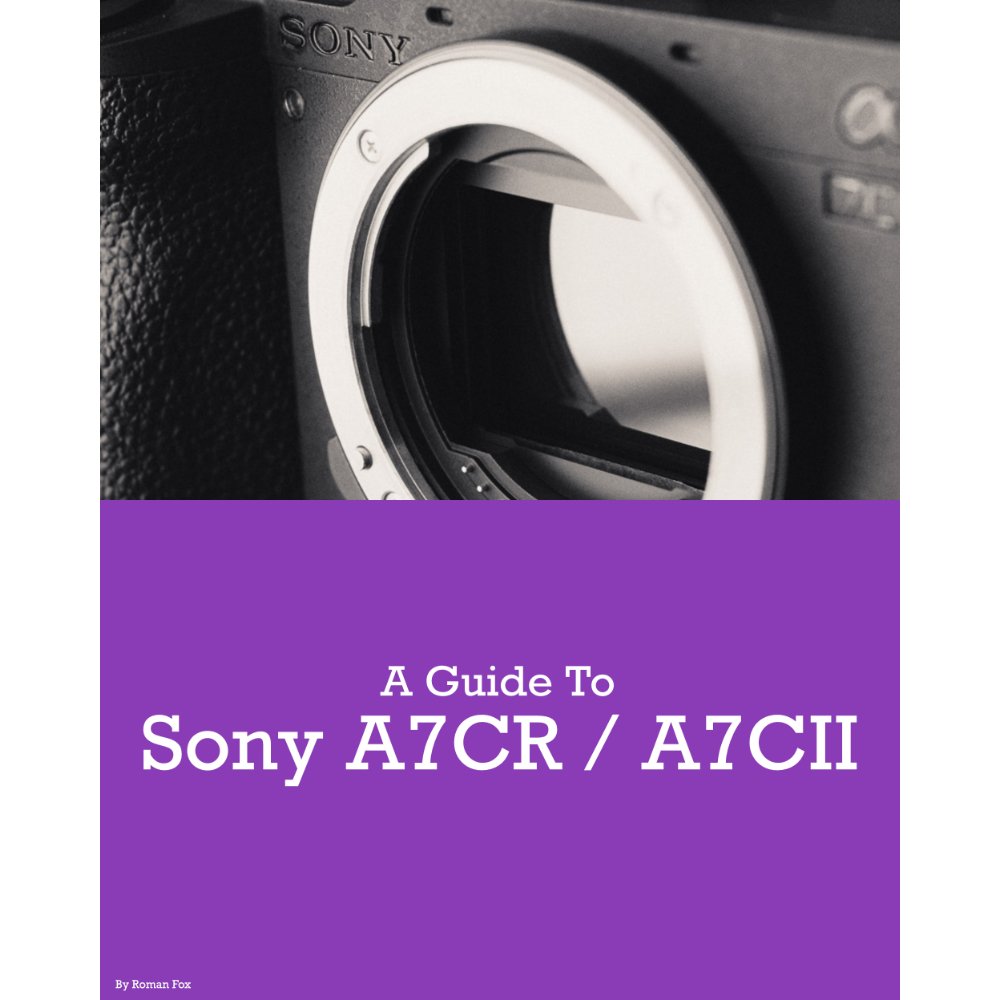
This Sony A7CR / A7CII setup guide is designed to save you time and get your camera set up and working just like I do.
You will learn what the major features do and why I chose to set them in a certain way. I will show you how to assign the buttons and custom menus in order to have the most important features at your fingertips. Finally, I will walk you through how I expose and focus.
This guide is not a replacement for your user manual and does not cover 100% of the features. It covers the features that, in my experience, 90% of the people use 90% of the time. This is based on years of photography and video experience.
This guide is best suited for those who want to be up and running quickly with a tried-and-tested set-up.
This is a digital download and not a physical product. The download is around 15mb.
Please note that due to the nature of digital products, refunds are generally not accepted. However, if you experience any issues, feel free to contact me and I’ll review your situation individually. You are welcome to use this product for personal or commercial projects, but you may not copy, distribute, or resell the files in their original or modified form.
Finally, I want to say a massive thank you for supporting me. Buying this guide is the most direct way you can support my work, thus allowing me to make more videos, photos, and tutorials for you.
Thank you for your support!
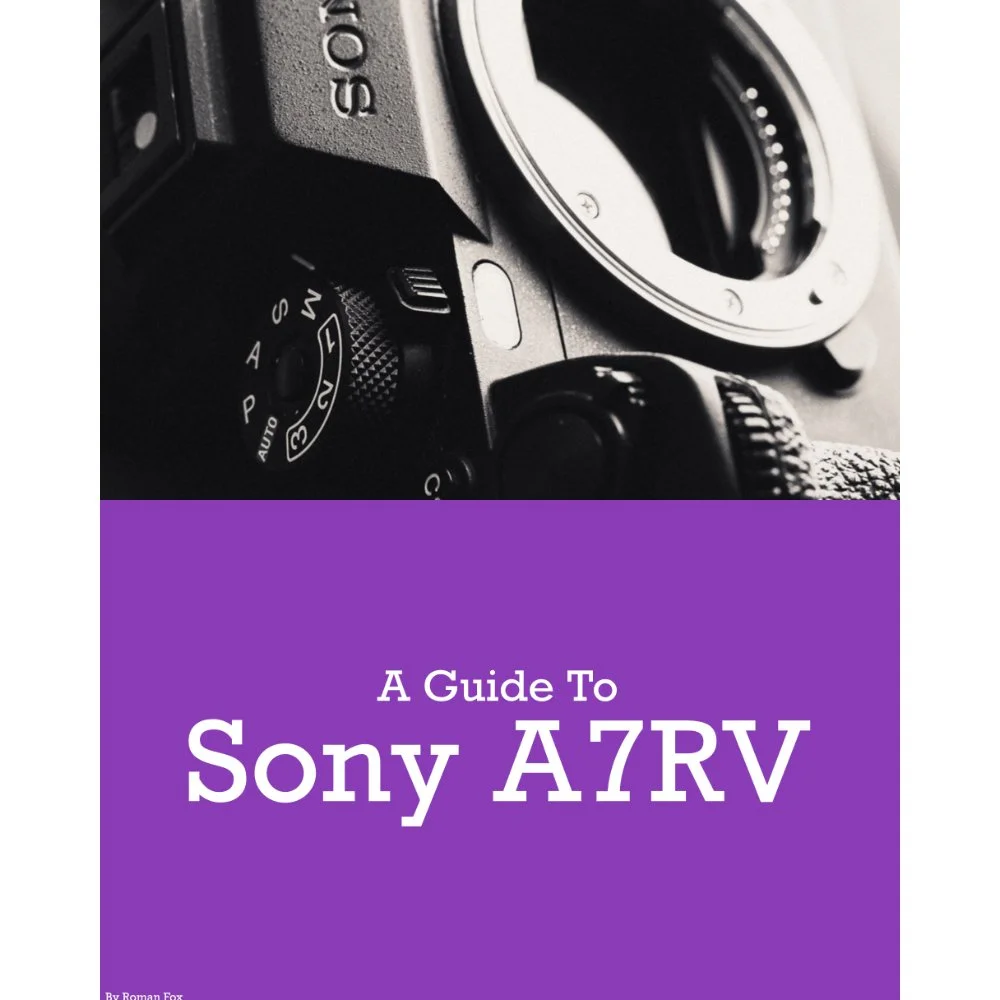
This Sony A7RV setup guide is designed to save you time and get your camera set up and working just like I do.
You will learn what the major features do and why I chose to set them in a certain way. I will show you how to assign the buttons and custom menus in order to have the most important features at your fingertips. Finally, I will walk you through how I expose and focus.
This guide is not a replacement for your user manual and does not cover 100% of the features. It covers the features that, in my experience, 90% of the people use 90% of the time. This is based on years of photography and video experience.
This guide is best suited for those who want to be up and running quickly with a tried-and-tested set-up.
This is a digital download and not a physical product. The download is around 15mb.
Please note that due to the nature of digital products, refunds are generally not accepted. However, if you experience any issues, feel free to contact me and I’ll review your situation individually. You are welcome to use this product for personal or commercial projects, but you may not copy, distribute, or resell the files in their original or modified form.
Finally, I want to say a massive thank you for supporting me. Buying this guide is the most direct way you can support my work, thus allowing me to make more videos, photos, and tutorials for you.
Thank you for your support!
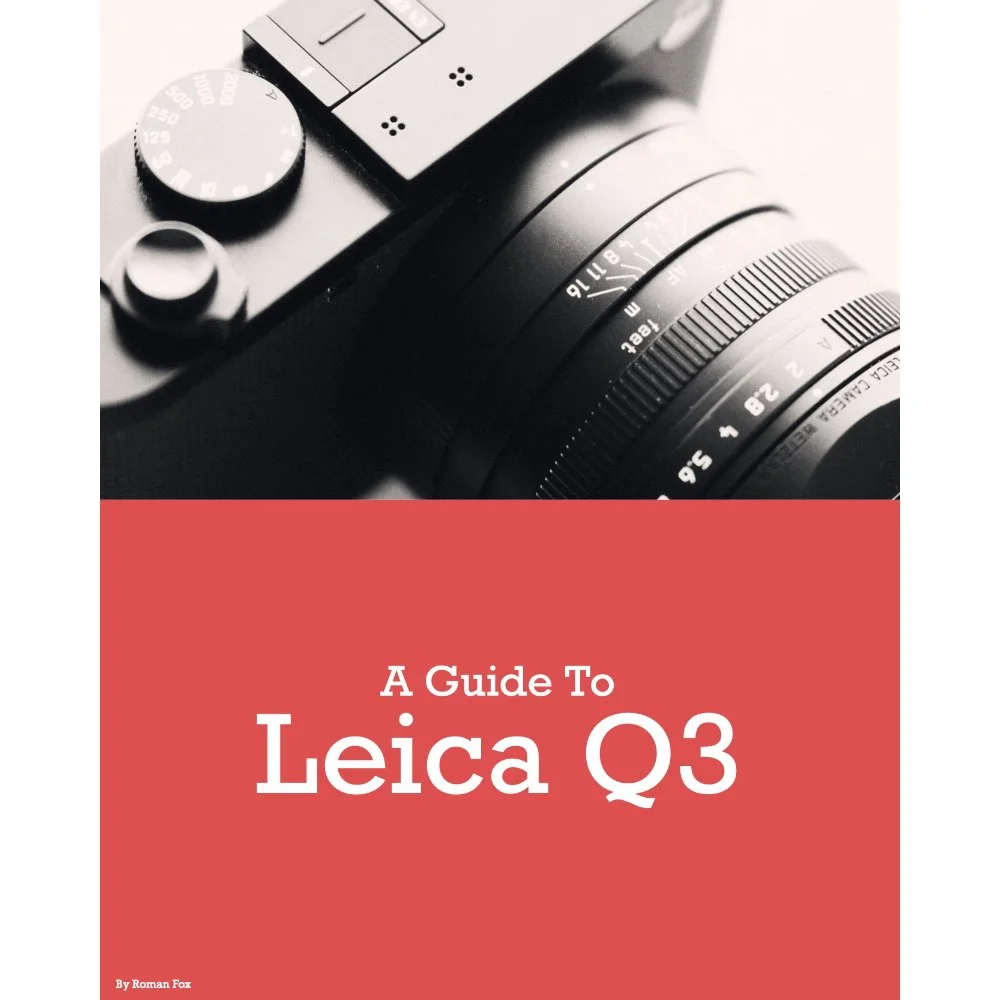
**Updated for firmware version 4.1
This Leica Q3 43 set-up guide is designed to save you time and get your camera set up and working just like I do. While the guide is for the Q3 43, pretty much all of it will carry over to the Q3 28mm camera too.
You will learn what the major features do and why I chose to set them in a certain way. I will show you how to assign the buttons and custom menus in order to have the most important features at your fingertips. Finally, I will walk you through how I expose and focus.
This guide is not a replacement for your user manual and does not cover 100% of the features. It covers the features that, in my experience, 90% of the people use 90% of the time. This is based on years of photography and video experience.
This guide is best suited for those who want to be up and running quickly with a tried-and-tested set-up.
This is a digital download and not a physical product.
Please note that due to the nature of digital products, refunds are generally not accepted. However, if you experience any issues, feel free to contact me and I’ll review your situation individually. You are welcome to use this product for personal or commercial projects, but you may not copy, distribute, or resell the files in their original or modified form.
Finally, I want to say a massive thank you for supporting me. Buying this guide is the most direct way you can support my work, thus allowing me to make more videos, photos, and tutorials for you.
Thank you for your support!
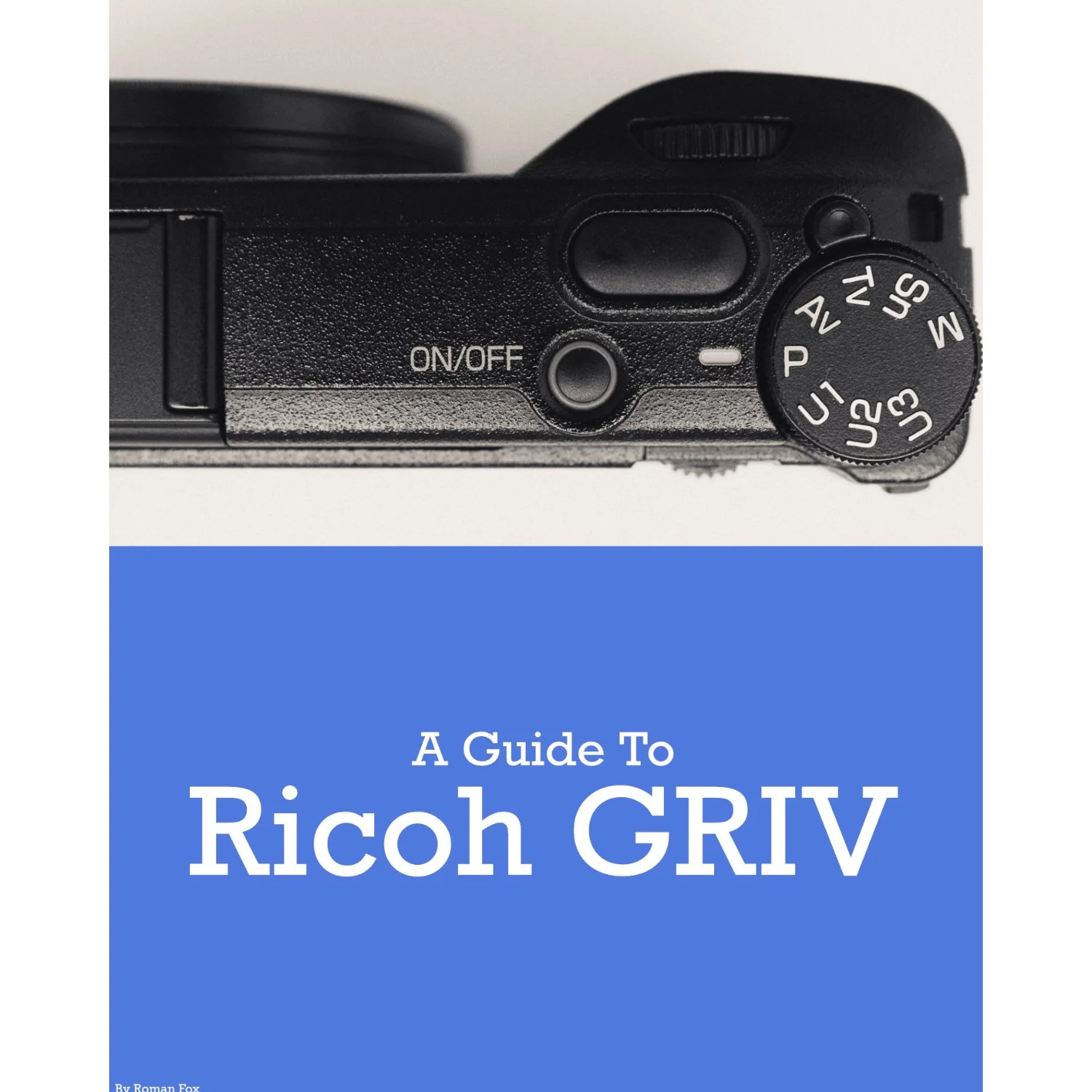
This Ricoh GRIV set-up guide is designed to save you time and get your camera set up and working just like I do. This guide covers all GRIV variants.
You will learn what the major features do and why I chose to set them in a certain way. I will show you how to assign the buttons and custom menus in order to have the most important features at your fingertips. Finally, I will walk you through how I expose and focus.
This guide is not a replacement for your user manual and does not cover 100% of the features. It covers the features that, in my experience, 90% of the people use 90% of the time. This is based on years of photography and video experience.
This guide is best suited for those who want to be up and running quickly with a tried-and-tested set-up.
This is a digital download and not a physical product. The download is around 6mb.
Please note that due to the nature of digital products, refunds are generally not accepted. However, if you experience any issues, feel free to contact me and I’ll review your situation individually. You are welcome to use this product for personal or commercial projects, but you may not copy, distribute, or resell the files in their original or modified form.
Finally, I want to say a massive thank you for supporting me. Buying this guide is the most direct way you can support my work, thus allowing me to make more videos, photos, and tutorials for you.
Thank you for your support!
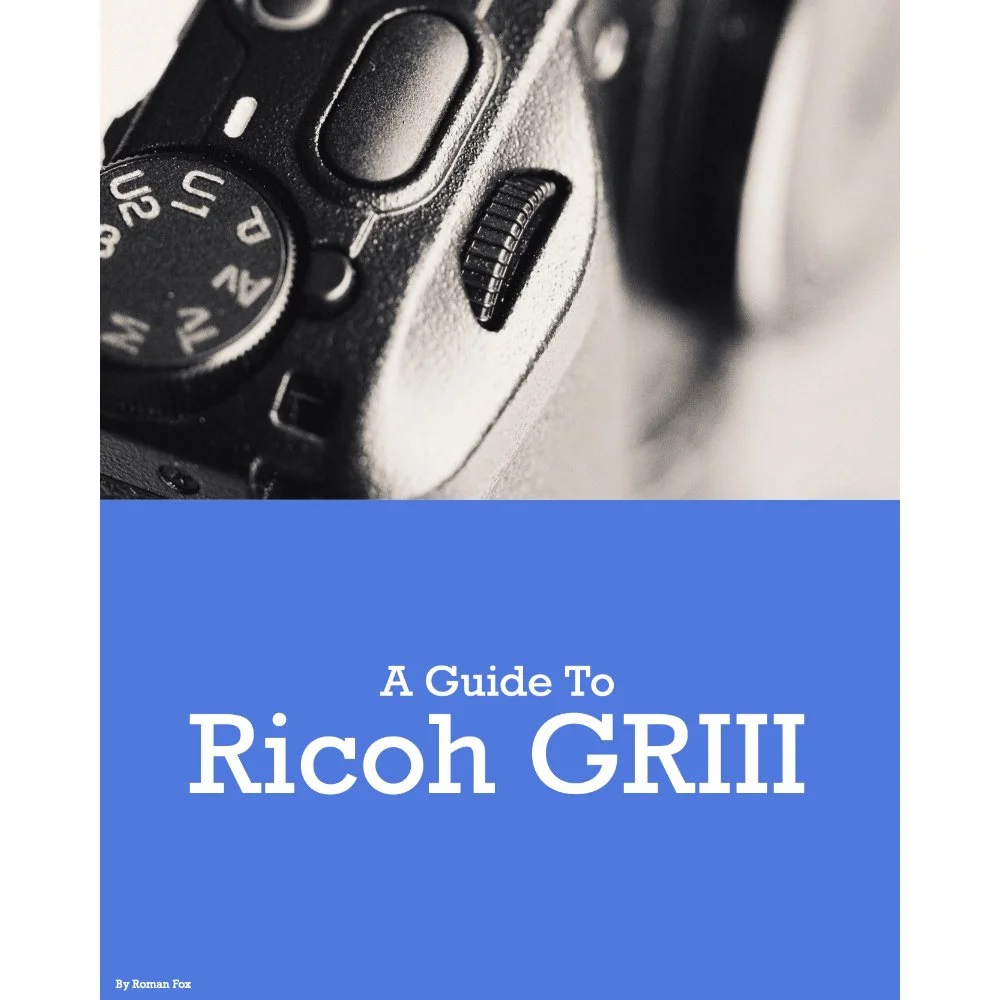
This Ricoh GRIII/GRIIIX set-up guide is designed to save you time and get your camera set up and working just like I do. This guide covers all GRIII variants.
You will learn what the major features do and why I chose to set them in a certain way. I will show you how to assign the buttons and custom menus in order to have the most important features at your fingertips. Finally, I will walk you through how I expose and focus.
This guide is not a replacement for your user manual and does not cover 100% of the features. It covers the features that, in my experience, 90% of the people use 90% of the time. This is based on years of photography and video experience.
This guide is best suited for those who want to be up and running quickly with a tried-and-tested set-up.
This is a digital download and not a physical product. The download is around 23mb.
Please note that due to the nature of digital products, refunds are generally not accepted. However, if you experience any issues, feel free to contact me and I’ll review your situation individually. You are welcome to use this product for personal or commercial projects, but you may not copy, distribute, or resell the files in their original or modified form.
Finally, I want to say a massive thank you for supporting me. Buying this guide is the most direct way you can support my work, thus allowing me to make more videos, photos, and tutorials for you.
Thank you for your support!
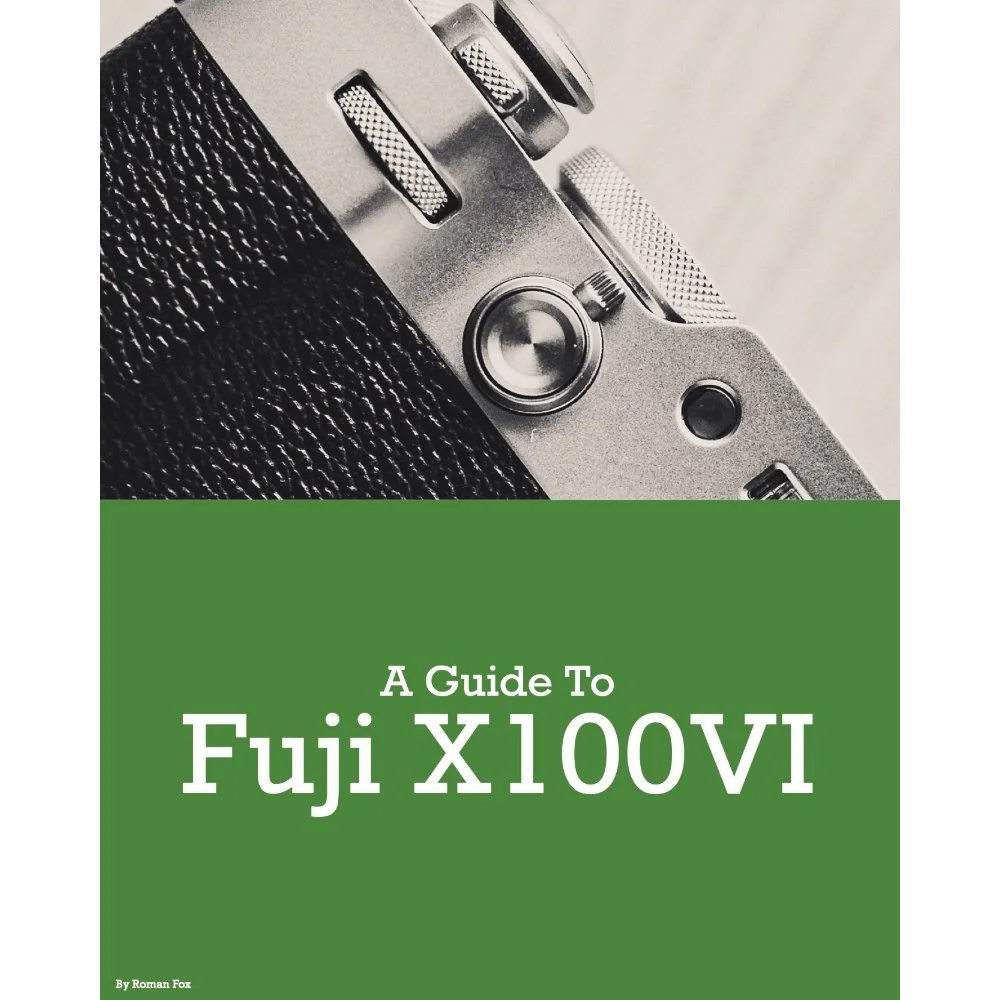
This Fujifilm X100VI set-up guide is designed to save you time and get your camera set up and working just like I do. You will learn what the major features do and why I chose to set them in a certain way. I will show you how to assign the buttons and custom menus in order to have the most important features at your fingertips. Finally, I will walk you through how I expose and focus.
This guide is not a replacement for your user manual and does not cover 100% of the features. It covers the features that, in my experience, 90% of the people use 90% of the time. This is based on years of personal experience.
This guide is best suited for those who want to be up and running quickly with a tried-and-tested set-up.
This is a digital download and not a physical product. The download is around 24mb.
Please note that due to the nature of digital products, refunds are generally not accepted. However, if you experience any issues, feel free to contact me and I’ll review your situation individually. You are welcome to use this product for personal or commercial projects, but you may not copy, distribute, or resell the files in their original or modified form.
Finally, I want to say a massive thank you for supporting me. Buying this guide is the most direct way you can support my work, thus allowing me to make more videos, photos, and tutorials for you.
Thank you for your support!
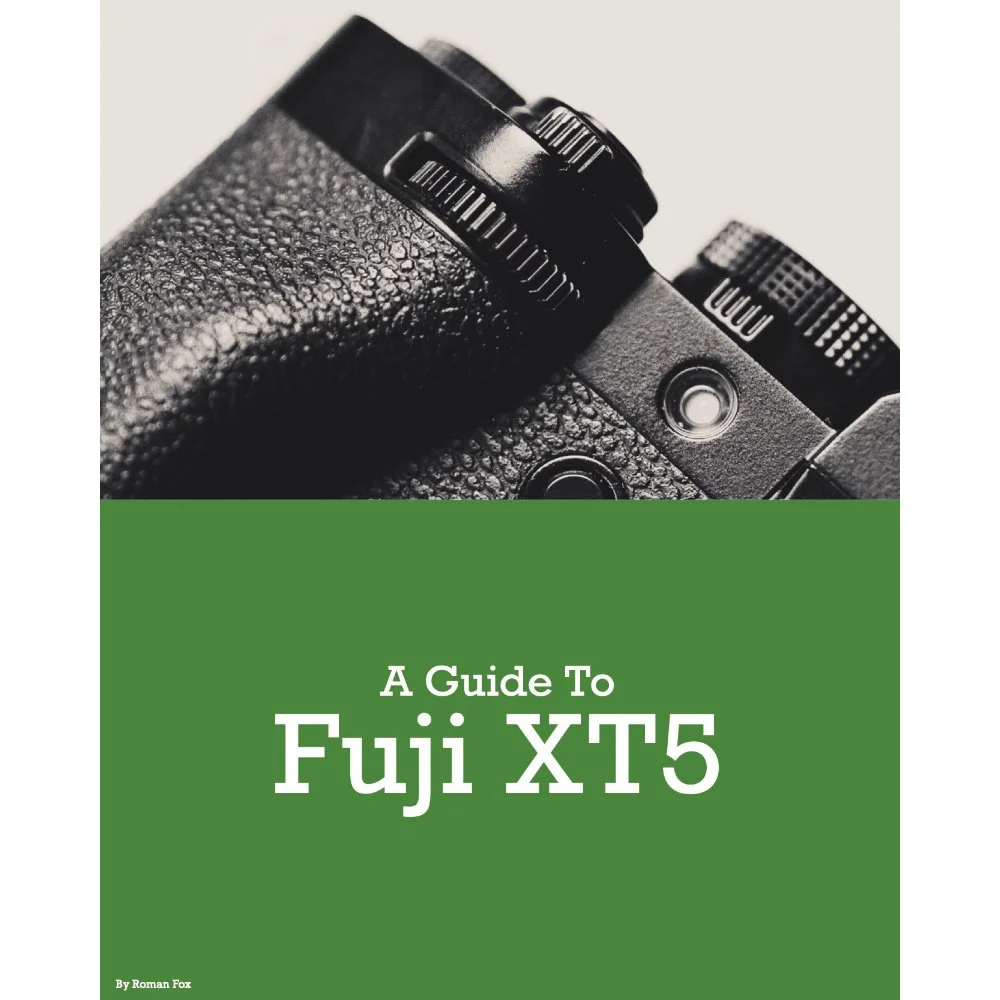
This Fujifilm XT5 set-up guide is designed to save you time and get your camera set up and working just like I do. You will learn what the major features do and why I chose to set them in a certain way. I will show you how to assign the buttons and custom menus in order to have the most important features at your fingertips. Finally, I will walk you through how I expose and focus.
This guide is not a replacement for your user manual and does not cover 100% of the features. It covers the features that, in my experience, 90% of the people use 90% of the time. This is based on years of personal experience.
This guide is best suited for those who want to be up and running quickly with a tried-and-tested set-up.
This is a digital download and not a physical product. The download is around 25mb.
Please note that due to the nature of digital products, refunds are generally not accepted. However, if you experience any issues, feel free to contact me and I’ll review your situation individually. You are welcome to use this product for personal or commercial projects, but you may not copy, distribute, or resell the files in their original or modified form.
Finally, I want to say a massive thank you for supporting me. Buying this guide is the most direct way you can support my work, thus allowing me to make more videos, photos, and tutorials for you.
Thank you for your support!
This Fujifilm XH2 set-up guide is designed to save you time and get your camera set up and working just like I do. You will learn what the major features do and why I chose to set them in a certain way. I will show you how to assign the buttons and custom menus in order to have the most important features at your fingertips. Finally, I will walk you through how I expose and focus.
This guide is not a replacement for your user manual and does not cover 100% of the features. It covers the features that, in my experience, 90% of the people use 90% of the time. This is based on years of personal experience.
This guide is best suited for those who want to be up and running quickly with a tried-and-tested set-up.
This is a digital download and not a physical product. The download is around 33mb.
Please note that due to the nature of digital products, refunds are generally not accepted. However, if you experience any issues, feel free to contact me and I’ll review your situation individually. You are welcome to use this product for personal or commercial projects, but you may not copy, distribute, or resell the files in their original or modified form.
Finally, I want to say a massive thank you for supporting me. Buying this guide is the most direct way you can support my work, thus allowing me to make more videos, photos, and tutorials for you.
Thank you for your support!
This Fujifilm XH2s set-up guide is designed to save you time and get your camera set up and working just like I do. You will learn what the major features do and why I chose to set them in a certain way. I will show you how to assign the buttons and custom menus in order to have the most important features at your fingertips. Finally, I will walk you through how I expose and focus.
This guide is not a replacement for your user manual and does not cover 100% of the features. It covers the features that, in my experience, 90% of the people use 90% of the time. This is based on years of personal experience.
This guide is best suited for those who want to be up and running quickly with a tried-and-tested set-up.
This is a digital download and not a physical product. The download is around 33mb.
Please note that due to the nature of digital products, refunds are generally not accepted. However, if you experience any issues, feel free to contact me and I’ll review your situation individually. You are welcome to use this product for personal or commercial projects, but you may not copy, distribute, or resell the files in their original or modified form.
Finally, I want to say a massive thank you for supporting me. Buying this guide is the most direct way you can support my work, thus allowing me to make more videos, photos, and tutorials for you.
Thank you for your support!
This Fujifilm XT4 set-up guide is designed to save you time and get your camera set up and working just like I do. You will learn what the major features do and why I chose to set them in a certain way. I will show you how to assign the buttons and custom menus in order to have the most important features at your fingertips. Finally, I will walk you through how I expose and focus.
This guide is not a replacement for your user manual and does not cover 100% of the features. It covers the features that, in my experience, 90% of the people use 90% of the time. This is based on years of personal experience.
This guide is best suited for those who want to be up and running quickly with a tried-and-tested set-up.
This is a digital download and not a physical product. The download is around 21mb.
Please note that due to the nature of digital products, refunds are generally not accepted. However, if you experience any issues, feel free to contact me and I’ll review your situation individually. You are welcome to use this product for personal or commercial projects, but you may not copy, distribute, or resell the files in their original or modified form.
Finally, I want to say a massive thank you for supporting me. Buying this guide is the most direct way you can support my work, thus allowing me to make more videos, photos, and tutorials for you.
Thank you for your support!
This Fujifilm XT3 set-up guide is designed to save you time and get your camera set up and working just like I do. You will learn what the major features do and why I chose to set them in a certain way. I will show you how to assign the buttons and custom menus in order to have the most important features at your fingertips. Finally, I will walk you through how I expose and focus.
This guide is not a replacement for your user manual and does not cover 100% of the features. It covers the features that, in my experience, 90% of the people use 90% of the time. This is based on years of personal experience.
This guide is best suited for those who want to be up and running quickly with a tried-and-tested set-up.
This is a digital download and not a physical product. The download is around 22mb.
Please note that due to the nature of digital products, refunds are generally not accepted. However, if you experience any issues, feel free to contact me and I’ll review your situation individually. You are welcome to use this product for personal or commercial projects, but you may not copy, distribute, or resell the files in their original or modified form.
Finally, I want to say a massive thank you for supporting me. Buying this guide is the most direct way you can support my work, thus allowing me to make more videos, photos, and tutorials for you.
Thank you for your support!
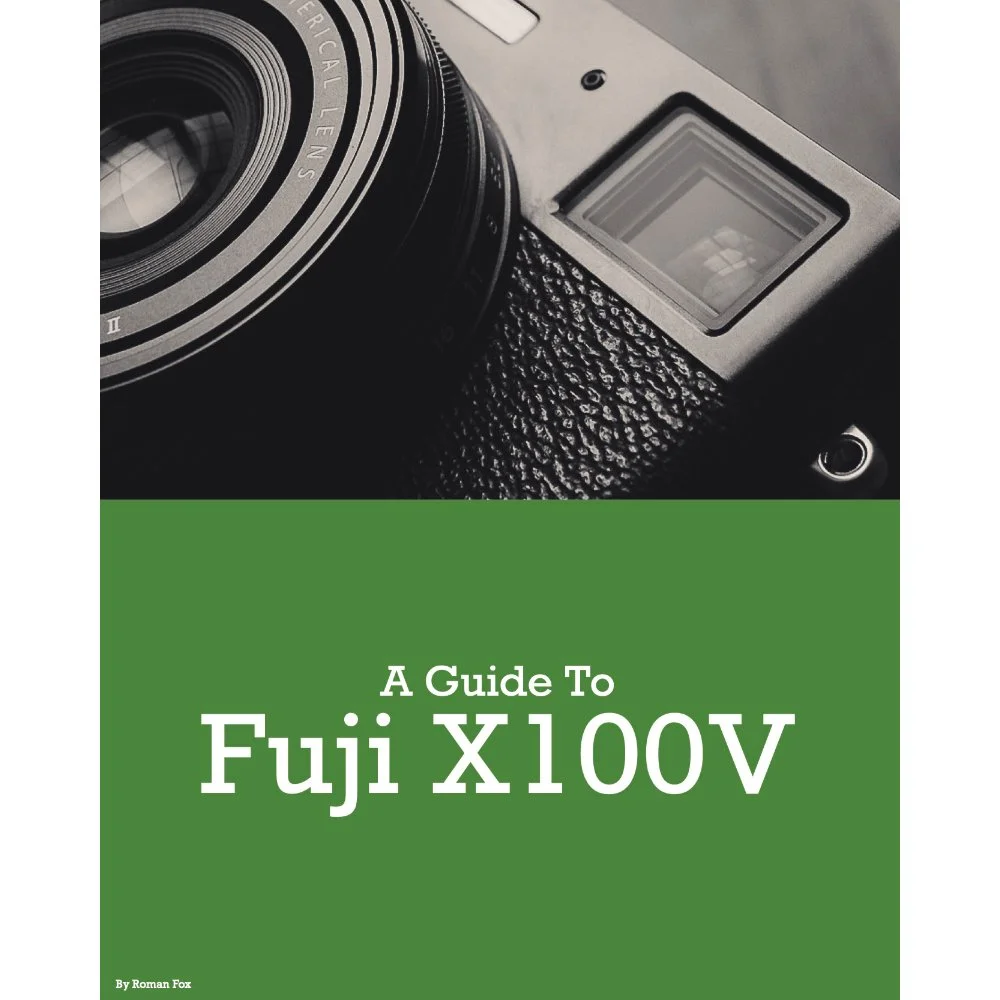
This Fujifilm X100V set-up guide is designed to save you time and get your camera set up and working just like I do. You will learn what the major features do and why I chose to set them in a certain way. I will show you how to assign the buttons and custom menus in order to have the most important features at your fingertips. Finally, I will walk you through how I expose and focus.
This guide is not a replacement for your user manual and does not cover 100% of the features. It covers the features that, in my experience, 90% of the people use 90% of the time. This is based on years of personal experience.
This guide is best suited for those who want to be up and running quickly with a tried-and-tested set-up.
This is a digital download and not a physical product. The download is around 16mb.
Please note that due to the nature of digital products, refunds are generally not accepted. However, if you experience any issues, feel free to contact me and I’ll review your situation individually. You are welcome to use this product for personal or commercial projects, but you may not copy, distribute, or resell the files in their original or modified form.
Finally, I want to say a massive thank you for supporting me. Buying this guide is the most direct way you can support my work, thus allowing me to make more videos, photos, and tutorials for you.
Thank you for your support!
Instead of telling you how these will change your life, I would rather be practical and answer the most common questions that people tend to have when buying presets.
What are presets?
They are editing settings that are saved in a file and can be applied to any image.
Why do people buy presets?
Sometimes because they like the work of the photographer and want that style for their own photos. Mostly because they would like to see how other people edit and learn by reverse engineering the presets. Other times it’s just to support their favourite photographers, thank you!
What’s the overall style of these presets?
- Filmic
- Warm
- Soft
- Bright
What are these presets suitable for?
Street & Travel Photography
Some Nature (with further editing)
Some Portraits (with extensive editing)
Do I actually use these?
Yes. This is the same pack I use right now for all my editing. This isn’t a pack made just to sell.
Do these presets get updated?
Yes, as my style changes, these presets will also be updated. Any time a new update is available, you will get a free update via email. Of course you also keep all the old presets in case you prefer the older looks. Only presets purchased from 2025 onwards will receive the updates.
What file types are these presets for?
- All RAW files
- JPEGs & TIFFs (not recommended)
What camera brands are these presets for?
These were designed around Fujifilm, Sony, and Leica sensors. With that said, they will work with all camera brands. While there might be differences due to individual camera colour science, the overall feel of the preset will carry over.
Will these work with JPEG files?
Yes, but you will need to reduce the intensity and make further edits. I strongly recommend editing RAW files.
Are these one click edits?
95% No. You would need to do some basic adjustments as each image is different. These adjustments can include exposure, colour balance etc. In 5% of cases you can just apply and leave it alone.
Do I need to know how to edit?
You need to have a basic understanding of adjusting exposure, highlights, shadows, etc. A more comprehensive editing skillset will let you get the most out of them.
How many presets are included?
10 in the main pack and 24 in the extras pack
Why two packs?
The main pack is what I use for 99% of my edits and is kept small to reduce wasted time scrolling through presets. The extras pack is everything I don’t use often.
What software do I need?
These presets will work with any of the following:
- Photoshop (adobe camera raw)
- Lightroom Classic
- Lightroom Desktop
- Lightroom Mobile
Will these presets work with free versions of the above software?
You need to research and double check before buying. These presets were designed for the full paid versions.
Will these presets work with very old versions of the above software?
You need to research and double check before buying. These presets were designed on and for the latest software.
What file type do I get?
XMP
What else do I get?
- Comprehensive PDF guide
Can I modify these and turn them into my own?
Yes! In fact I encourage you to modify them and play around. Use these to help you get your own style.
I have more questions…. What do I do?
Make a cup of tea and drop me an email on hello@snapsbyfox.com
Please note that due to the nature of digital products, refunds are generally not accepted. However, if you experience any issues, feel free to contact me and I’ll review your situation individually. You are welcome to use this product for personal or commercial projects, but you may not copy, distribute, or resell the files in their original or modified form.
Finally I want to say a massive thank you for supporting me. Buying these presets is the most direct way you can support my work.
Thank you!