
DJI Action 6 - The Best Video Settings
In this blog I will share with you what settings I use on my DJI Action 6, and the best way to set up this amazing little camera. This guide will not cover every setting and feature, instead it focuses on those that make the biggest impact.
Please keep in mind that there are no ideal or “correct” settings. The best settings are those that get you the desired results, so the healthiest approach to this guide is to experiment, take what works, and ignore what doesn’t. Lastly make sure to have your DJI Action 6 updated to the latest firmware.
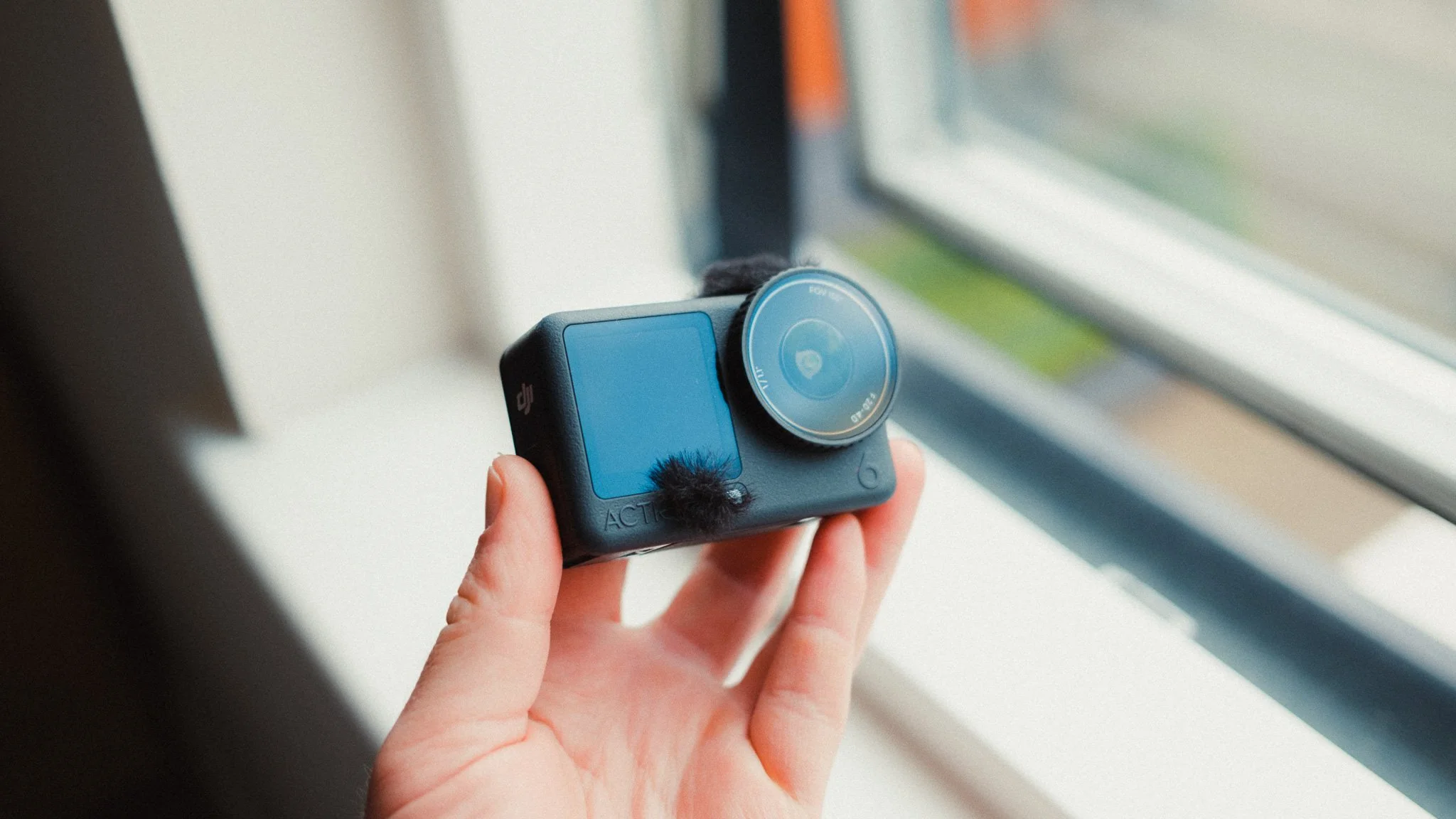
Use Case
There are 100s of different use cases for the DJI Action 6. This guide is aimed at vlogging, travel, and documenting your life, as this is what I use this camera for. This guide focuses only on video, so please place the Action 6 into video mode.
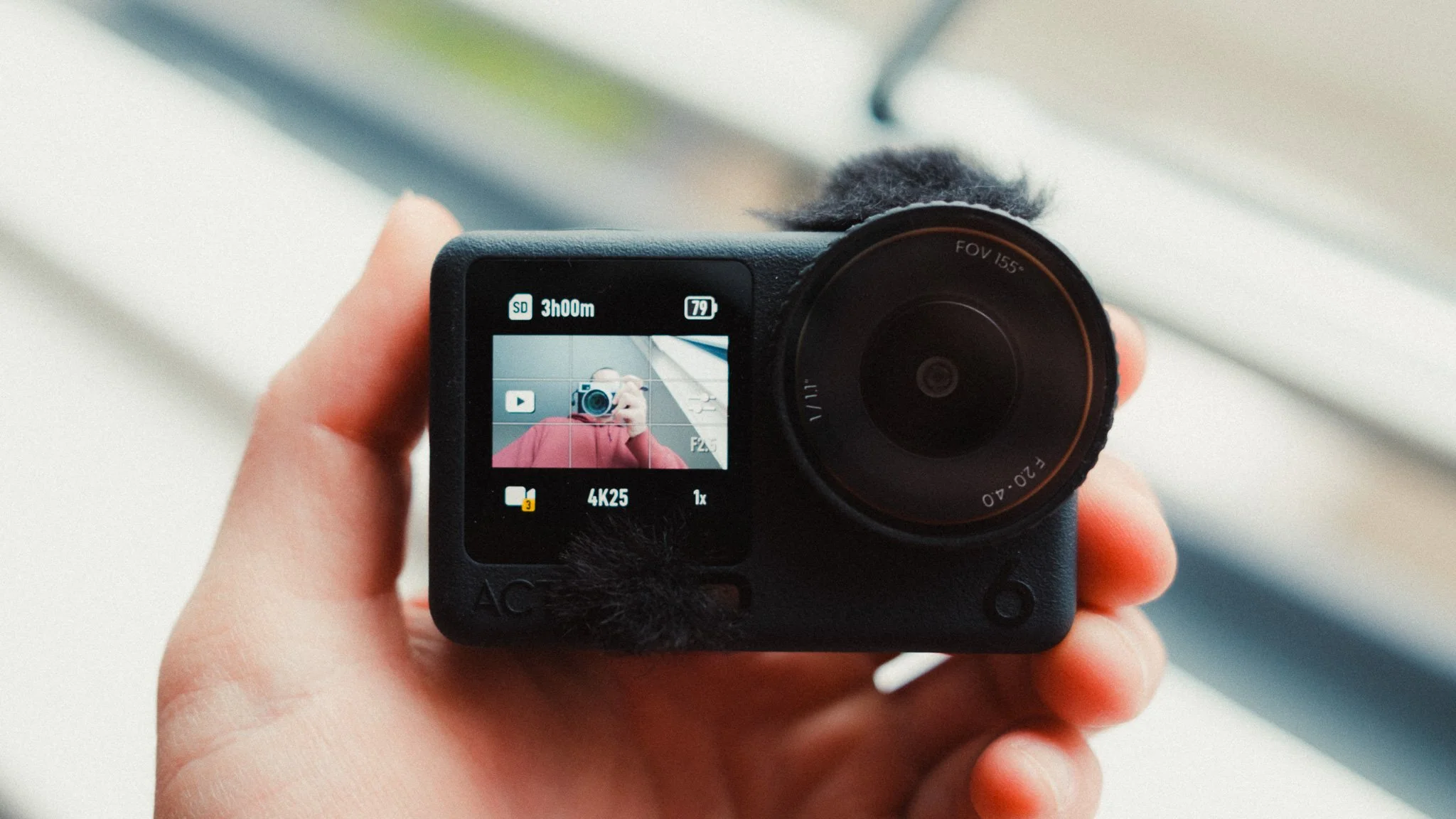
Resolution, Frame Rate & Stabilisation
I use the Action 6 with two different aspect ratios. The first one is a traditional 16:9 which I use for YouTube or anytime I know that the likely output will be horizontal video. The second aspect ratio I use is the new 1:1. This gives me the most creative control over the composition and is ideal if I want to shoot for vertical and horizontal formats. In general I would say that 90% of the time I’m in 16:9. You can actually create custom profiles with different settings, and this will be covered later in this blog.
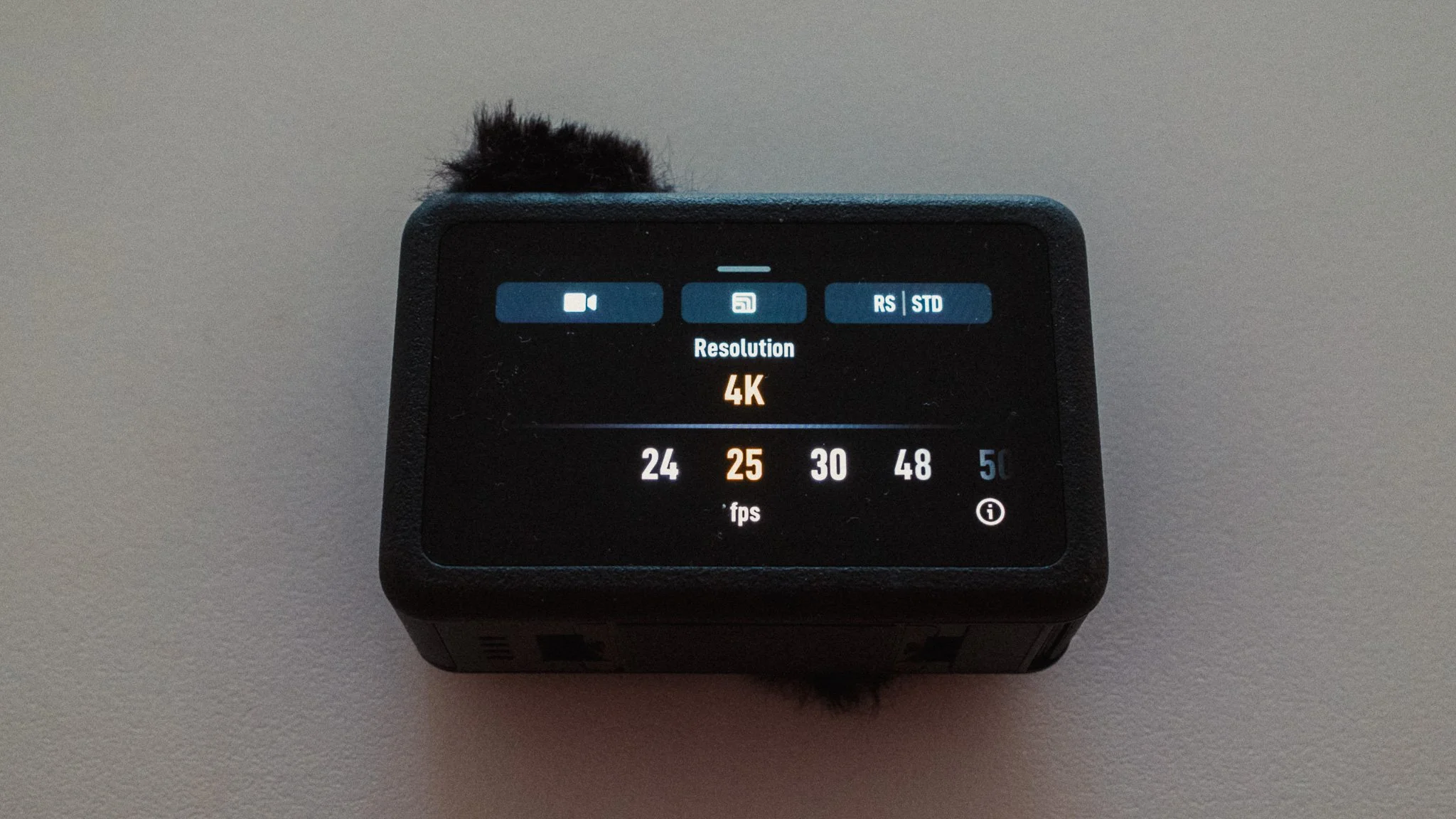
To access this, swipe up from the bottom when on the shooting screen. Filming in 4K is a no brainer, and unless you’re about to run out of space, I see no reason to shoot in a lower resolution. Shooting in 4K also gives you room to crop in, which you will most likely do.
When it comes to frame rate, I shoot in 25p because I live in Europe where we run on 50Hz. In America, Japan, and some other parts of the world, you’d want to be in 24p. These two frame rates will give you the most cinematic looking footage. 30p will be a little smoother, while 50 / 60p will give the smoothest footage. I personally like how 25p looks the most, and this is an entirely subjective setting.
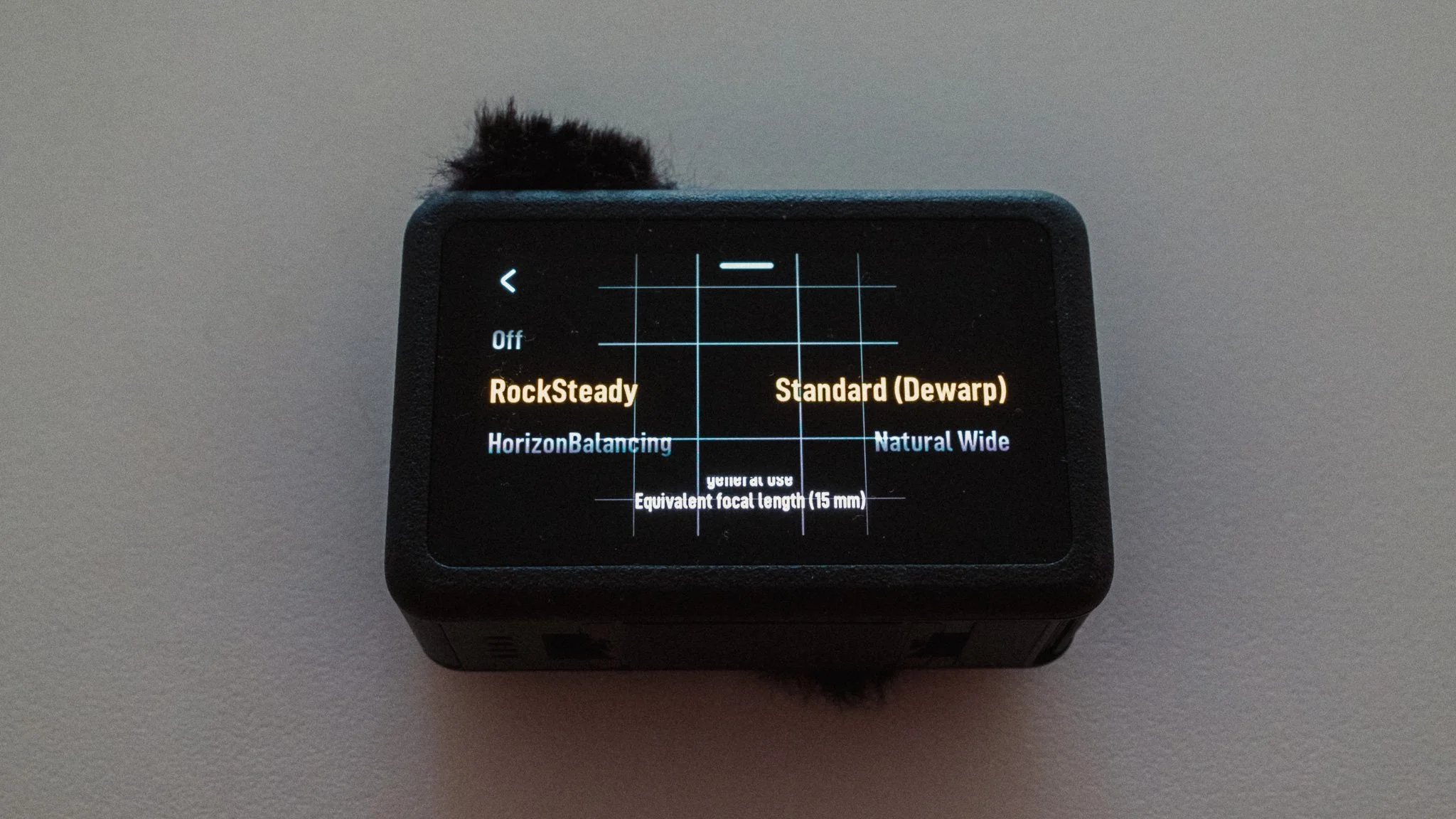
For stabilisation I use RockSteady along with Standard (Dewarp) mode. This gives me the most natural looking footage that doesn’t scream “action cam”.
Advanced Video Settings
The next thing to adjust is the more advanced video specific features that can be found by tapping on the settings icon on the right side of the screen. The first thing you must do is tap on the PRO button to enable the full list of options.
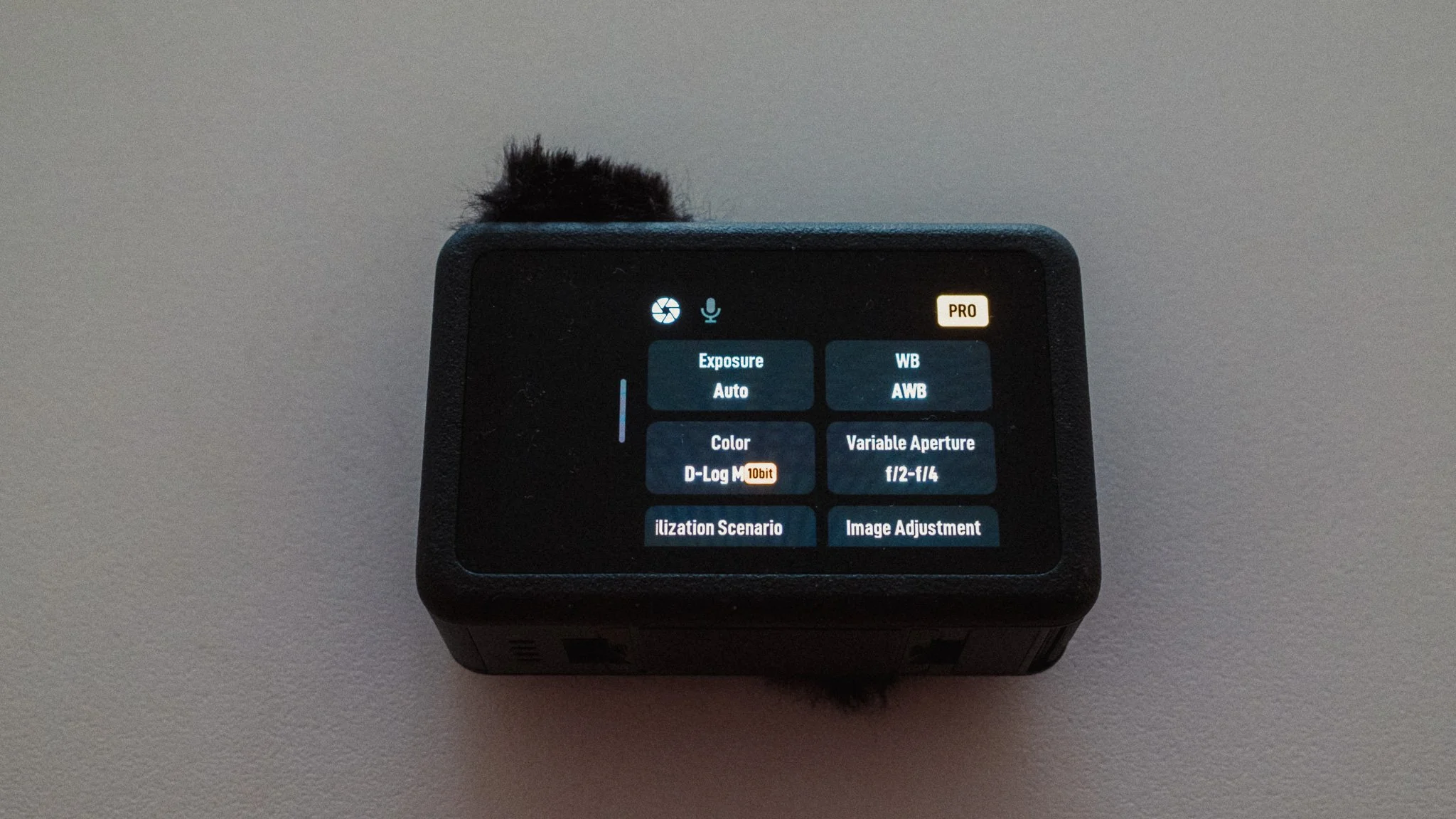
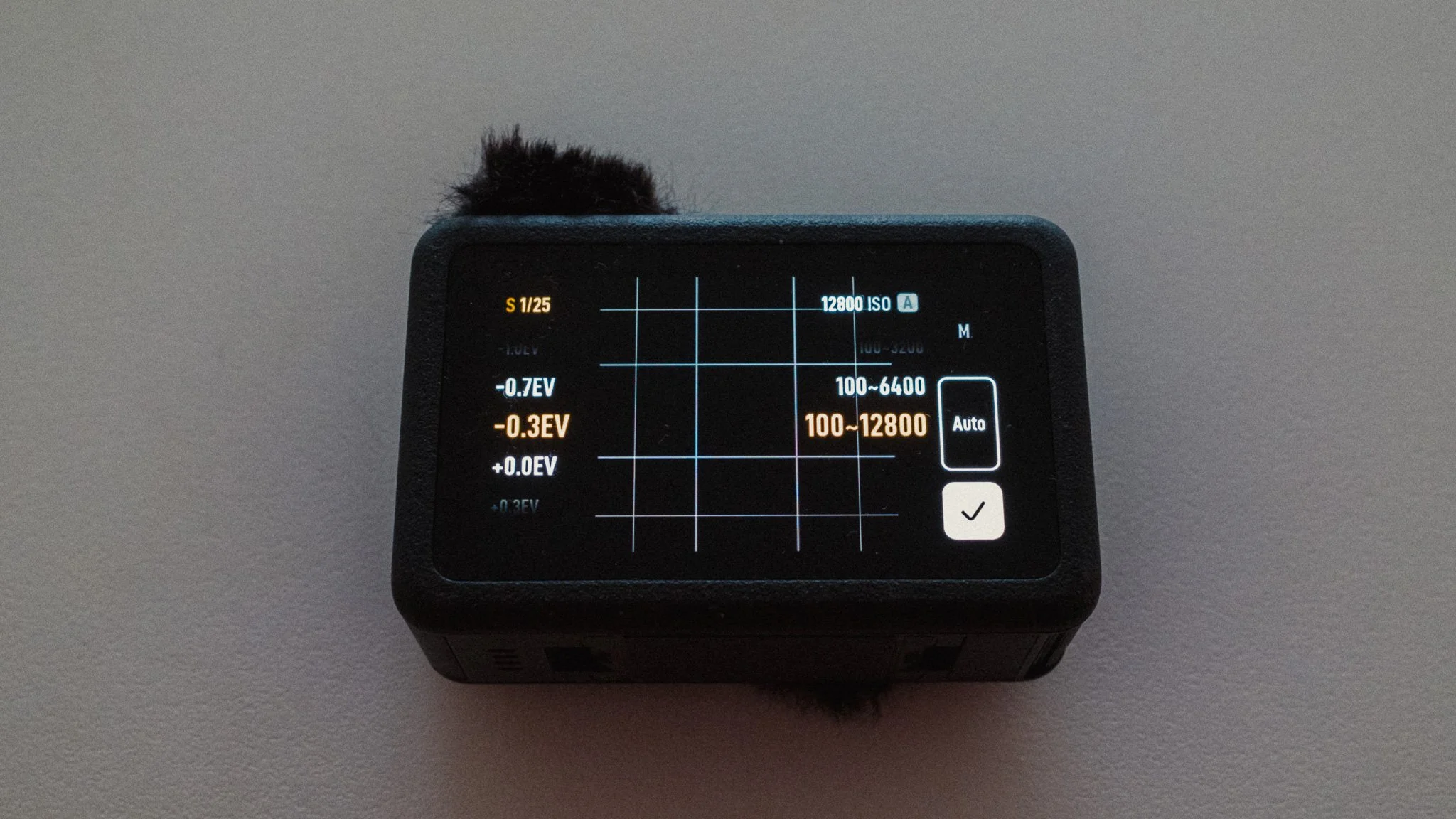
I set exposure to auto with a (-0.3EV) adjustment. I found that the default exposure is very bright, so by dropping it a touch, I get a more realistic looking image. ISO is set to Auto with a range of 100–12800.
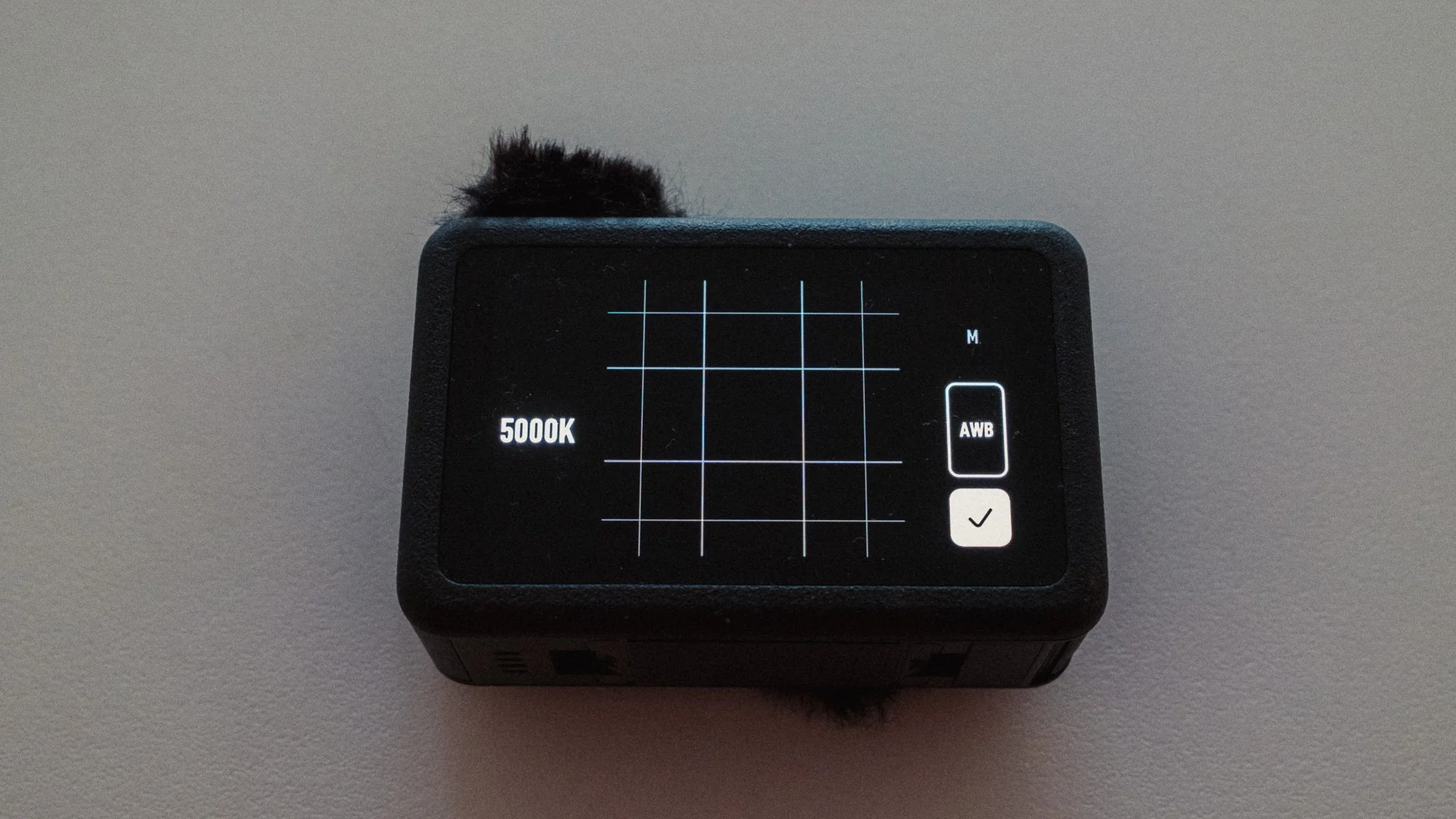
I leave white balance on Auto for most scenarios as I find the DJI Action to be accurate and reliable. With that said, for longer static takes, it can be beneficial to switch it to manual. I cover this in more detail later in the blog.
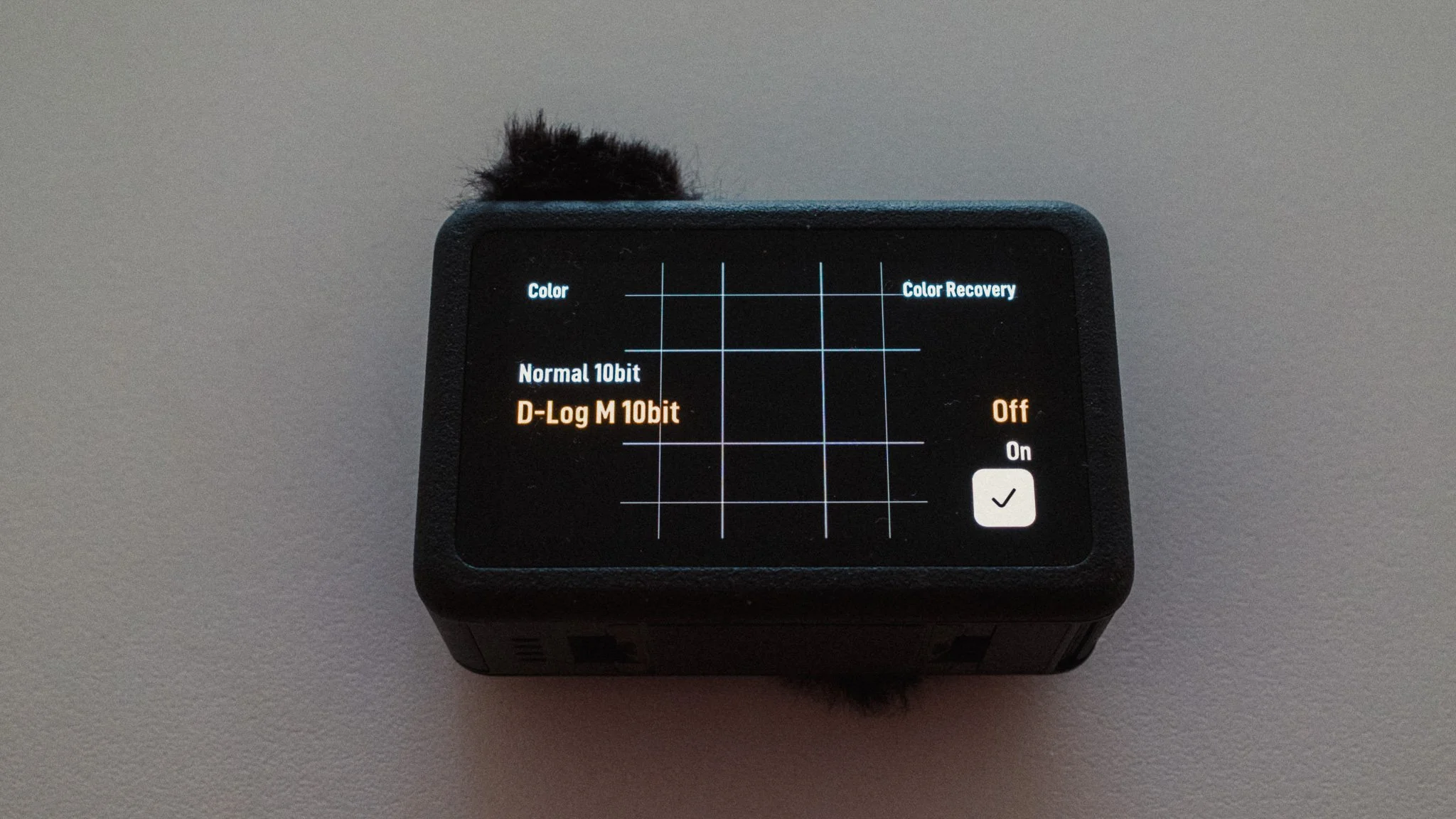
I set the colour to D-Log M 10bit to allow for colour grading and the best quality. If you don’t care for this, then you can leave it in Normal. However the D-Log profile is very good and with a good conversion LUT you can get some incredible results. Colour Recovery is off, as I’d rather a flat image to edit.
Quality Priority & Film Tone will be greyed out if you use the D-Log picture profile. Stabilisation Scenario is set to Daily.
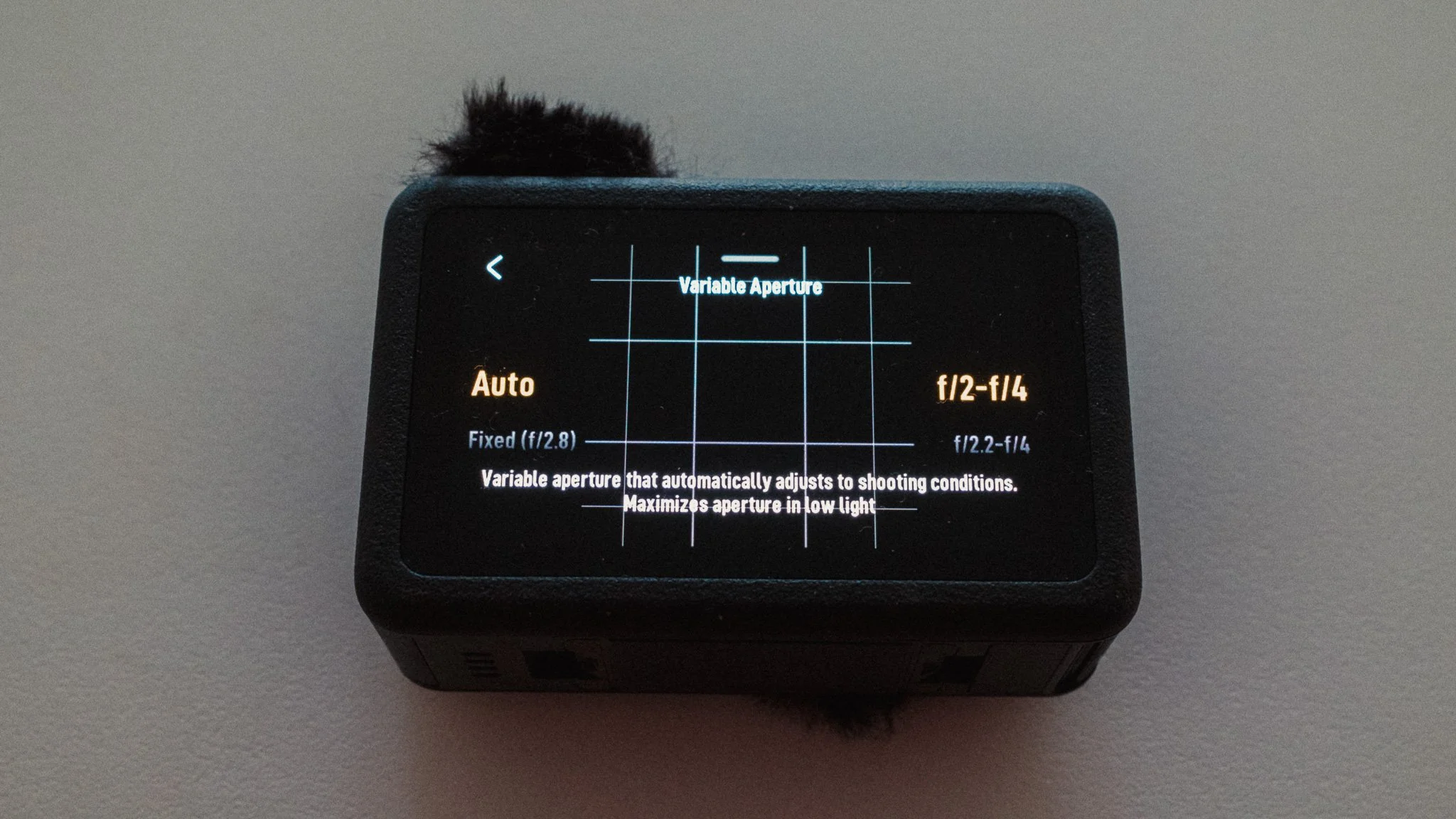
Variable Aperture is set to Auto and f2-f4. When we cover Custom Profiles, I will explain this in more detail.
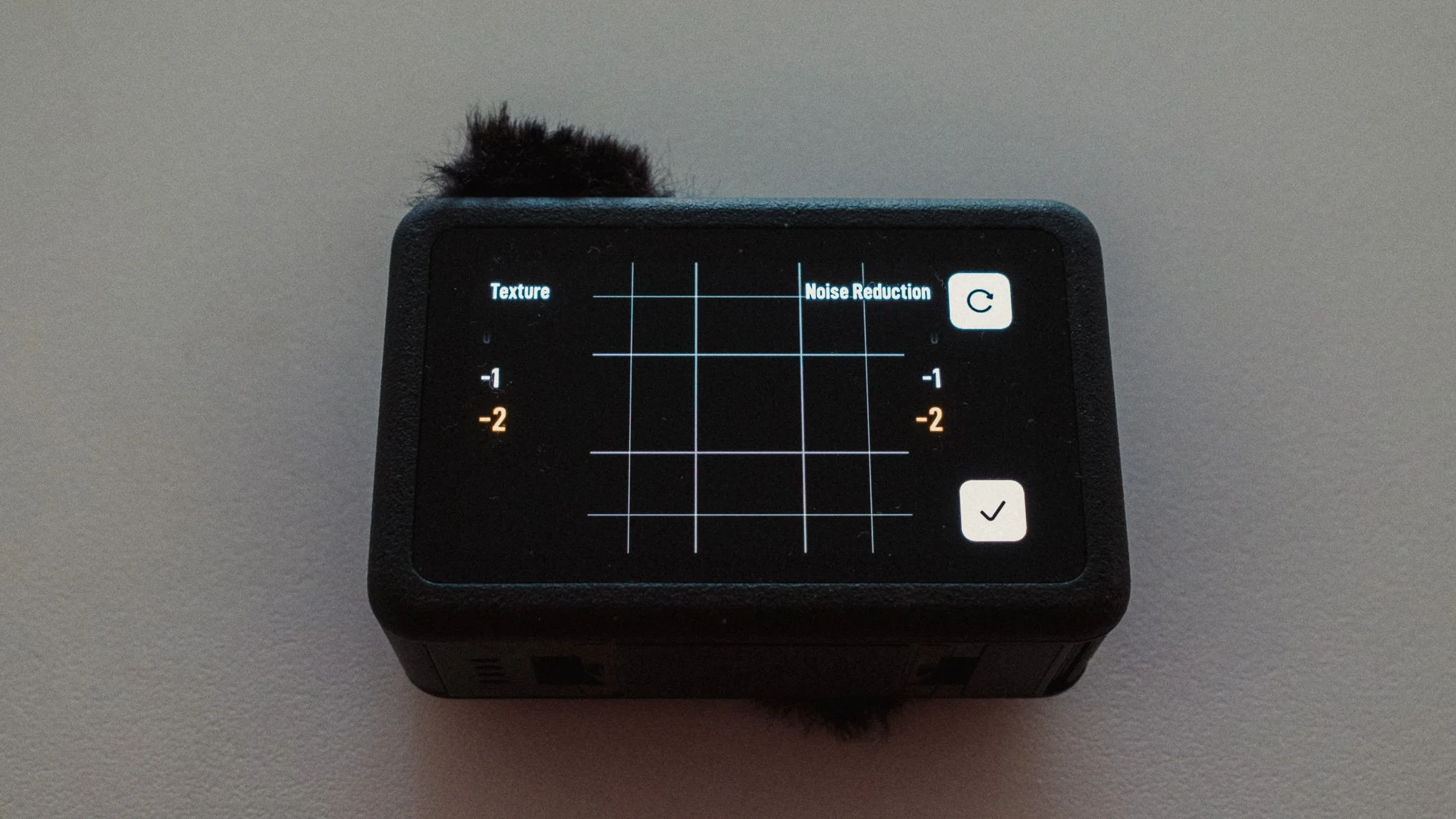
The final setting is called Image Adjustments where we need to make a few changes. Both texture and noise reduction are set to -2. I want the softest possible image out of the camera because I want to avoid that digital sharpening look that these cameras can be known for. I also don’t want any internal noise processing, as in most cases you will get better results removing noise in editing software like DaVinci.
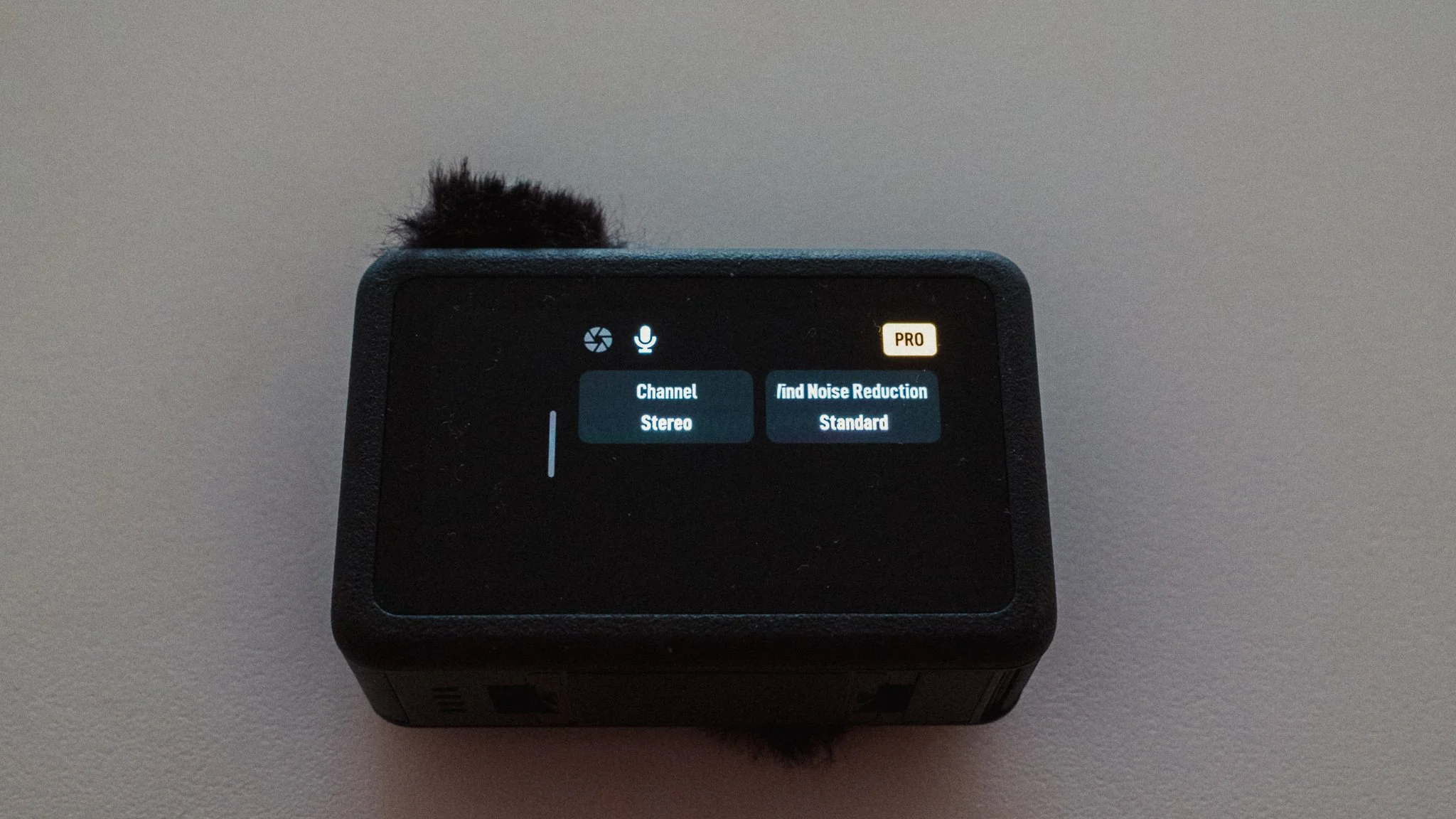
Moving to the Audio section
Channel - Stereo
Wind Reduction - Standard
Custom Profiles
You can create custom profiles for any combination of settings and save it as a shortcut. While there are endless possibilities, I have three saved that I often alternate between.
Video 1 - Full auto with 1:1 ratio. This is my go to run and gun set up where I have little to no control over the framing and want the most flexibility in editing. I also use this setting if I plan on shooting vertical video as well as horizontal.
Video 2 - Full auto with 16:9 ratio. Same as before but this is for when I have more control over the framing and I know for sure the video is for horizontal viewing.
Video 3 - Full manual with stabilisation off. Exposure and white balance are set to manual. 1/50 shutter speed and a starting ISO of 100. White balance is set to 5000K. Aperture is set to f2.6, however can be closed to f4 if in a bright environment. This is my talking head or locked off / long take setting. Whether it’s a timelapse, talking head, or a long take, this ensures the most consistent footage. Best suited for when the shot is planned and I have time.
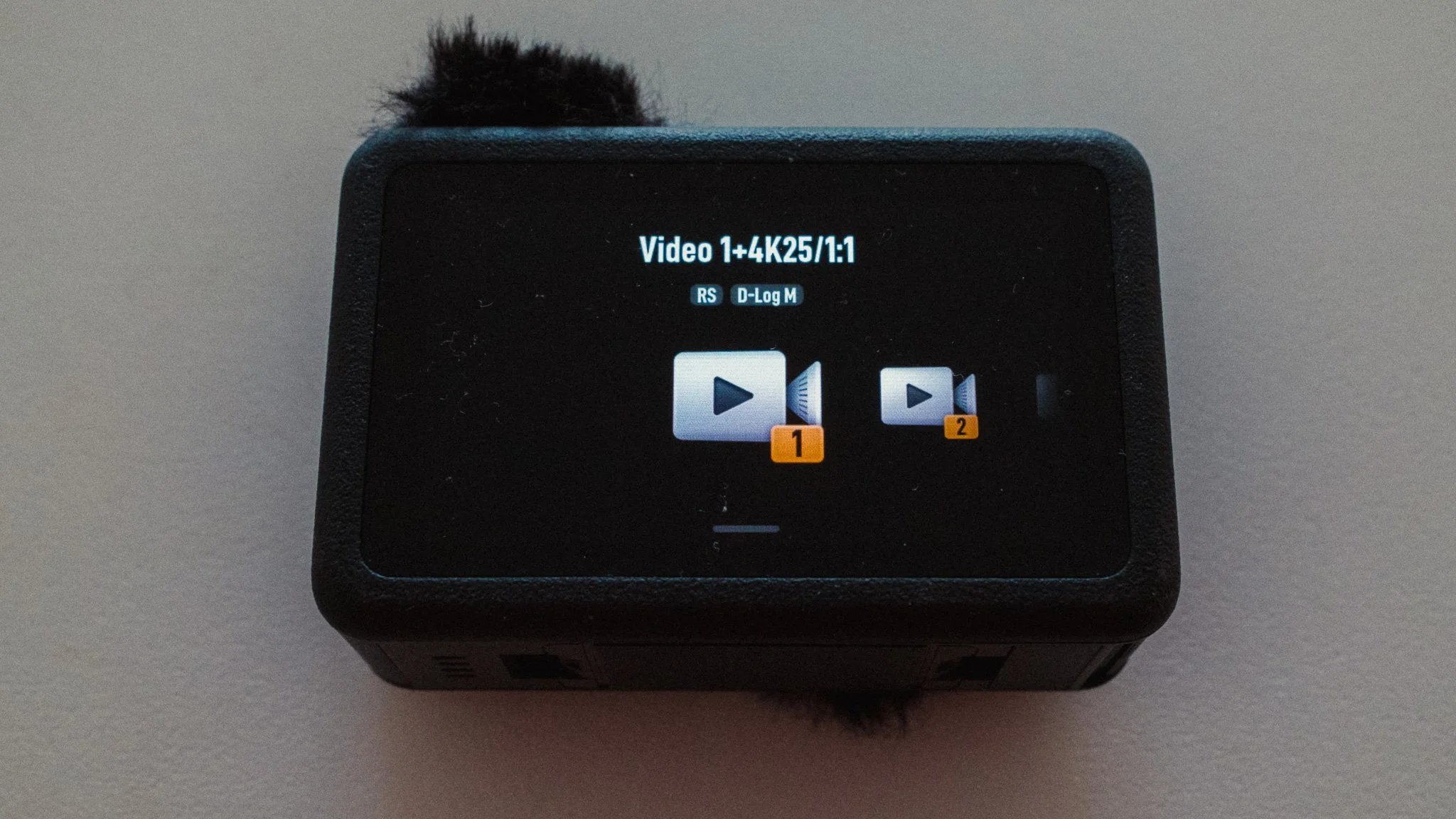
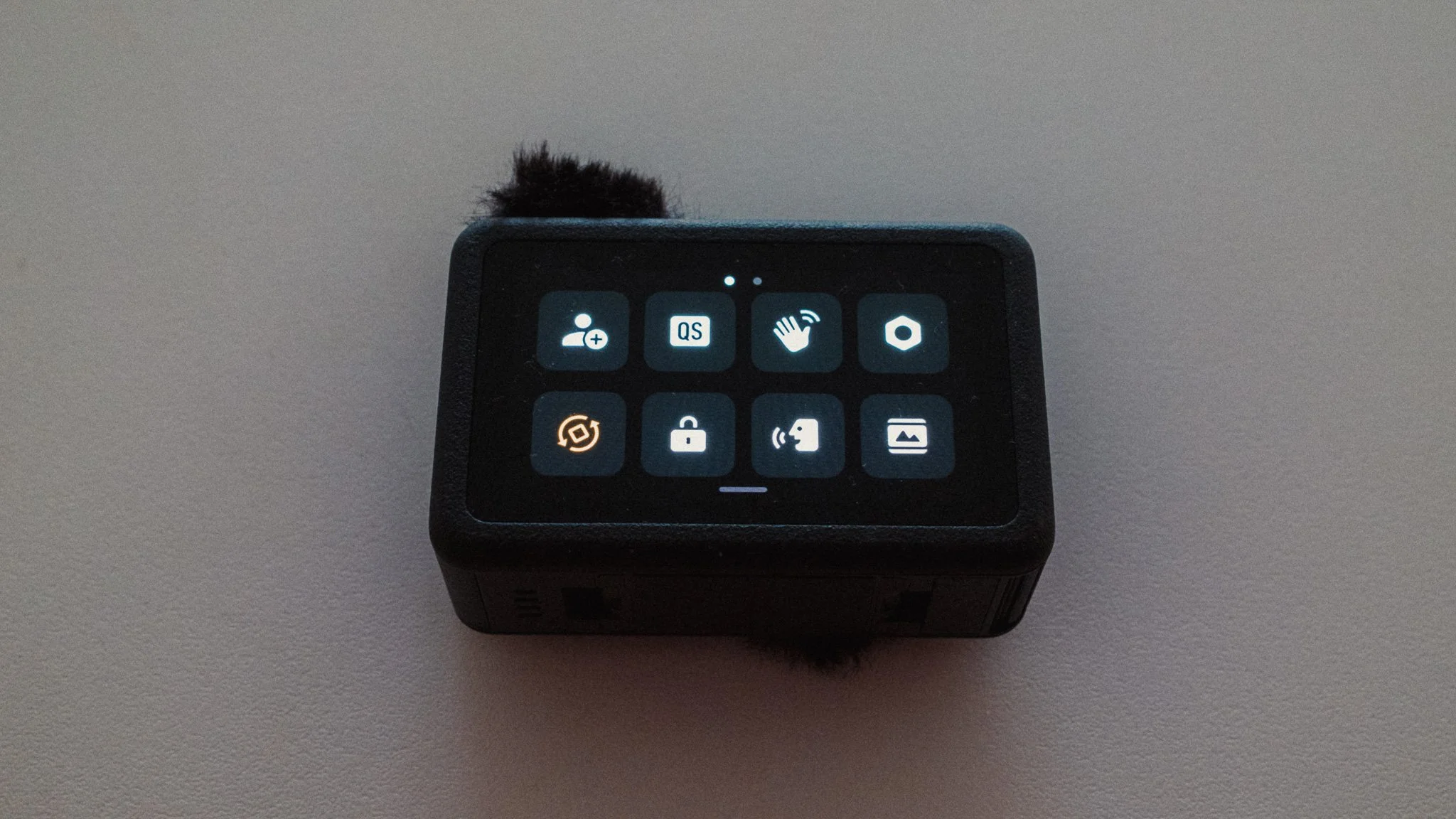
To create a custom profile, first adjust the camera as you need, then swipe down from the top and press the button in the top left. The button looks like a person with a plus sign. From there you can either create a new profile or override an existing one.
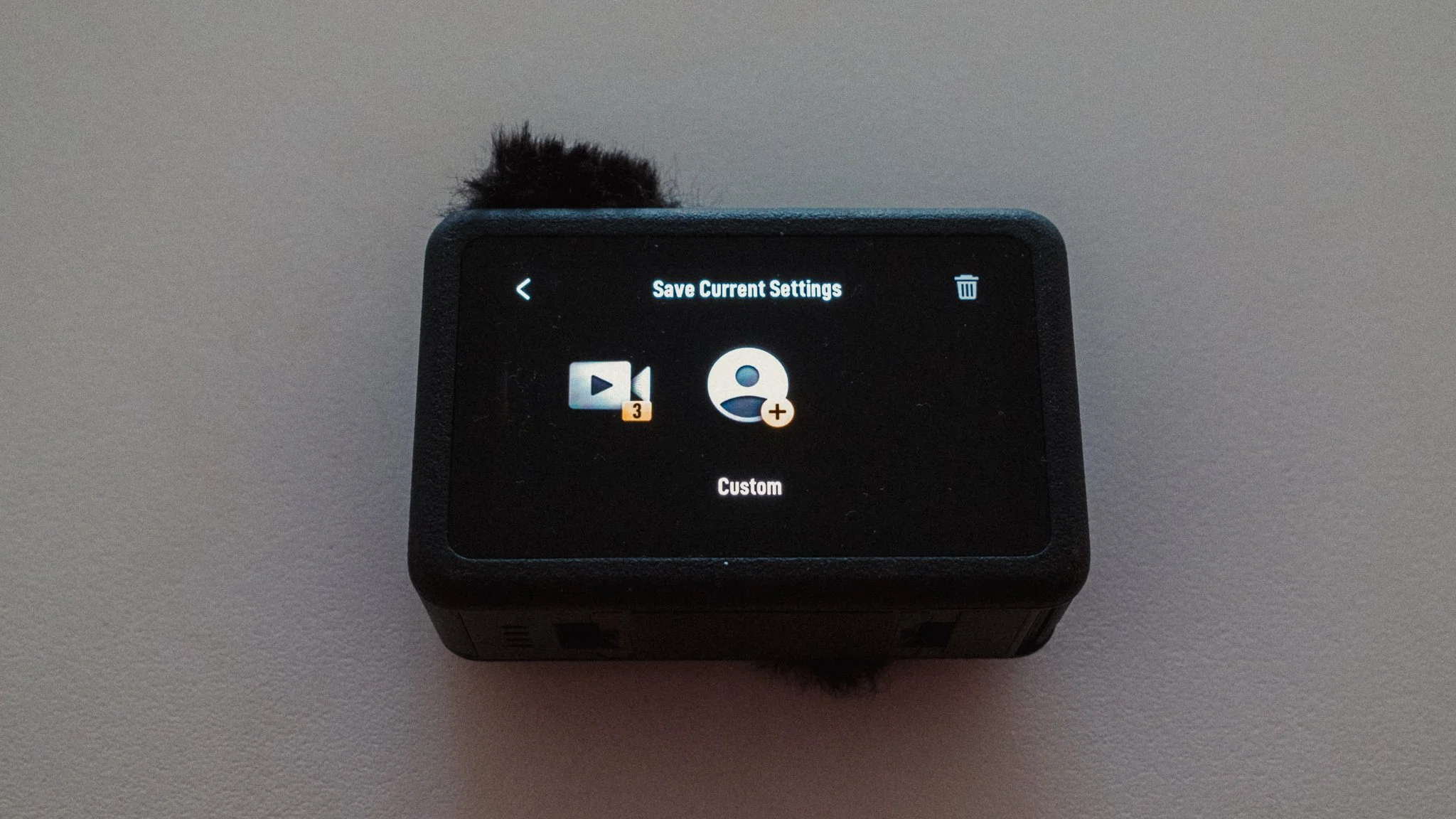
The final setting is to allow for fast switching between profiles by double pressing the QS / Power button. To set this up you need to swipe down from the top to access the menu, then press the QS Icon. This one is the second icon in from the top left. This takes you into the Quick Switch Button Settings menu.
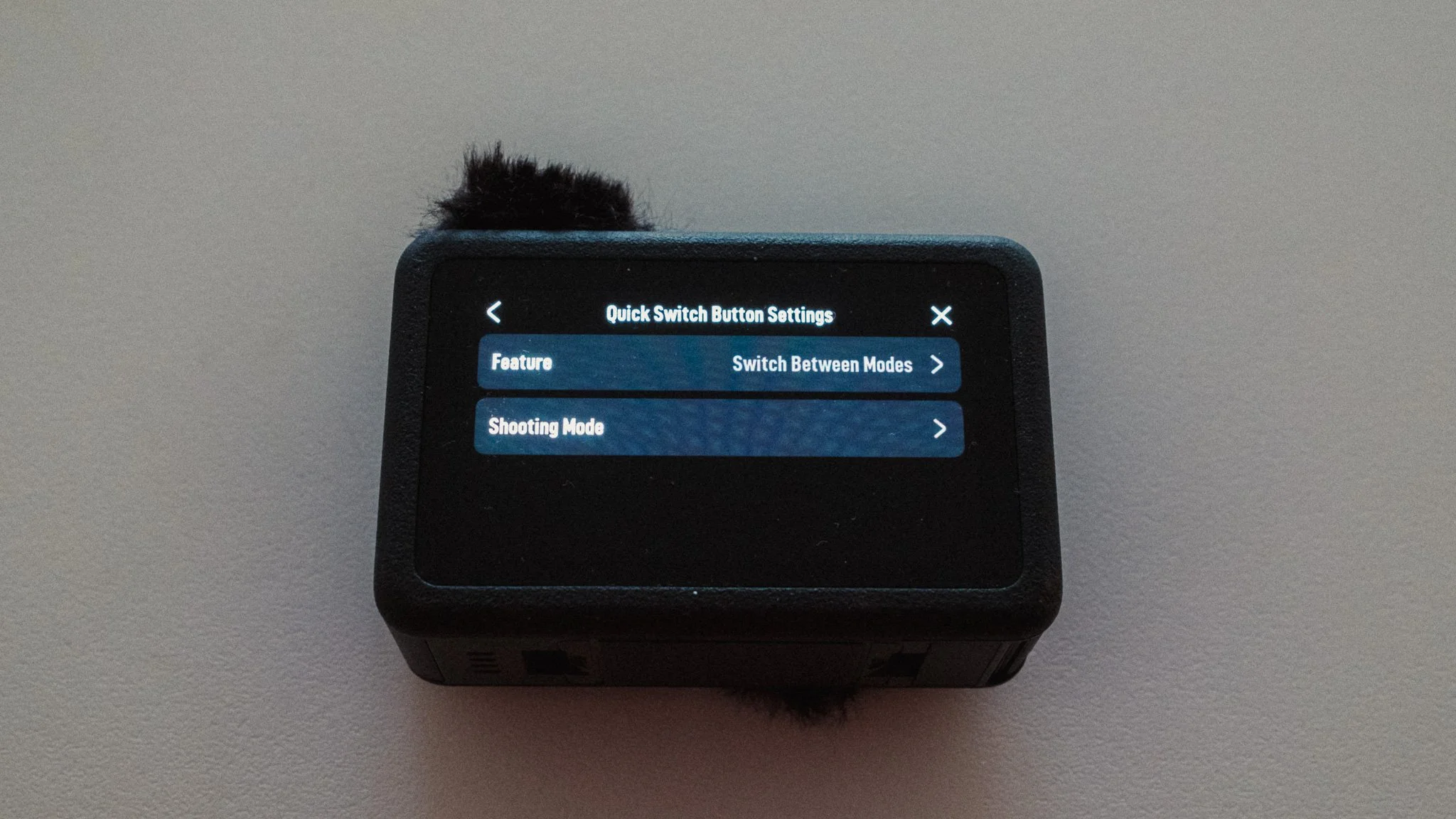
Click on the Feature menu and select Switch Between Modes.
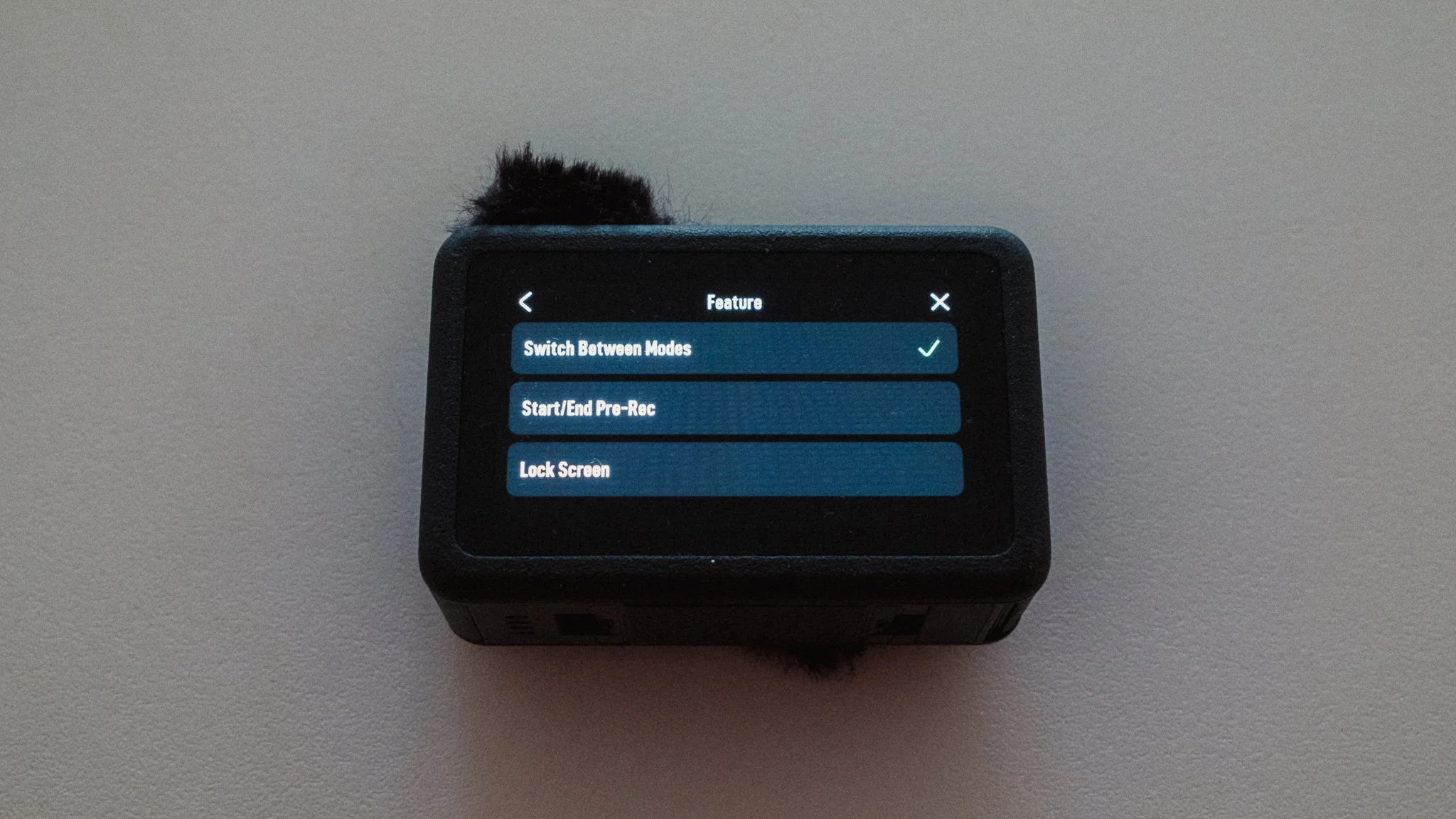
Then go back to the previous page and open the Shooting Mode menu. Set the following:
Voice Prompt - Off
Screen Switch - On
Video 1, 2, 3 - On
Everything else - Off
This will allow you to use the QS button on the side to quickly switch between screens as well as the custom modes you’ve just set up. Since I only use this as a video camera, I only have the three custom modes enabled.
Other Settings
There are some other settings which are worth mentioning. Let’s first swipe down from the top to go back to the Quick Menu:
Gesture Control - Off
Orientation Lock - On (it will lock in whatever orientation you currently have the camera)
Voice Control - Off
Full Front Screen - Off (I’d rather see the full composition)
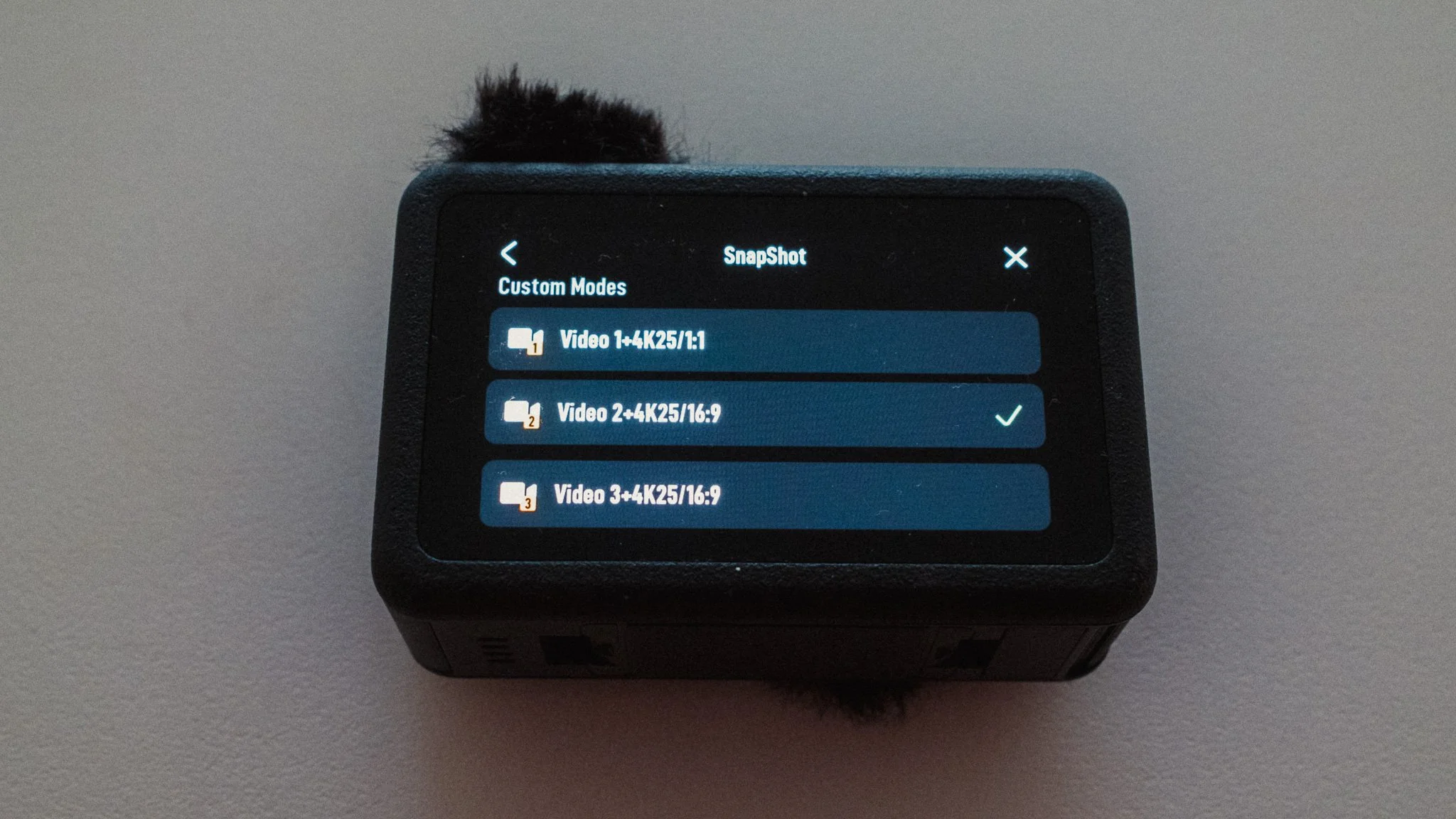
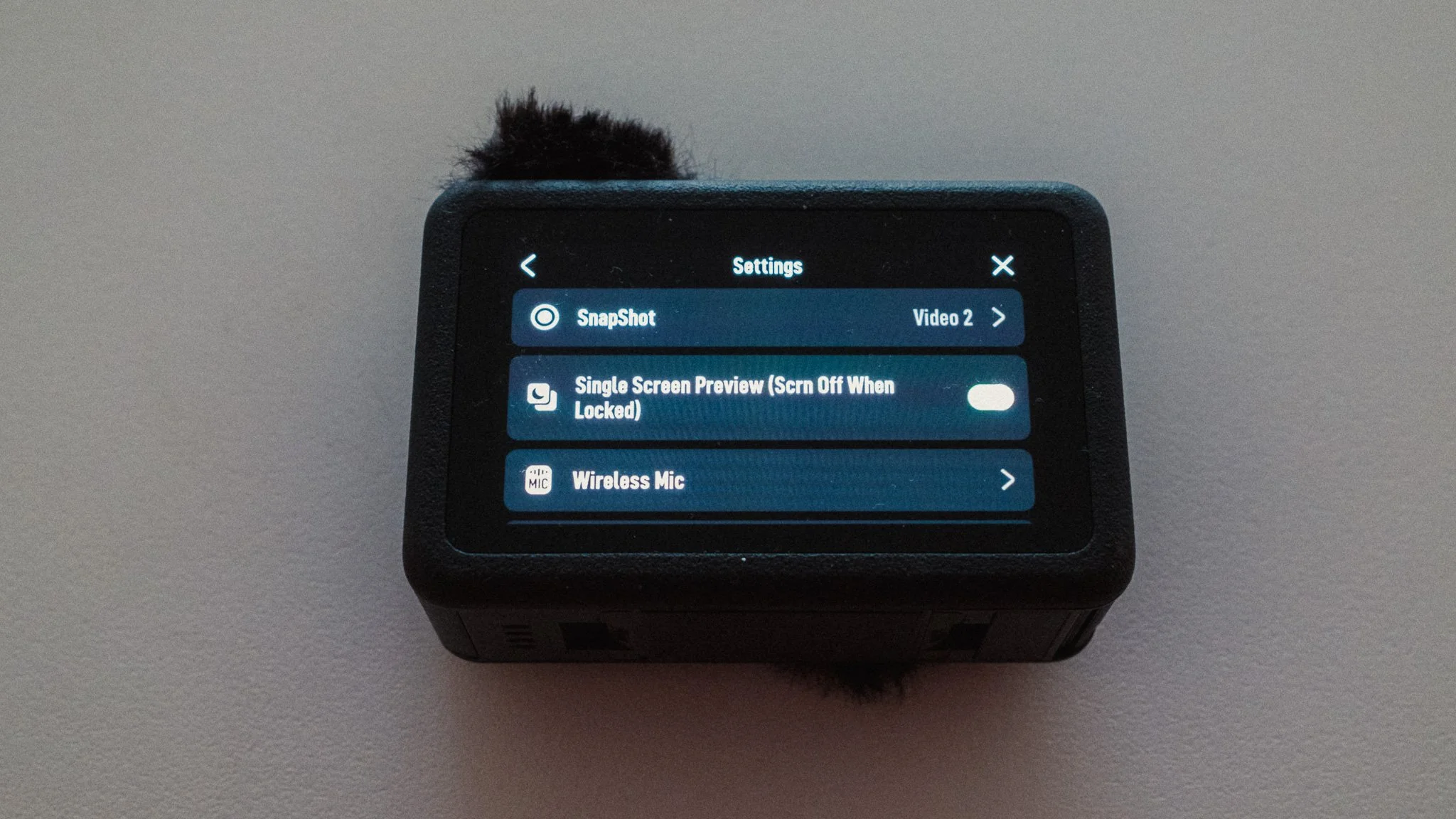
Now let’s go into the Settings menu. The first option is called Snapshot which is the video custom profile that is used when the camera is off and you press the record button once to trigger video recording. I usually set it to whatever the mode I will be using that day. If unsure, I set it to my 1:1 mode just in case.
Screen Off When Recording is set to 10 minutes. This will drain the battery faster, however it’s a price I’m willing to pay. Most of my takes are less than 10 minutes, so being able to always see the composition is more important.
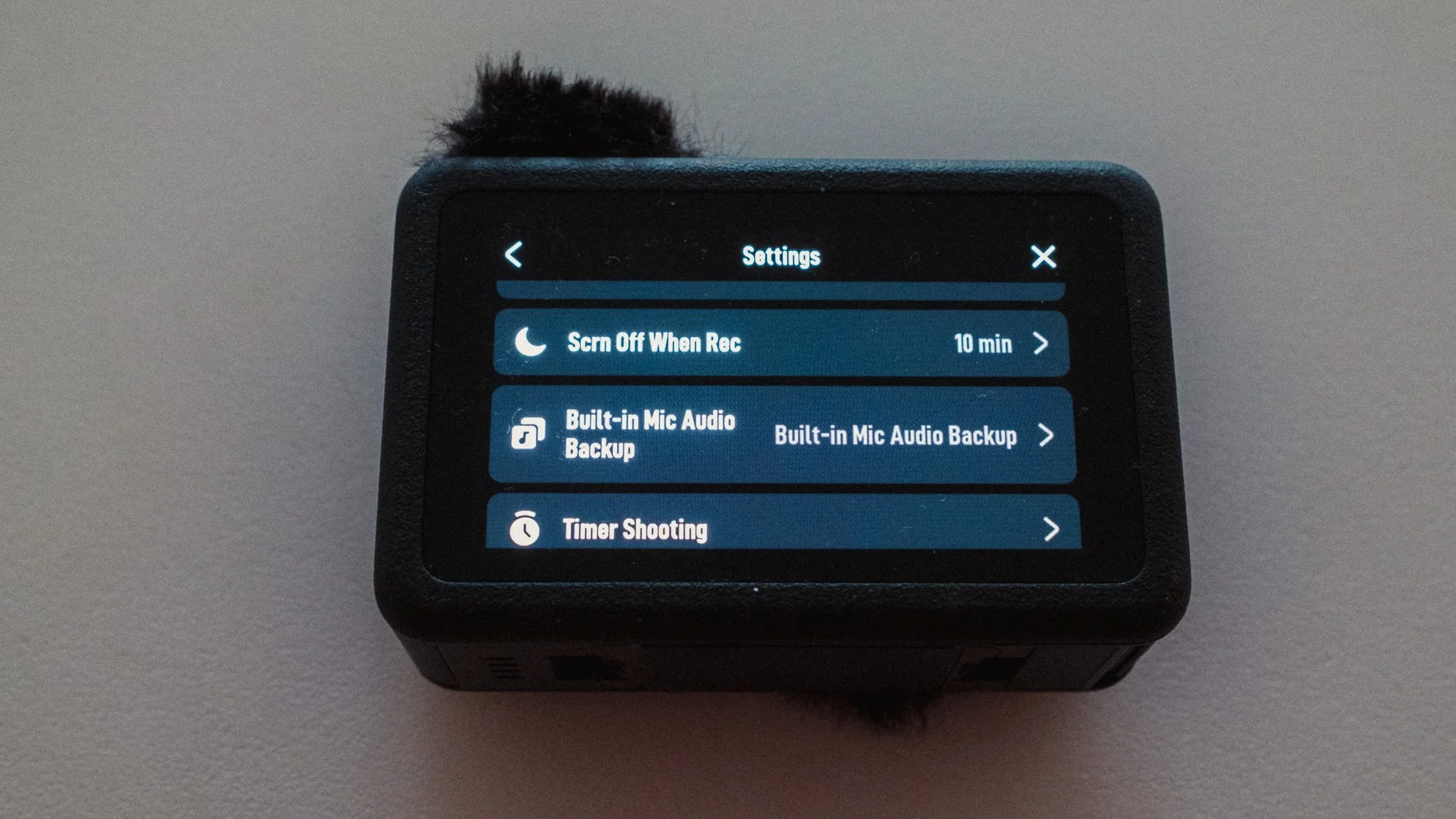
Built In Mic Audio Backup is turned on. When using an external mic, this setting will record audio on the internal microphone and keep it as a separate file on the SD card. This is great just in case you have issues with the external mic.
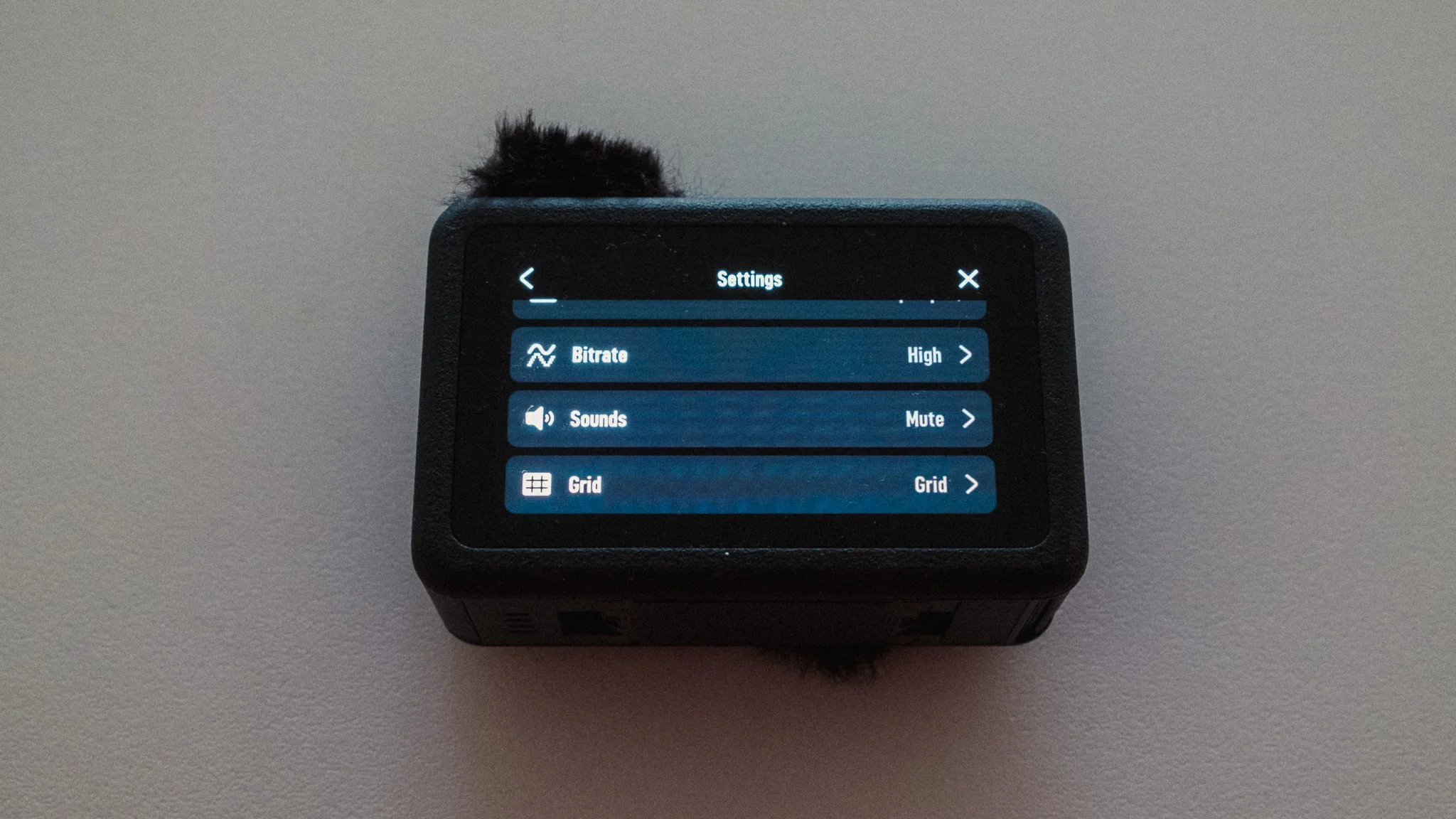
Bitrate is set to High for the best possible video quality. All sounds are muted. The last thing I want is this camera emitting random noises. I set the Reference Line to Grid to help me with composition. This is actually very useful on such a small screen.
Instead of telling you how these will change your life, I would rather be practical and answer the most common questions that people tend to have when buying presets.
What are presets?
They are editing settings that are saved in a file and can be applied to any image.
Why do people buy presets?
Sometimes because they like the work of the photographer and want that style for their own photos. Mostly because they would like to see how other people edit and learn by reverse engineering the presets. Other times it’s just to support their favourite photographers, thank you!
What’s the overall style of these presets?
- Filmic
- Warm
- Soft
- Bright
What are these presets suitable for?
Street & Travel Photography
Some Nature (with further editing)
Some Portraits (with extensive editing)
Do I actually use these?
Yes. This is the same pack I use right now for all my editing. This isn’t a pack made just to sell.
Do these presets get updated?
Yes, as my style changes, these presets will also be updated. Any time a new update is available, you will get a free update via email. Of course you also keep all the old presets in case you prefer the older looks. Only presets purchased from 2025 onwards will receive the updates.
What file types are these presets for?
- All RAW files
- JPEGs & TIFFs (not recommended)
What camera brands are these presets for?
These were designed around Fujifilm, Sony, and Leica sensors. With that said, they will work with all camera brands. While there might be differences due to individual camera colour science, the overall feel of the preset will carry over.
Will these work with JPEG files?
Yes, but you will need to reduce the intensity and make further edits. I strongly recommend editing RAW files.
Are these one click edits?
95% No. You would need to do some basic adjustments as each image is different. These adjustments can include exposure, colour balance etc. In 5% of cases you can just apply and leave it alone.
Do I need to know how to edit?
You need to have a basic understanding of adjusting exposure, highlights, shadows, etc. A more comprehensive editing skillset will let you get the most out of them.
How many presets are included?
10 in the main pack and 24 in the extras pack
Why two packs?
The main pack is what I use for 99% of my edits and is kept small to reduce wasted time scrolling through presets. The extras pack is everything I don’t use often.
What software do I need?
These presets will work with any of the following:
- Photoshop (adobe camera raw)
- Lightroom Classic
- Lightroom Desktop
- Lightroom Mobile
Will these presets work with free versions of the above software?
You need to research and double check before buying. These presets were designed for the full paid versions.
Will these presets work with very old versions of the above software?
You need to research and double check before buying. These presets were designed on and for the latest software.
What file type do I get?
XMP
What else do I get?
- Comprehensive PDF guide
Can I modify these and turn them into my own?
Yes! In fact I encourage you to modify them and play around. Use these to help you get your own style.
I have more questions…. What do I do?
Make a cup of tea and drop me an email on hello@snapsbyfox.com
Please note that due to the nature of digital products, refunds are generally not accepted. However, if you experience any issues, feel free to contact me and I’ll review your situation individually. You are welcome to use this product for personal or commercial projects, but you may not copy, distribute, or resell the files in their original or modified form.
Finally I want to say a massive thank you for supporting me. Buying these presets is the most direct way you can support my work.
Thank you!