
Capture One vs Lightroom… Which One Is Right For You
In the world of photo editing there are two main giants. Lightroom and Capture One. They both have a dedicated following and offer plenty of features for everyone from beginner to pro. Over the last 5 years I have used both exclusively and in combination before settling with Lightroom. However in this blog I will share my honest thoughts on which one is right for you based on my personal experience. I will be comparing Capture One Pro with Lightroom. NOT Lightroom Classic. Lightroom classic is a dinosaur that I think will slowly die away. The normal Lightroom now has almost all the key features. On that note, this blog is being written in October 2023. Both of these are adding new features all the time so many things much change in a couple years or so.


Pricing & Updates
Originally the main attraction of Capture One was a one off payment for their software. However over time they have moved to a subscription model just like Adobe. They still offer a one off purchase option however it’s at a pretty inflated price that is only worth it if you plan to not update for a few years. Personally if I was solely using Capture One, I would have a subscription and always have the latest features. The Adobe model is the same as always. Over the years I have been paying attention to update cycles and types of updates. In my opinion I found that Adobe has overall added more useful features and optimised the software more than Capture One. As it stands in October 2023, the basic Lightroom package costs £120 a year and Capture One comes out at £180. They key thing to keep in mind is that the Lightroom package includes the iPad and iPhone apps. For Capture One it is extra…
Interface & Performance
Lightroom still has the cleanest and simplest interface. It’s easy to navigate and gets out of your way. It’s very hard to get lost or confused and everything is pretty self explanatory. On the other hand Capture One has a very complicated interface that would need to be set up for individual needs and workflows. For beginners it can be incredibly overwhelming and confusing with a steep learning curve. However you can customise it to almost any layout you wish and make it incredibly powerful. On the other hand, the Lightroom interface offers almost no customisation whatsoever.
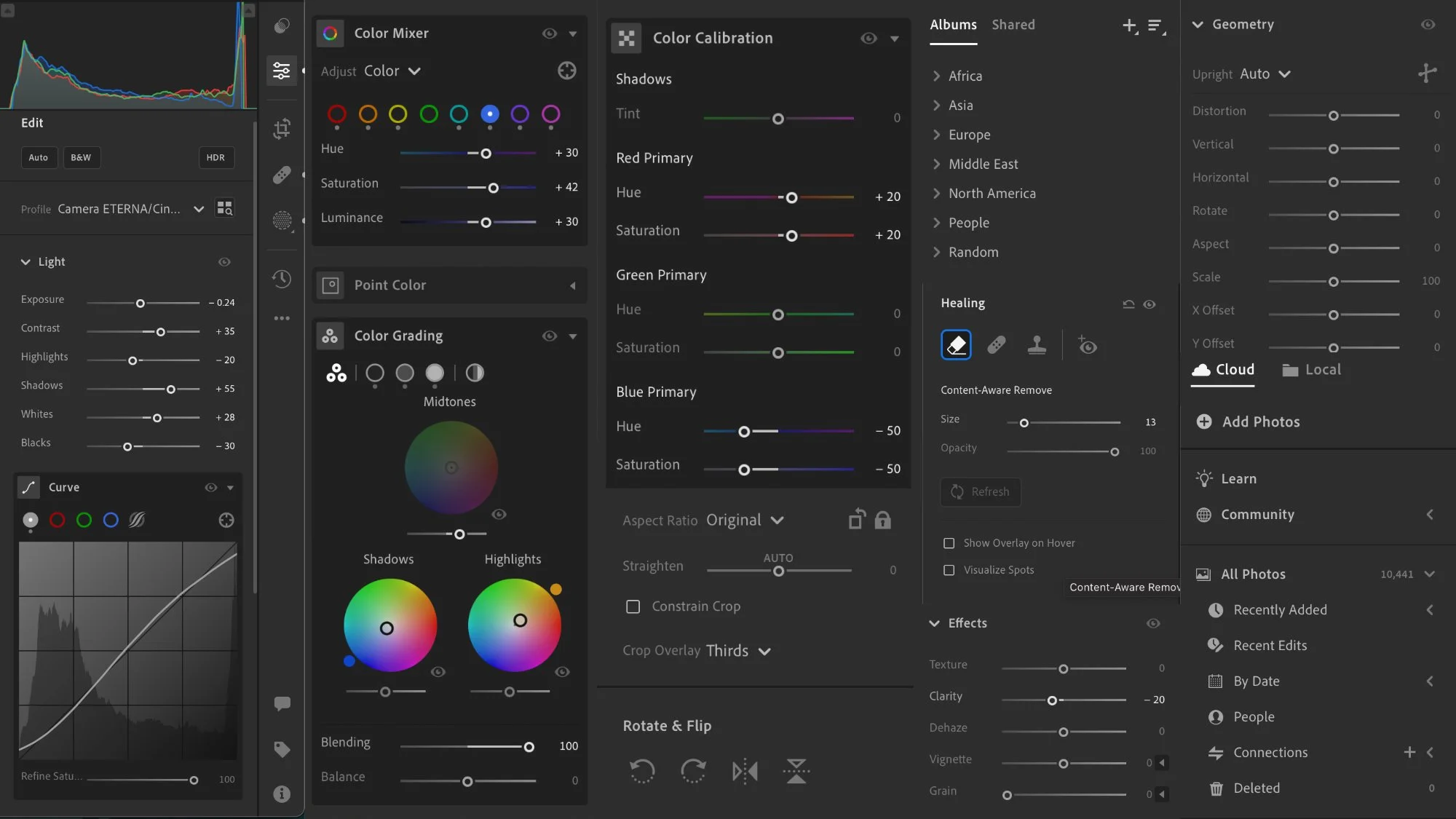

As for performance, I can only speak from an M2 MacBook Pro users perspective. I find Lightroom to be overall a little smoother and more optimised. Capture One seems to be a little more jerky and not as smooth. However Lightroom can bog down after long use and would need restarting to get back to normal performance.
Tethering
Capture One is still the king of tethering hands down. If you do any tethering whatsoever, Capture One is the clear and only choice.
Storage
Capture One is an old school editor where it can store files within a library or have a library reference files stored elsewhere. There is no cloud backup or storage at least now. There is some cloud functionality for the iPad app but that’s heavily limited. Lightroom is a full cloud library, meaning the entire library lives in the cloud. Lightroom also has an external storage option where it can reference files stored on an external drive like Capture One. The cloud option is incredibly useful as I will discuss in the next section. One big difference between the two is that in Capture One you can create multiple libraries and even sessions. In Lightroom you only have one library. This might or might not be a huge deal breaker depending on your workflow.


Devices
This is where Lightroom is years ahead. The iPad and iPhone apps have about 90% of the functionality with more being added all the time. You can easily use these apps as your main photo editors and catalogues. Furthermore you can access your library through Adobe’s online portal on any computer. I have used the iPad app as my main editor for over a year and know photographers who do all their editing on the iPhone app. The cloud system really is outstanding. Not to mention everything is seamlessly synced. On the other hand Capture One is still a long way behind. Their iPad and iPhone apps feel like they are still in Beta and are very limited.


Image Culling, Search & Selection
Capture One has a more old school approach to culling and selection although it does have some neat tricks like the AI based grouping of similar photos. Also Capture One simply has more ways for tagging photos such as with colours. However I personally find the basic system in Lightroom to be more than enough. I never needed anything more than flag, reject and a star rating.


Where Lightroom takes a huge leap is the search tool. You search for anything that might be within a photo and it will find it. For example searching dog will bring up dogs. Searching bus will bring up busses. Also you can easily start typing the focal length, camera make or lens and it will filter by that criteria.


Editing Tools
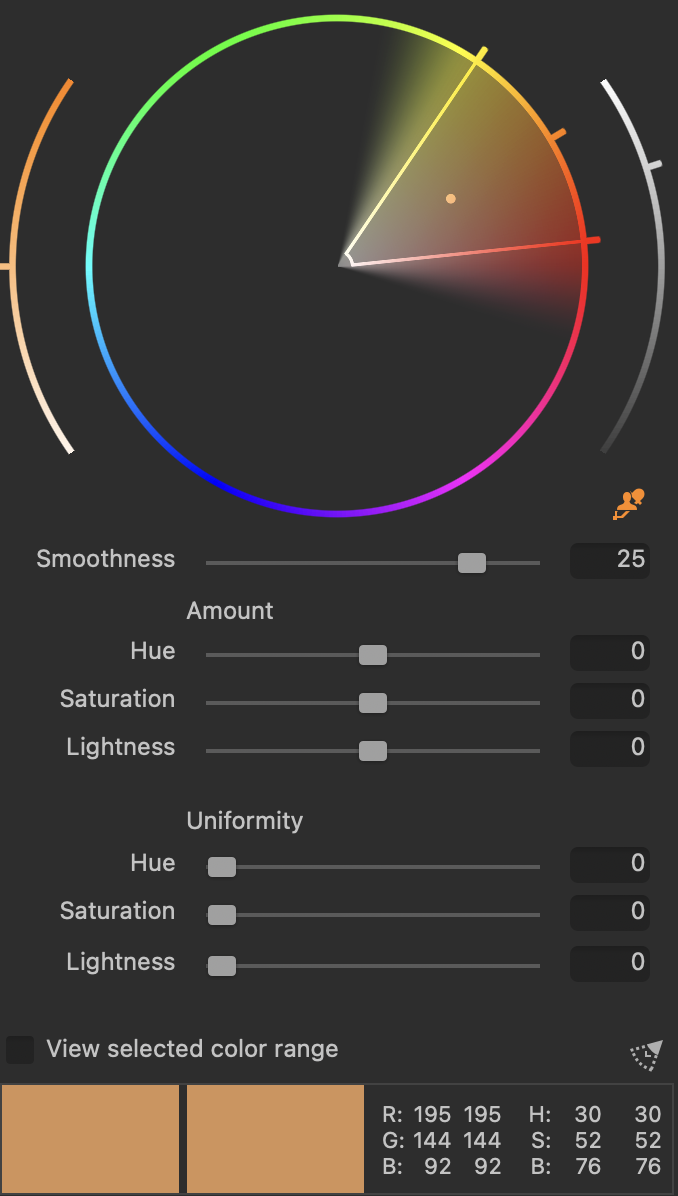
A while ago I would have said that Capture One had more advanced tools. It still does to a degree however Lightroom has been adding more tools that most people would actually use. For example the AI auto select tools are a huge time saver. The mask tools are great and now we also have point colour for precise colour selection. With all that said, Capture One still has more tools and more advanced ways of using them. Personally, one thing I wish would come to Lightroom is the layer feature. The skin tone selection in Capture One is great and I am sure would eventually come to Lightroom. One thing I wish Capture One had is the Camera Calibration tool… maybe one day. Finally Lightroom’s resolution, raw enhance and AI de-noise features are very good.




RAW Engine & Colour
This is the most subjective section and many might disagree however I find Lightroom to produce more pleasing tones and colours. I think Lightroom handles highlights much better and produces a softer and more pleasing result. Capture One is more clinical, clean and sharp. Not to say that is bad, for many commercial purposes Capture One might be better, I just personally don’t find the results very pleasing from an artistic perspective. It’s also worth mentioning I shoot in Fujifilm RAW and Apple ProRAW. For other files it might be different.

Lightroom

Capture One
Lightroom Strengths
Simple / clean interface and workflow. Has all the editing tools that most people would use. Amazing cloud sync and backup. Great iPhone and iPad apps with 90% of the features. Subjectively better RAW processing. Superior search functionality.
Lightroom Weaknesses
Lack of workspace customisability. You are limited to just one library for both on and offline. Locked into their system and monthly payments with no option of buying the software. Rubbish tethering.
Capture One Strengths
Advanced editing tools, layers and workspace customisation. The only real tethering choice. Ability to purchase without subscription. Ability to create multiple libraries and sessions.
Capture One Weaknesses
No online backup or storage support. Mobile apps are heavily limited. Interface can be extremely overwhelming and would require customisation. Can feel a little clunky to use. Lacking AI features like subject or sky selections. RAW processing can be too clinical (subjective).
Lightroom > Capture One
Lightroom is a better choice for most people especially those who like to work on the go and have their library available online. Lightroom has an easier interface and more useful tools for most people. I find that it is much quicker and easier to get to an end result I am happy with in Lightroom compared to Capture One. If you like to work on an iPad or iPhone, Lightroom is the only choice really.
Capture One > Lightroom
Capture One is better suited to freelance professionals who tether and shoot commercially. It has more advanced features that only a small fraction of photographers would need. It has a very extensive and customisable workspace that can be adapted to different scenarios. Finally the ability to create multiple libraries and sessions lends Capture One to commercial use.


Instead of telling you how these will change your life, I would rather be practical and answer the most common questions that people tend to have when buying presets.
What are presets?
They are editing settings that are saved in a file and can be applied to any image.
Why do people buy presets?
Sometimes because they like the work of the photographer and want that style for their own photos. Mostly because they would like to see how other people edit and learn by reverse engineering the presets. Other times it’s just to support their favourite photographers, thank you!
What’s the overall style of these presets?
- Filmic
- Warm
- Soft
- Bright
What are these presets suitable for?
Street & Travel Photography
Some Nature (with further editing)
Some Portraits (with extensive editing)
Do I actually use these?
Yes. This is the same pack I use right now for all my editing. This isn’t a pack made just to sell.
Do these presets get updated?
Yes, as my style changes, these presets will also be updated. Any time a new update is available, you will get a free update via email. Of course you also keep all the old presets in case you prefer the older looks. Only presets purchased from 2025 onwards will receive the updates.
What file types are these presets for?
- All RAW files
- JPEGs & TIFFs (not recommended)
What camera brands are these presets for?
These were designed around Fujifilm, Sony, and Leica sensors. With that said, they will work with all camera brands. While there might be differences due to individual camera colour science, the overall feel of the preset will carry over.
Will these work with JPEG files?
Yes, but you will need to reduce the intensity and make further edits. I strongly recommend editing RAW files.
Are these one click edits?
95% No. You would need to do some basic adjustments as each image is different. These adjustments can include exposure, colour balance etc. In 5% of cases you can just apply and leave it alone.
Do I need to know how to edit?
You need to have a basic understanding of adjusting exposure, highlights, shadows, etc. A more comprehensive editing skillset will let you get the most out of them.
How many presets are included?
10 in the main pack and 24 in the extras pack
Why two packs?
The main pack is what I use for 99% of my edits and is kept small to reduce wasted time scrolling through presets. The extras pack is everything I don’t use often.
What software do I need?
These presets will work with any of the following:
- Photoshop (adobe camera raw)
- Lightroom Classic
- Lightroom Desktop
- Lightroom Mobile
Will these presets work with free versions of the above software?
You need to research and double check before buying. These presets were designed for the full paid versions.
Will these presets work with very old versions of the above software?
You need to research and double check before buying. These presets were designed on and for the latest software.
What file type do I get?
XMP
What else do I get?
- Comprehensive PDF guide
Can I modify these and turn them into my own?
Yes! In fact I encourage you to modify them and play around. Use these to help you get your own style.
I have more questions…. What do I do?
Make a cup of tea and drop me an email on hello@snapsbyfox.com
Please note that due to the nature of digital products, refunds are generally not accepted. However, if you experience any issues, feel free to contact me and I’ll review your situation individually. You are welcome to use this product for personal or commercial projects, but you may not copy, distribute, or resell the files in their original or modified form.
Finally I want to say a massive thank you for supporting me. Buying these presets is the most direct way you can support my work.
Thank you!