
MacBook Pro VS iPad Pro For Photography in 2025
It’s been 3 years since I made a MacBook vs iPad Pro comparison for photographers, and while much hasn’t changed, there have been some updates that are worth discussing. In this blog, I will compare the two devices with photographers being the target user. So if you’re wondering - what’s better, MacBook or iPad Pro for photography, this blog is for you. Spoiler alert - Mac wins.
It’s worth noting that I have been a MacBook Pro and iPad Pro user for many years. I had spells where I only used a Mac and periods where the iPad was my main computer. I am also a professional photographer and use the devices daily to organise, edit, and publish my work. Although this is aimed at the more generic user experience, I am comparing my 14” M2 MacBook Pro and 11” M4 iPad Pro. Both running the latest software as of January 2025.
Finally, this won’t be a specific performance comparison because it’s obvious that the MacBook will outperform the iPad solely based on thermals even if the internals are the same. This comparison is more about the overall user experience and not which device can export 1000 photos quicker.

Hardware & Performance
Both devices are well built and will last a long time, but this isn’t a surprise. If you want the best performance, then there is no option other than the Mac. Even if you get the top-end iPad, it will always be limited by thermals in such a small device. The MacBook has more area to dissipate heat and fans to speed up that process. This results in more consistent performance at the top end where the devices can bog down. A good example is when batch exporting files, generating previews, or carrying out any rendering.
The Mac has an outstanding keyboard and trackpad. There isn’t really anything I’d improve about it at all. You also get an SD card slot, HDMI port, headphone jack, charging port, and three Thunderbolt USB-C ports.
On the iPad, you don’t get much, just one (slower) Thunderbolt USB-C port. If you want to expand the capability, you’d need a dongle. Of course, if you want the full experience, you would also need to purchase the Magic Keyboard and an Apple Pencil. While most apps are touch-optimised, quite a few still benefit from having a keyboard and trackpad. I briefly tried third-party options and found them subpar, so I can only suggest the genuine Magic Keyboard.

Displays
Both devices now have outstanding displays, and while there are some technical differences, the end result is pretty much the same. Both look fantastic for photo editing and are extremely colour accurate. With that said, the Mac display can be further calibrated by using a third-party tool for specific colour accuracy. The iPad can’t. The iPad display is very bright; however, it also heats the device up very quickly, so if you’re working on something outside, be prepared to take a hit on performance and battery life. Of course, the iPad is a touchscreen, which is a joy to use, but more on that in the next chapter.

User Interaction
This is where there is a fundamental difference in how you use the devices. The Mac is a laptop, and there is only one or two ways in which you can use it; nothing new here. The iPad is much more adaptable, and you have a few different ways you can use it. You can use it as a pure tablet with just a pen. You can add the keyboard and use it as a laptop. You can also plug it into a monitor and use it as a desktop. Lastly, you can hook it up to your Mac and use it as a touchpad or second monitor.
If the laptop experience of the iPad and Mac was closer together, I would 100% prefer the iPad experience as it’s more versatile. It’s also more fun to use. Editing photos with the pen or via touch is more fun and interactive than using a laptop. Is it more precise? I am not sure, but it’s more fun.
Finally, I think the iPad is a more robust device if you keep it in the Magic Keyboard case. If you gouge the lid, spill something on the keyboard, or drop it, at worst, you have to replace the keyboard. With the Mac, it’s more complicated and expensive.

External Devices Support
This is where the iPad gets left behind. Put simply, the iPad doesn’t support as many external devices as the Mac. The devices it does support, it’s often not to their full capacity. For example, both support external monitors, and while the Mac works exactly the same, the iPad is limited in what you can use the external monitor for. Many apps won’t let you use it as a second display, and you will need to pointlessly mirror the device. The mirrored image won’t always use the entire size of the display either. Finally, if you were planning on shutting the iPad and sliding it out of the way, that won’t work either, at least not yet.
Another example is adding external mice that have extra features such as a Logitech MS Master. As it stands, there is no way of assigning the custom buttons. The same can be extended to external controllers, interfaces, and more. Most will work, but to a limited capacity. With that said, every hard drive and camera I tried to plug into the iPad worked without issues. Microphones also (mostly) get recognised and work as they should.

Operating System
This is where the gap is widened even more. Both have a good operating system that will do the job. However, the iPad is still very dumbed down and basic. From a file management point of view, there are still countless features that are missing, such as batch rename. While more and more is added with each software release, it’s still a long way behind.
There are also many smaller things which the iPad is lacking, such as the ability to customise the trackpad, create custom system-wide shortcuts, and much more. In many cases, you can create workarounds using third-party apps and the shortcuts app; however, this is pointless extra work for sometimes very basic tasks.
Finally, I find the Mac operating system to be more stable, especially when it comes to file management. I found the iPad will crash now and then when dealing with huge files.

Software & Apps
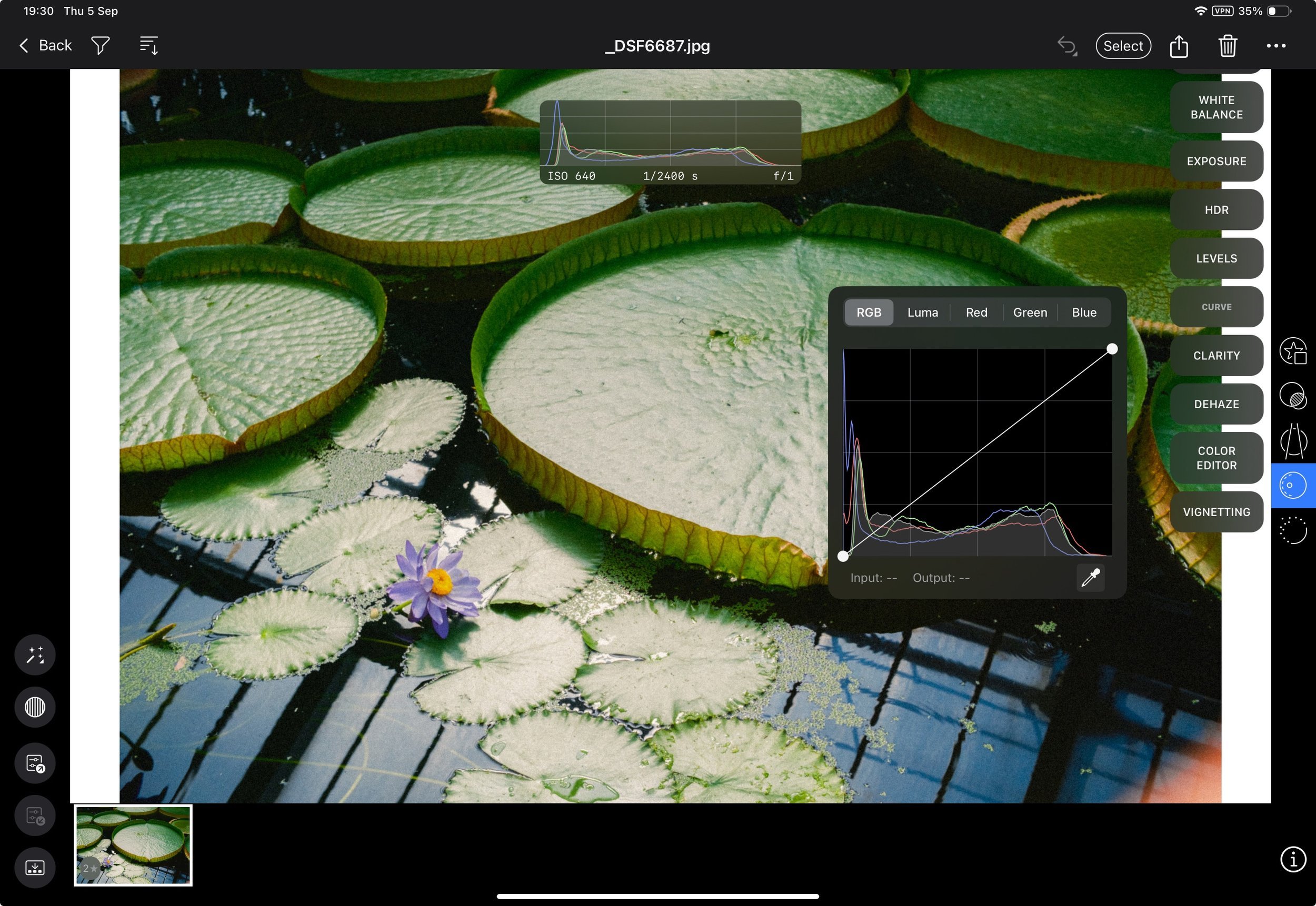
When I spoke on this topic 3 years ago, my conclusion was very different from today. As I write this, we now have legitimate iPad versions of almost all the major photo editing software, such as Lightroom, Capture One, Affinity, and Photoshop. Even niche programs such as Phocus and Luminar are being added.
While you have the software, how useful it is will depend on the user. One thing I can categorically say is that the desktop versions of the software are still the more feature-rich options. The iPad software in almost all cases is stripped back and simplified for touch or more basic workflows. Some programs like Lightroom carry over about 70% of the features; other software, such as Capture One, is a shadow of what the desktop app is.
It seems like companies are treating the iPad as a complementary device for short-term out-of-office work instead of independent devices. Furthermore, I found that just like the OS, the iPad software doesn’t seem as stable and more prone to bugs. This is especially true on apps such as Affinity. In general, you can easily get most things done on the iPad. However, if you’re a power user, you can find the iPad experience to be limiting and frustrating.
Lightroom
I will use Lightroom as my main software example because it’s what most people use. The Desktop version has everything the iPad one has; however, as of today, the iPad is missing the following (this isn’t everything, just what comes to mind as I write this):
Camera Calibration
Point Colour
HDR
Pano
Local Library
Enhance
Stacks
Full list of AI features
Edit In feature
Open images as layers or smart objects in Photoshop
Value For Money
Originally, you’d buy an iPad as a budget alternative to a MacBook Pro. Today, that isn’t really the case, as in some scenarios, an iPad Pro with similar spec can cost more than a Mac (once you factor in essential accessories). This is no longer a budget option but a luxury item. From a pure value for money perspective, an iPad Pro isn’t very good. I wish there was something I could say to increase that value, but as things stand today, I can’t.

iPad > Mac
So in what scenarios would you choose an iPad over a Mac? First of all, if you travel frequently, an iPad is simply more practical. It’s smaller, lighter, more robust, and easier to work with in tight spaces such as a budget airline or bus seat. If you plan to always work out of coffee shops, an iPad is great too. If you will be travelling light, the 11” iPad has a tiny footprint and can fit in many slings. Lastly, you can charge iPads from normal USB outlets, whereas a Mac needs a proper charger.
I would also recommend an iPad if you love working with touch screen interfaces and your workflow needs are simple. If you just like using an iPad and don’t mind the reduction in value for money compared to a Mac, then this is a good choice. Finally, if you’re like me and have a Mac as your main device, an iPad is a great backup computer you can use for shorter trips or days out.

Mac > iPad
For 90% of people, I would suggest a Mac. Even a cheaper MacBook Air will be a more practical and useful purchase. Before, this was a more evenly split decision, but now I feel that unless you clearly know you want an iPad and you have experience with both devices, then a Mac is the only way to go for most. If you find yourself frequently processing HDR images, focus stacks, and panos, then a Mac will be the only real choice. If you need all the tools Photoshop or Capture One have to offer or simply want to have all the available tools Lightroom comes with, then you need a Mac. If you plan to use external monitors and other peripherals, then I would say a Mac will give you the best experience. In short, I would recommend a Mac over an iPad.
I would like to end on an important note. Tech companies are great at making promises on future features or bug fixes. However, never make a purchase based on the potential future capability of a device. Buy a device that serves you entirely today in its current form.




Instead of telling you how these will change your life, I would rather be practical and answer the most common questions that people tend to have when buying presets.
What are presets?
They are editing settings that are saved in a file and can be applied to any image.
Why do people buy presets?
Sometimes because they like the work of the photographer and want that style for their own photos. Mostly because they would like to see how other people edit and learn by reverse engineering the presets. Other times it’s just to support their favourite photographers, thank you!
What’s the overall style of these presets?
- Filmic
- Warm
- Soft
- Bright
What are these presets suitable for?
Street & Travel Photography
Some Nature (with further editing)
Some Portraits (with extensive editing)
Do I actually use these?
Yes. This is the same pack I use right now for all my editing. This isn’t a pack made just to sell.
Do these presets get updated?
Yes, as my style changes, these presets will also be updated. Any time a new update is available, you will get a free update via email. Of course you also keep all the old presets in case you prefer the older looks. Only presets purchased from 2025 onwards will receive the updates.
What file types are these presets for?
- All RAW files
- JPEGs & TIFFs (not recommended)
What camera brands are these presets for?
These were designed around Fujifilm, Sony, and Leica sensors. With that said, they will work with all camera brands. While there might be differences due to individual camera colour science, the overall feel of the preset will carry over.
Will these work with JPEG files?
Yes, but you will need to reduce the intensity and make further edits. I strongly recommend editing RAW files.
Are these one click edits?
95% No. You would need to do some basic adjustments as each image is different. These adjustments can include exposure, colour balance etc. In 5% of cases you can just apply and leave it alone.
Do I need to know how to edit?
You need to have a basic understanding of adjusting exposure, highlights, shadows, etc. A more comprehensive editing skillset will let you get the most out of them.
How many presets are included?
10 in the main pack and 24 in the extras pack
Why two packs?
The main pack is what I use for 99% of my edits and is kept small to reduce wasted time scrolling through presets. The extras pack is everything I don’t use often.
What software do I need?
These presets will work with any of the following:
- Photoshop (adobe camera raw)
- Lightroom Classic
- Lightroom Desktop
- Lightroom Mobile
Will these presets work with free versions of the above software?
You need to research and double check before buying. These presets were designed for the full paid versions.
Will these presets work with very old versions of the above software?
You need to research and double check before buying. These presets were designed on and for the latest software.
What file type do I get?
XMP
What else do I get?
- Comprehensive PDF guide
Can I modify these and turn them into my own?
Yes! In fact I encourage you to modify them and play around. Use these to help you get your own style.
I have more questions…. What do I do?
Make a cup of tea and drop me an email on hello@snapsbyfox.com
Please note that due to the nature of digital products, refunds are generally not accepted. However, if you experience any issues, feel free to contact me and I’ll review your situation individually. You are welcome to use this product for personal or commercial projects, but you may not copy, distribute, or resell the files in their original or modified form.
Finally I want to say a massive thank you for supporting me. Buying these presets is the most direct way you can support my work.
Thank you!